Creating a new shipment in ShipSavvy is straightforward: enter the Ship From and Ship To details, add your package information, then either Save & Pay Later or proceed directly to Checkout. For U.S.-bound shipments, you’ll also need to complete a product declaration and select a customs clearance method. ShipSavvy now automatically shows the best pickup and drop-off options based on your ship-from location, making it easier to compare not just carrier rates and service levels, but also delivery-to-carrier methods. This helps you choose the fastest option for urgent shipments or the most cost-effective pickup option for less time-sensitive orders.
Step-by-step: Create a shipment
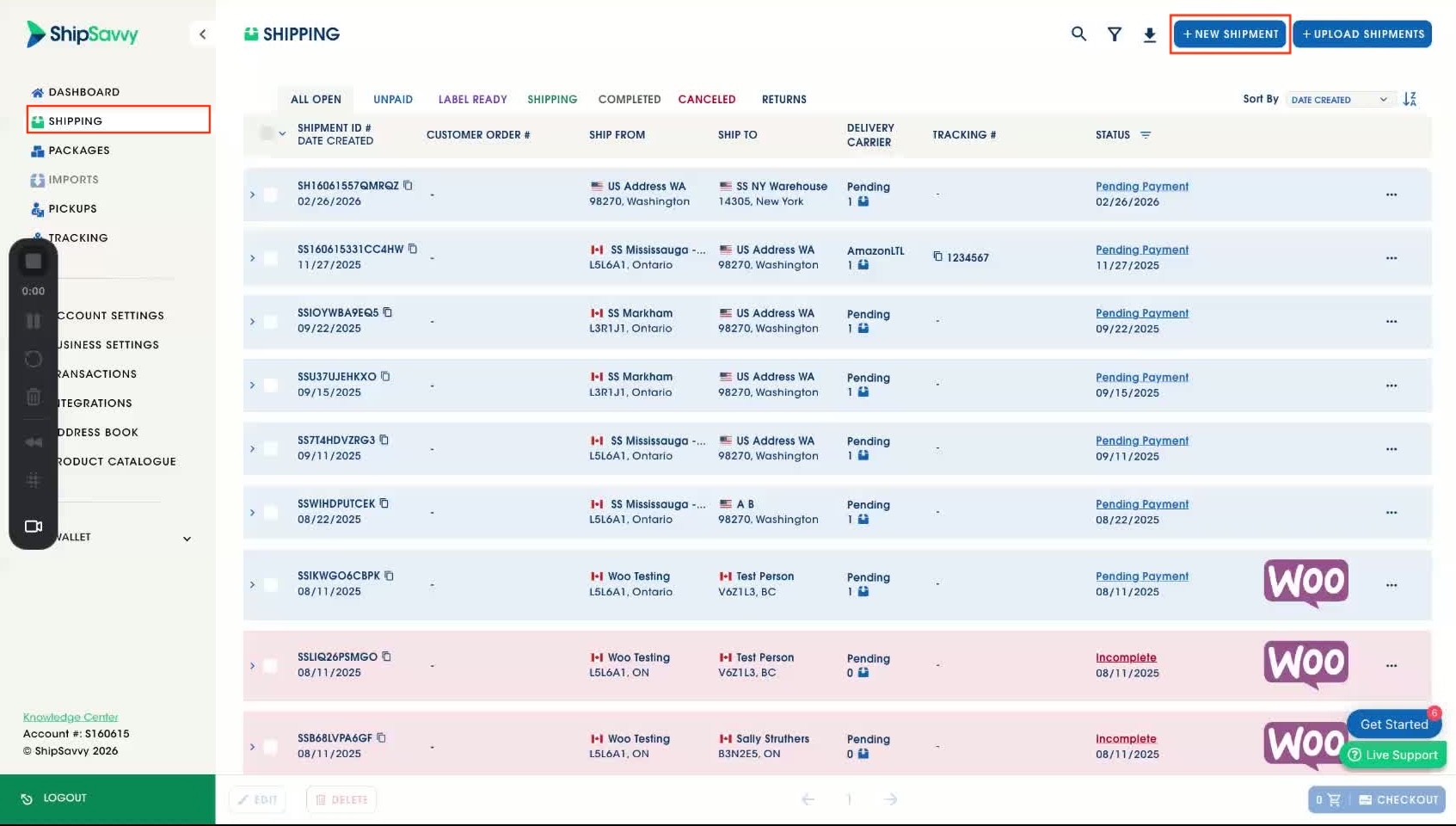
Start a new shipment
Set your Ship From address
- In Ship From, select an address from your Address Book or enter a new address.
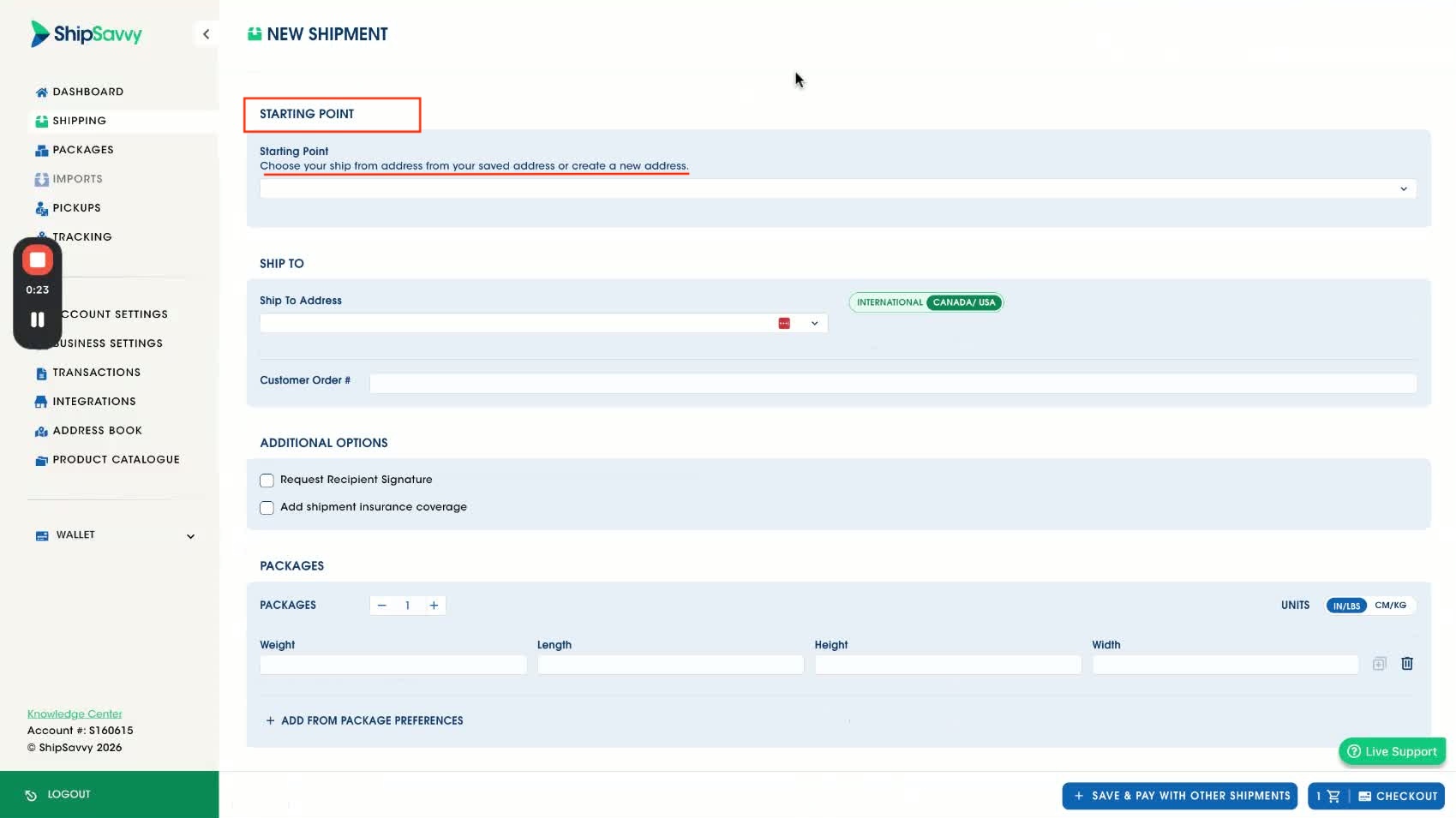
Quick tip: Save commonly used Ship From addresses in your Address Book to speed things up.
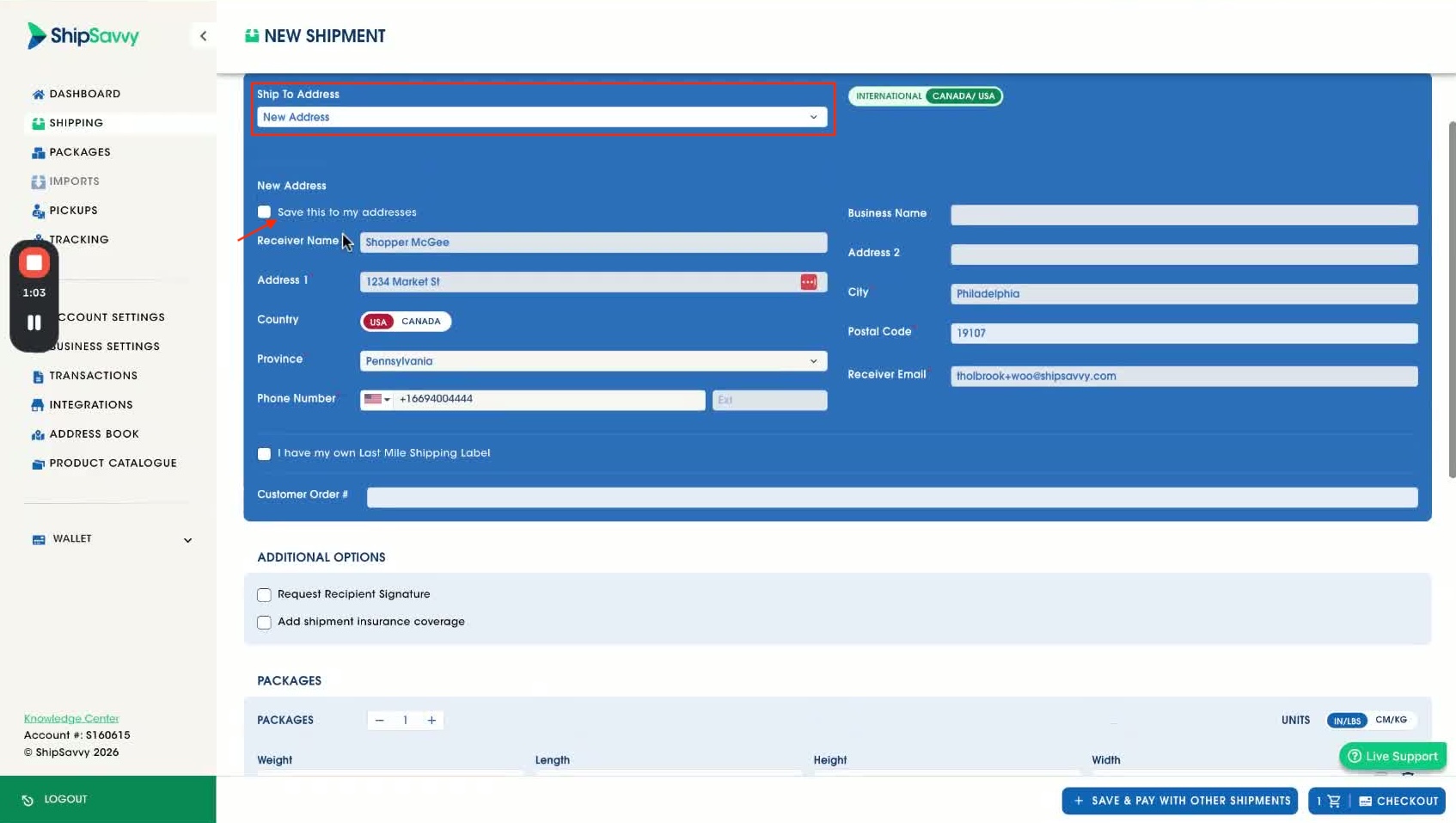
Set your Ship To address
- In Ship To, select an address from your Address Book or enter a new address.
- (Optional) If it’s an address you’ll reuse, choose Save to Address Book.
Optional: Last mile / First mile label options
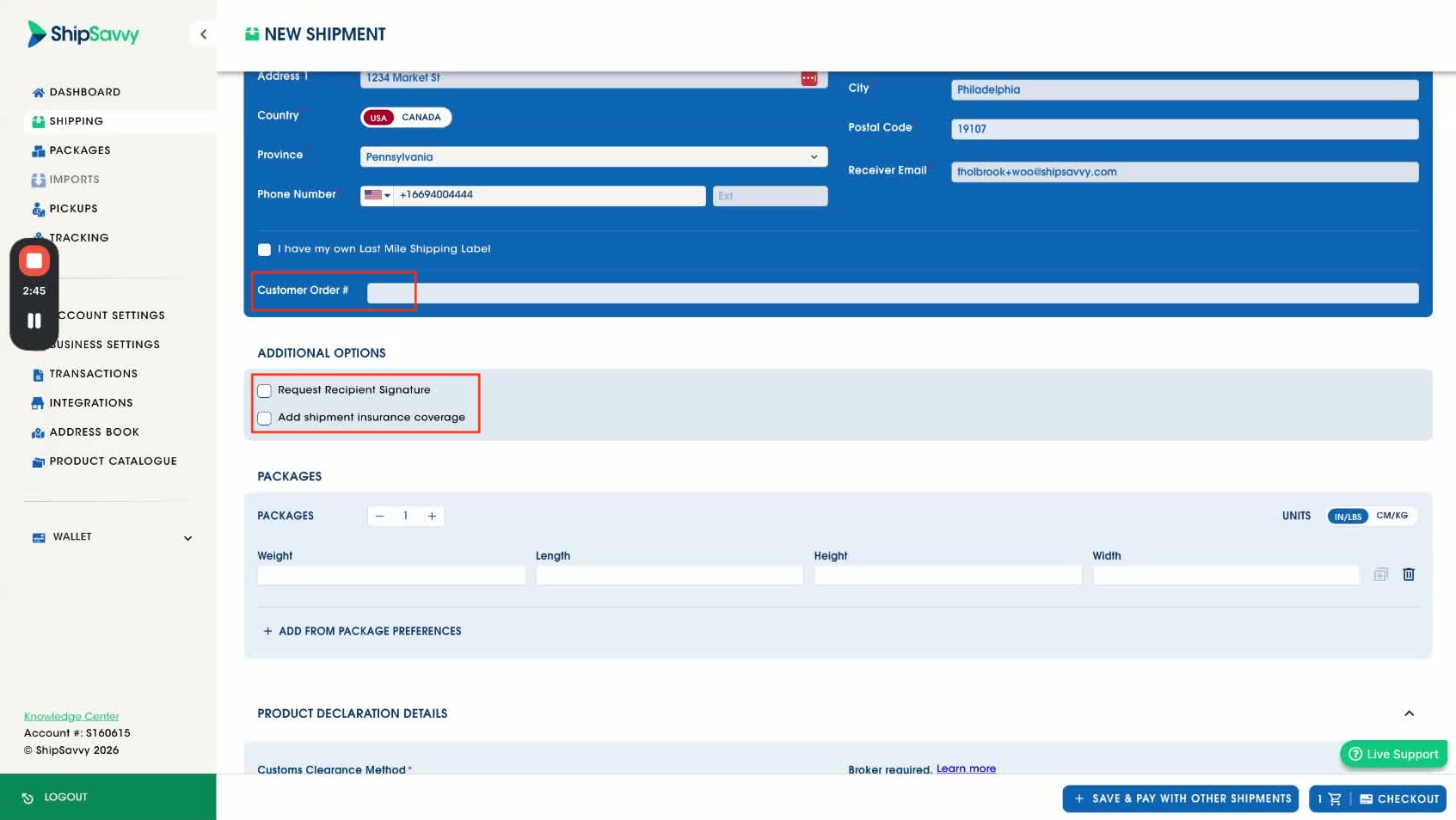
- (Optional) If you already have your own last mile shipping label, check I have my own last mile shipping label.
- (Optional) If you need a first mile shipping label, select the option to purchase one and complete the prompts.
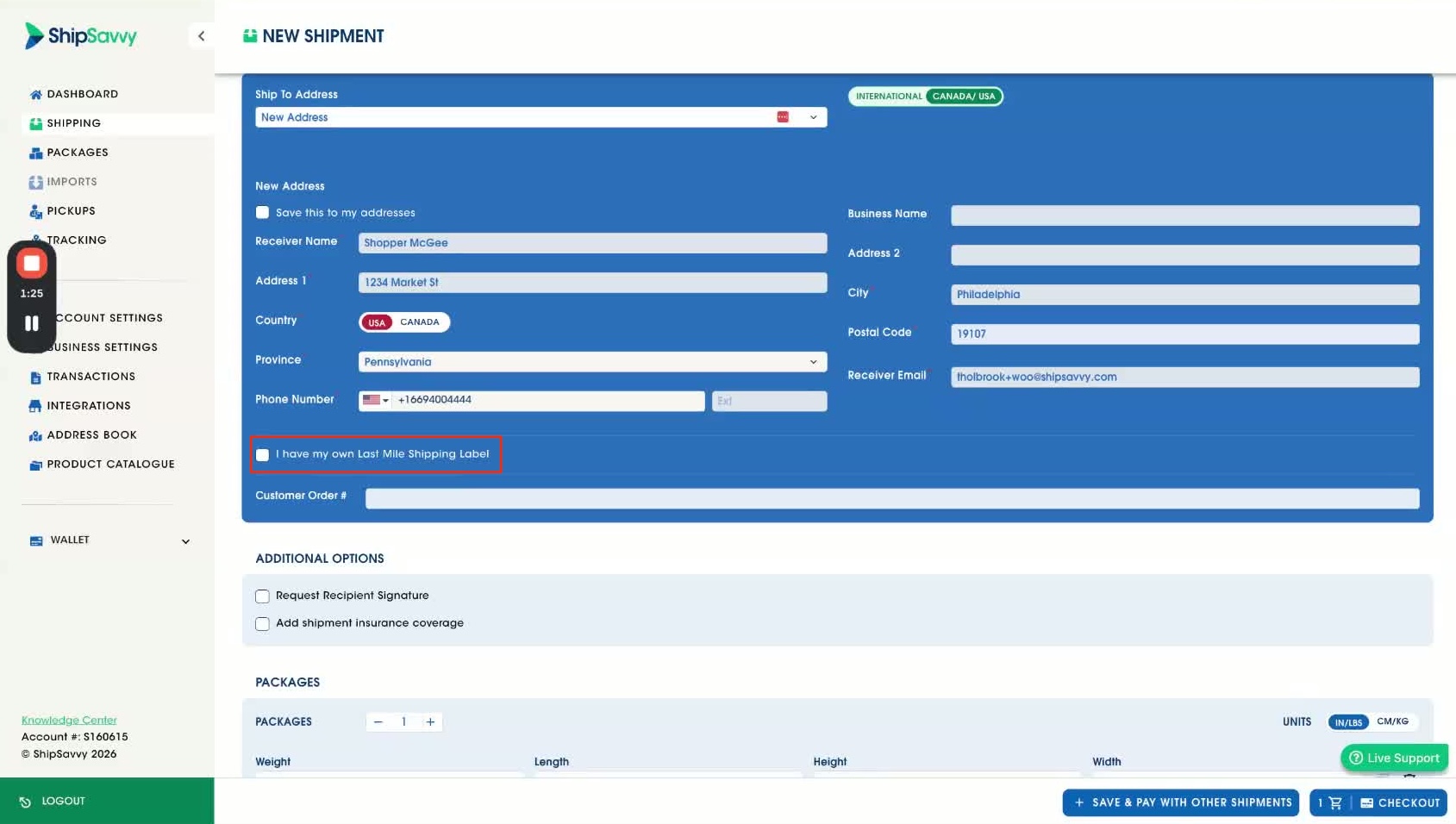
Note: These options only apply to certain workflows. If you’re not using them, you can skip this section.
Add shipment details (optional)
- (Optional) Enter a Customer Order Number.
- (Optional) Choose add-ons such as:
- Signature Required
- Insurance
Enter package details
- Enter package weight and dimensions (Length, Width, Height).
- (Optional) Use a package preset to fill package details faster.
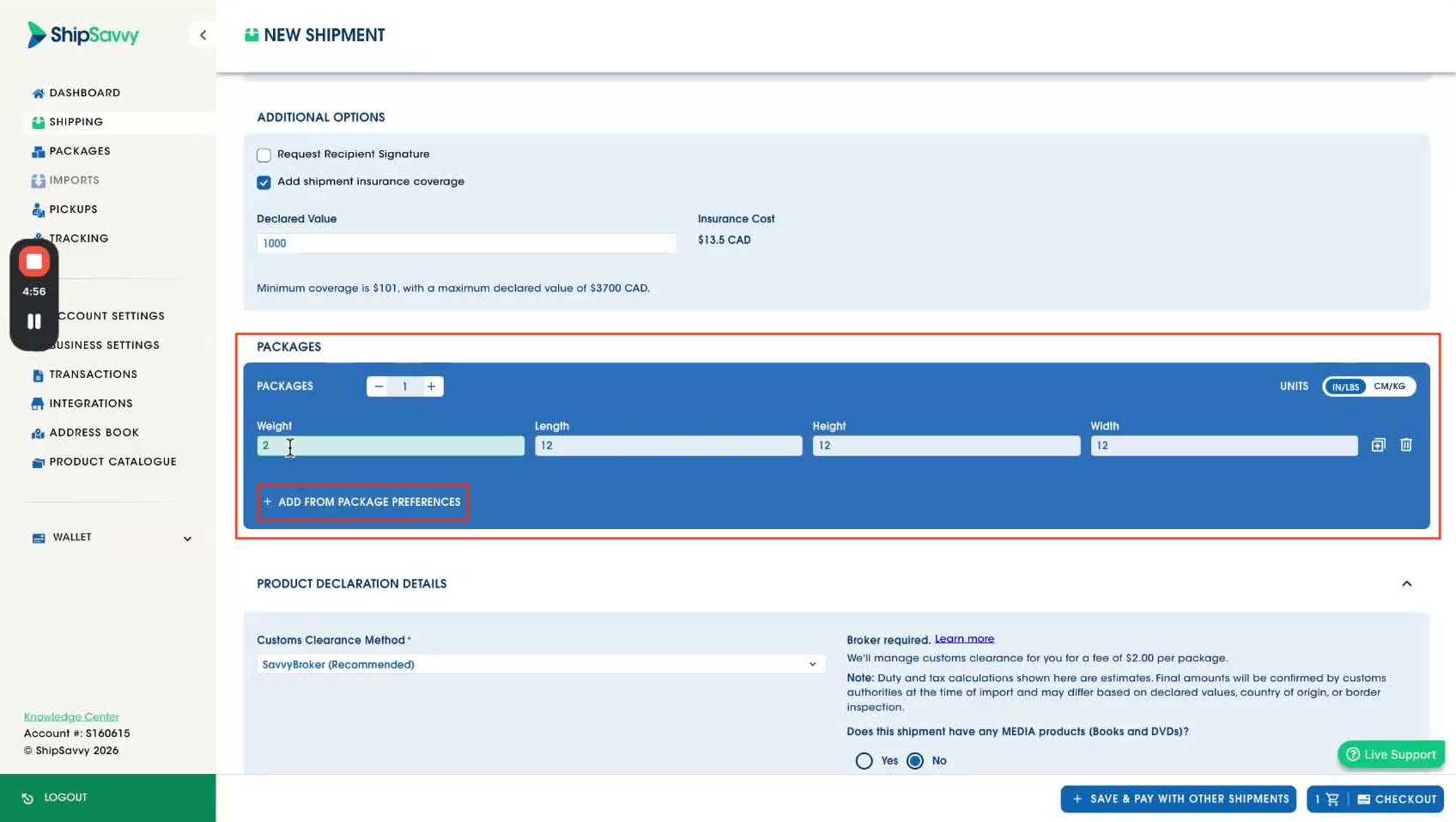
Tip: Double-check weight and dimensions—this helps prevent rating changes or additional charges. If shipping internationally: Customs + Product Declaration
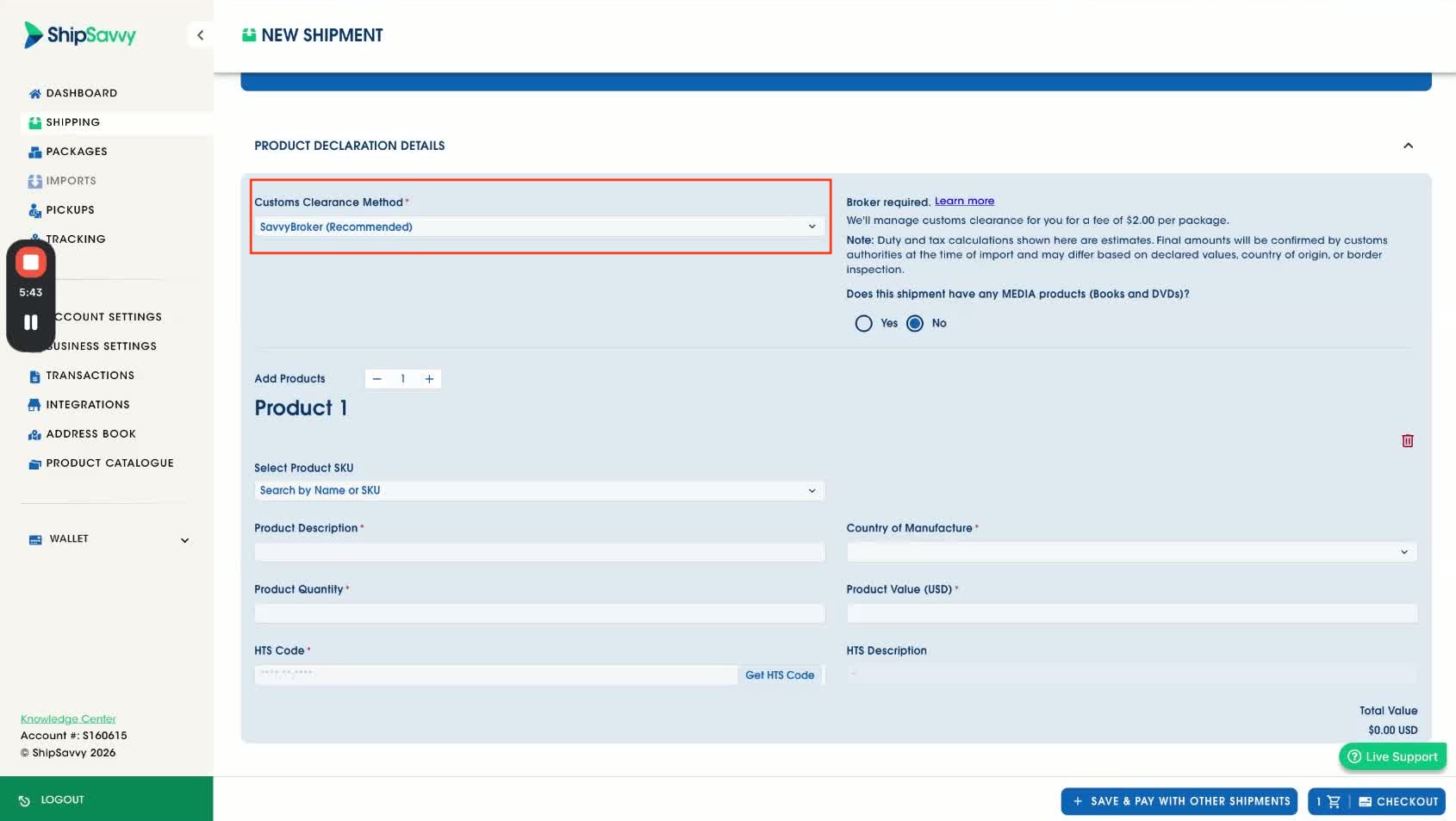
Choose customs clearance method (if prompted)
- Select how you plan to clear customs (for example):
- Use ShipSavvy’s broker option (learn more: ?HERE)
- Use your own broker
- Recipient pays duties (if offered)
Declare your products
- Indicate whether the shipment contains media products (Yes/No).
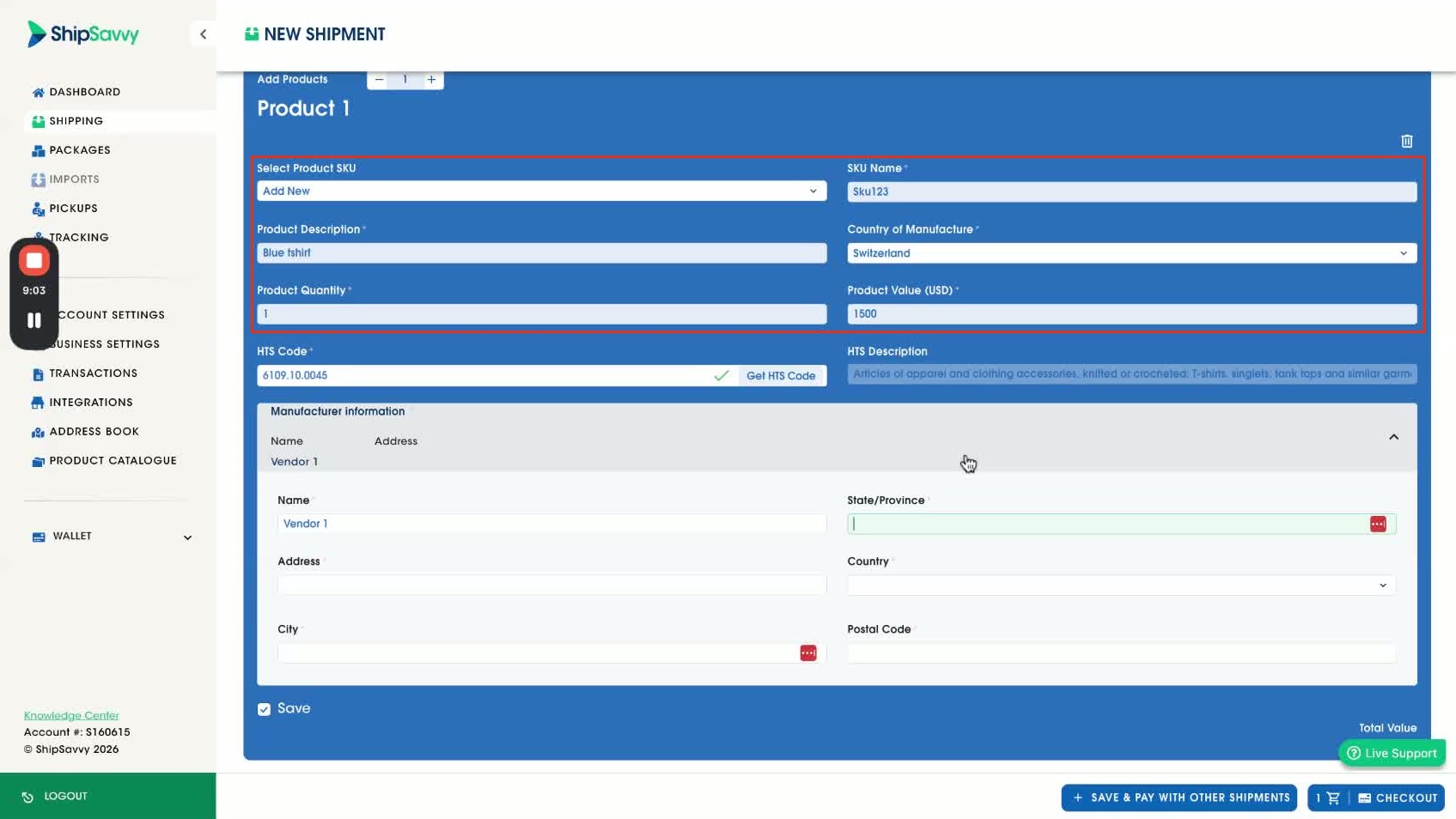
- Add product details (from your catalog or manually), including:
- SKU / Product name
- Quantity
- Value
- Country of manufacture
HTS code lookup (if needed)
- If you don’t know the HTS code, use HTS Code Lookup based on the product description.
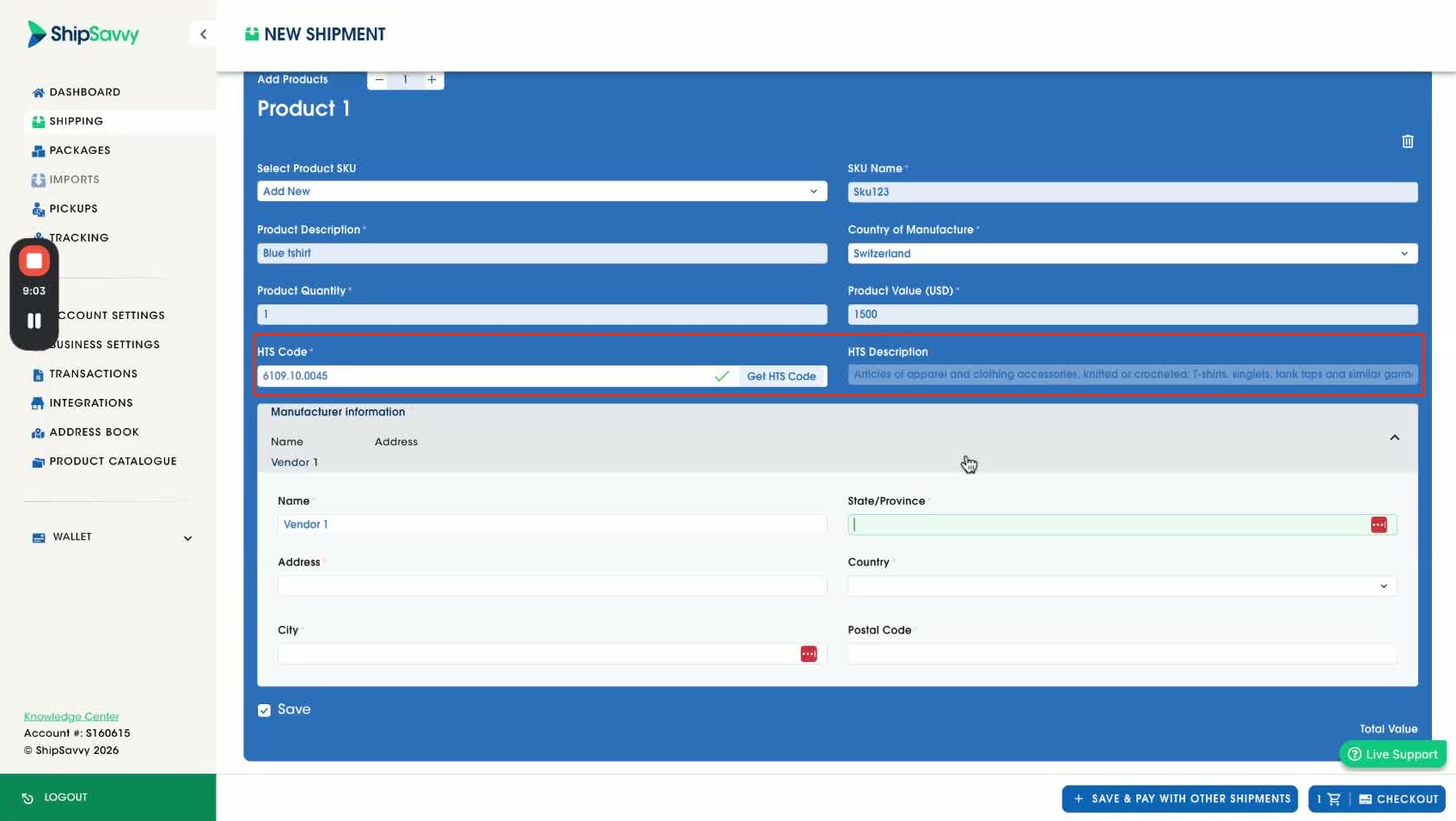
Vendor information (if required)
- If the product requires it, complete the vendor/manufacturer details.
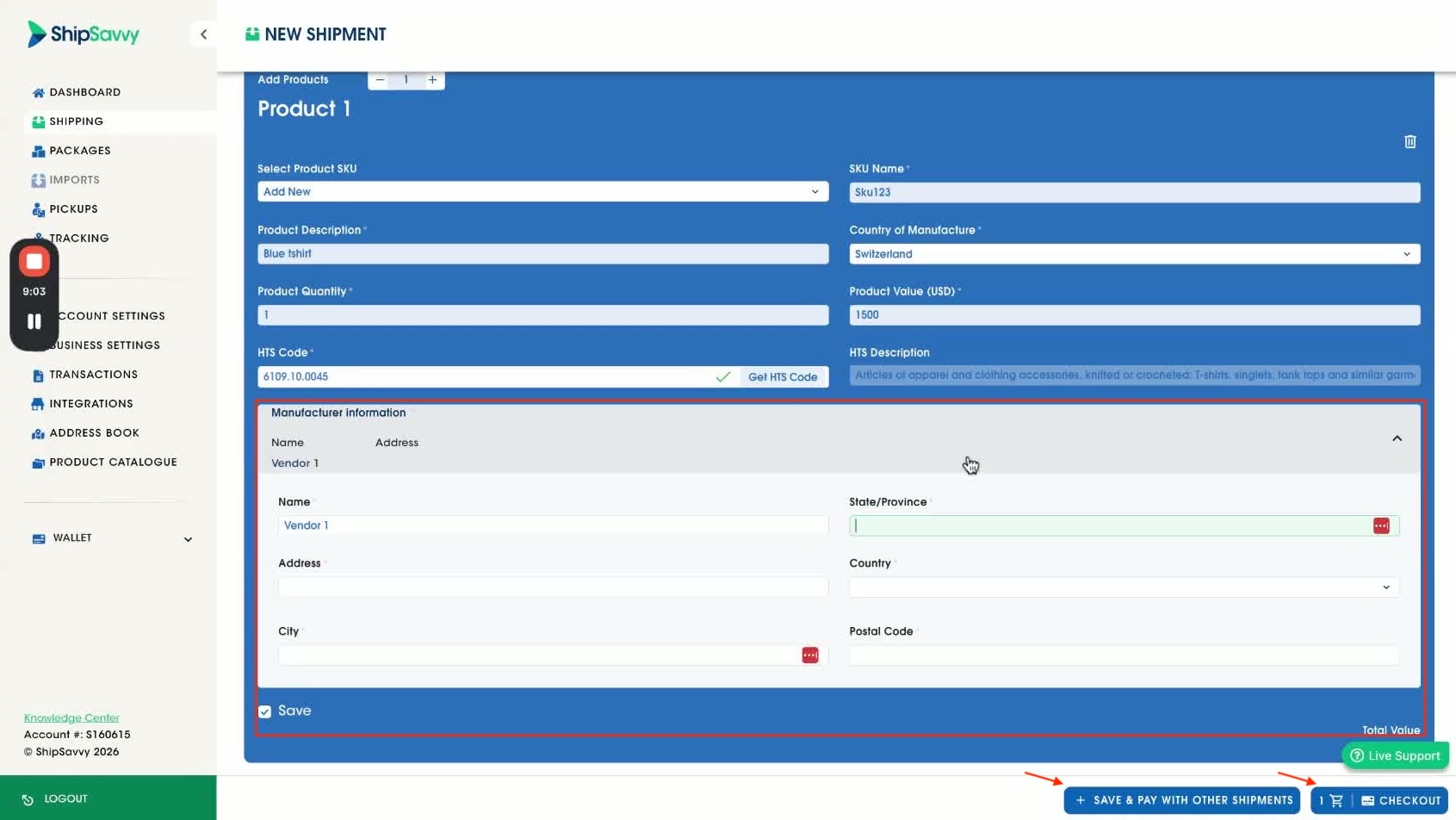
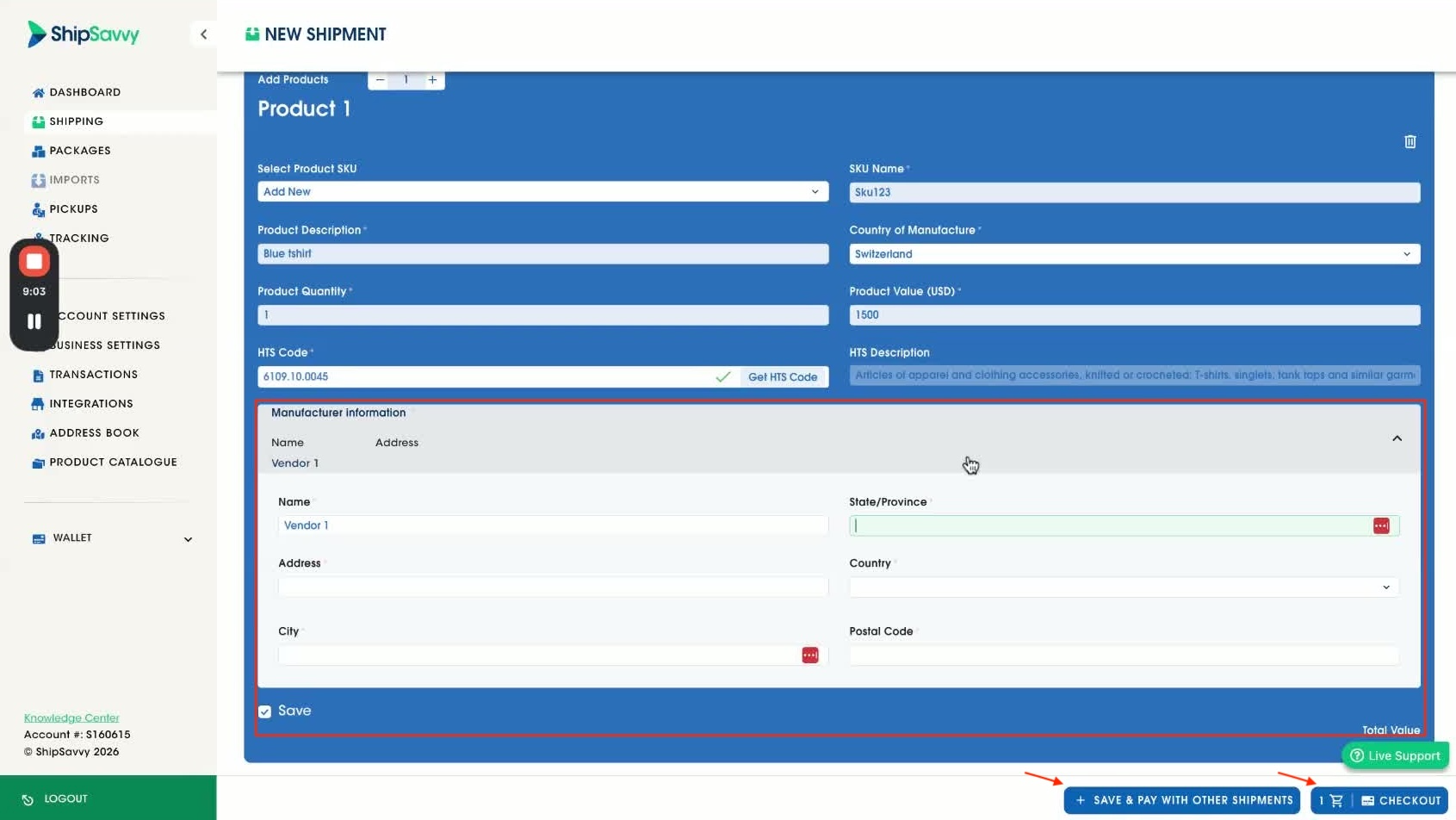
Checkout, Payment, and Label. Choose your checkout option
- Choose one:
- Save and pay with other shipments later, or
- Proceed to Checkout now.
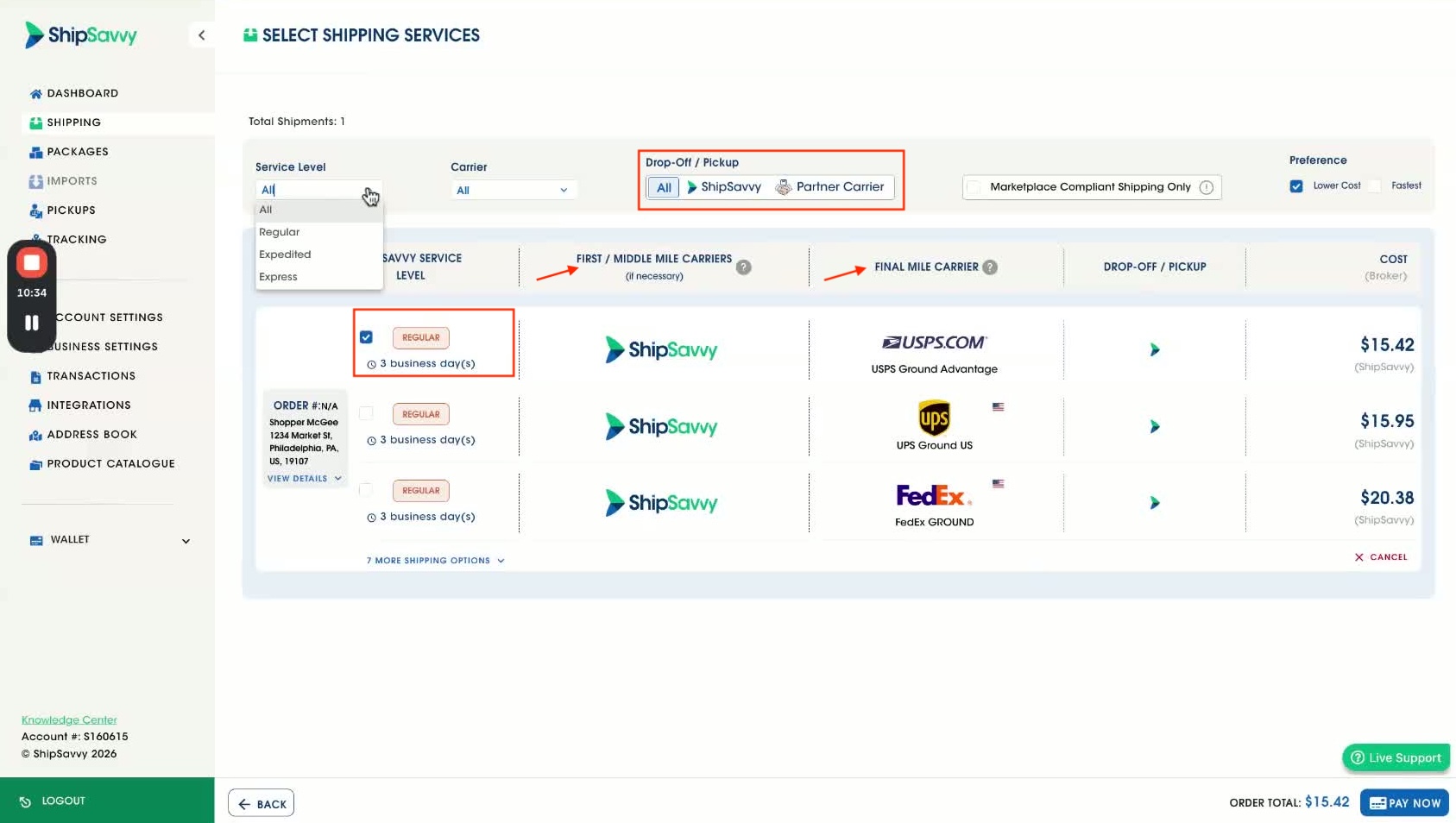
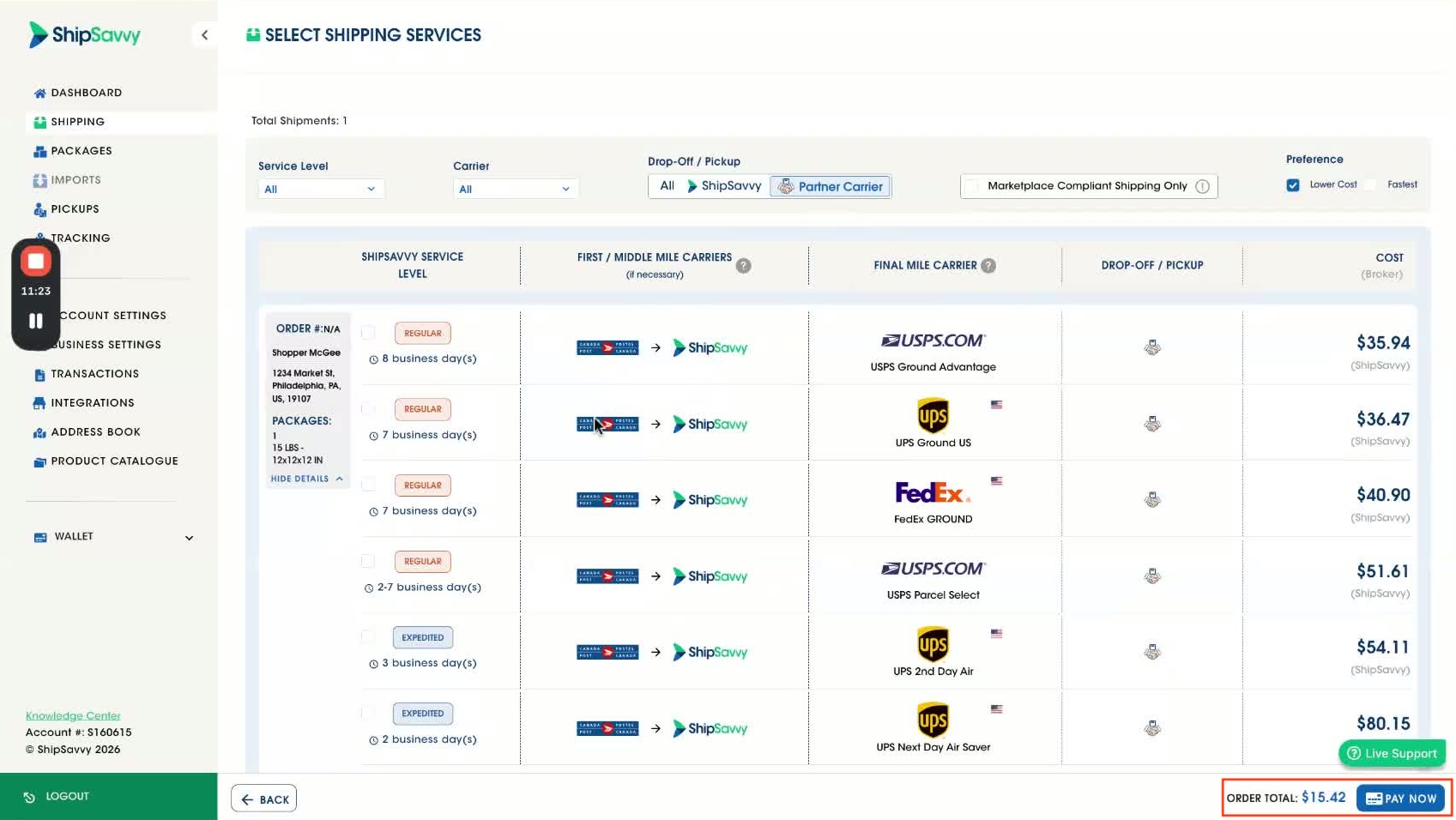
Review shipping options
- Review service levels and carrier options.
- Choose Drop-off or Pickup (if available).
Pay
- Complete payment using your available payment method.
Generate your label
- After payment, generate and download/print your shipping label.
Cautionary notes
- Verify addresses to avoid delays, returns, or failed deliveries.
- Confirm package dimensions and weight to prevent unexpected costs.
- For international shipments, ensure product and customs info is complete to avoid checkout issues.
Tips for efficiency
- Save frequently used addresses in your Address Book.
- Use package presets for common box sizes.
- Keep product info and HTS codes ready (or saved in your Product Catalog) to speed up declarations.
Quick troubleshooting
I can’t get rates or proceed to checkout.
- Check that Ship From / Ship To addresses are complete.
- Confirm package weight and dimensions are entered.
- If international, confirm product declaration and customs method are completed.
My label isn’t generating.
- Make sure payment is completed.
- Refresh the page and try again, or re-open the shipment from the Shipping list.
If you want, paste your actual UI labels (buttons/field names) from your Shipping page and I’ll align the wording exactly to match what customers see.
Please let us know your feedback below, Thank you!
Was this article helpful?
That’s Great!
Thank you for your feedback
Sorry! We couldn't be helpful
Thank you for your feedback
Feedback sent
We appreciate your effort and will try to fix the article