How to Ship Your Amazon Orders with ShipSavvy and Shopify
Your Amazon orders come in automatically, and tracking goes back on its own.
Selling on Amazon and managing orders in Shopify? You can now ship those orders through ShipSavvy without retyping a thing. Your Amazon orders flow into Shopify, show up in ShipSavvy on their own, and your tracking numbers travel all the way back — to Shopify and to Amazon — as soon as you buy a label.
This guide walks you through it one step at a time. It has two short parts: first you'll bring your Amazon order into Shopify, then you'll ship it from ShipSavvy.
If you tried this before and didn't see your Amazon orders in ShipSavvy, good news: we've fixed that. Imported Amazon orders now show up in your ShipSavvy account just like any other Shopify order.
What you'll need
- A ShipSavvy account that is connected to your Shopify store (see our Shopify integration guide if you haven't done this yet)
- Your Amazon seller account connected to Shopify through Shopify's Marketplace Connect app — the app that brings your Amazon orders into your Shopify store
Part 1: Bring your Amazon order into Shopify
In this part, you'll import an Amazon order into your Shopify store so it's ready to ship.
Step 1: Import the order
- In your Shopify admin, open Apps and choose Marketplace Connect.
- Click Orders in the Marketplace Connect menu. You'll see a list of your recent Amazon orders and whether each one has been imported yet.
- Tick the box next to the order you want to ship and click Import (or use the Import button on that order's row).
- Click Save at the top of the page.
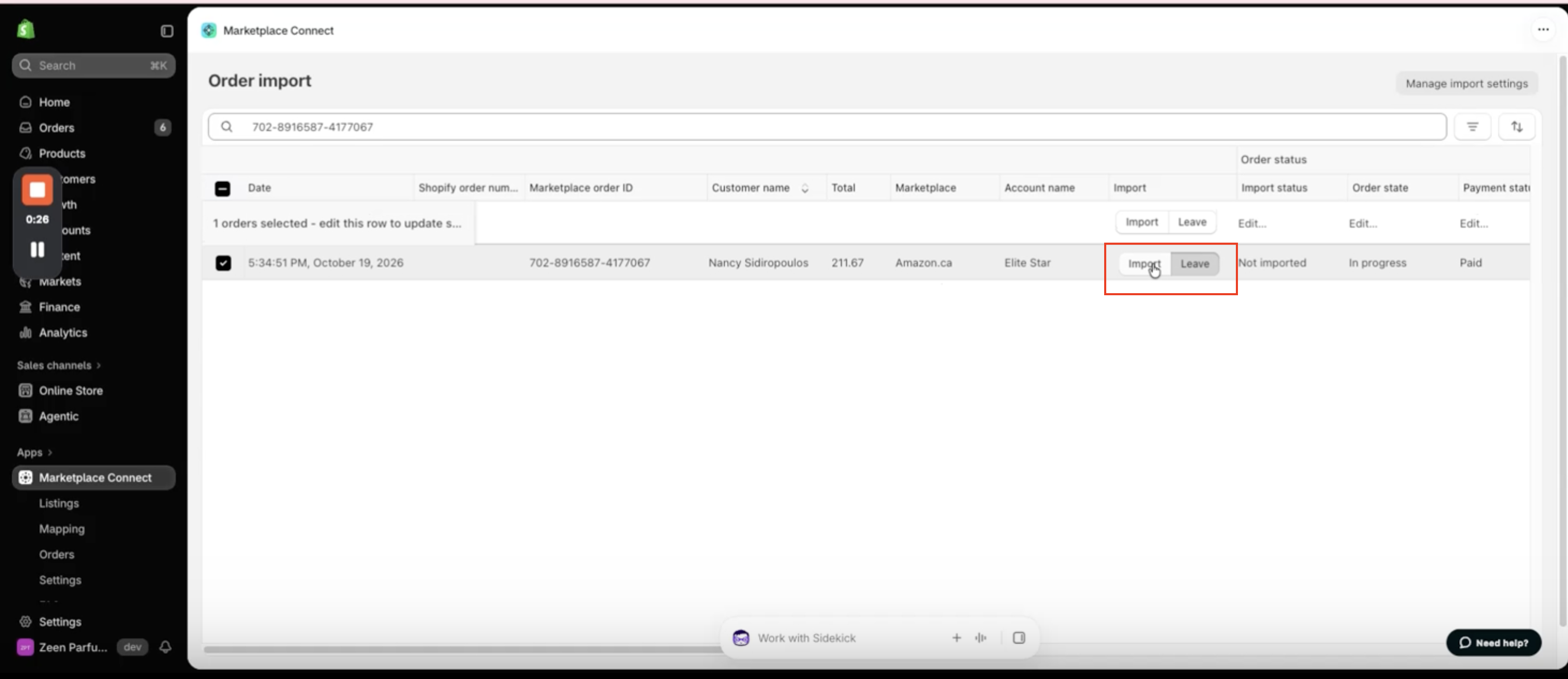
Tip: Orders marked "Not imported" haven't reached Shopify yet. Once an order says "Imported," it's ready to go.
Step 2: Check the order in Shopify
Open Orders in Shopify. Your Amazon order now sits in the list alongside your other orders. The Channel column shows where it came from (for example, Amazon Canada), and the order gets a regular Shopify order number, like #1012. Open it to see the items, the customer, and the shipping address.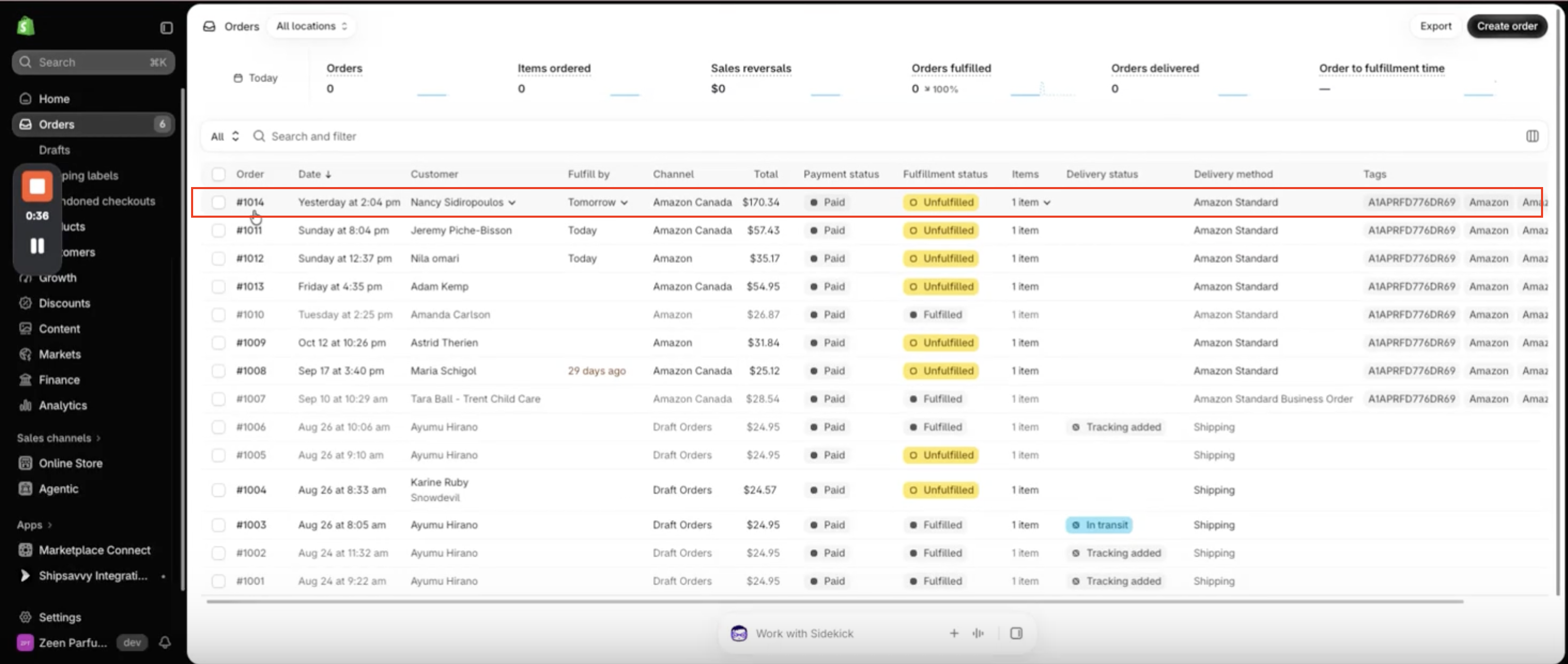
Part 2: Ship it with ShipSavvy
Now for the quick part. Because your accounts are connected, the order is already waiting for you in ShipSavvy.
Step 3: Find the order in ShipSavvy
Log in to ShipSavvy and open Shipping. Your order shows a small Shopify icon, your Shopify order number, and a status of Incomplete. Don't worry — that just means it needs a few shipping details from you before it can go out.
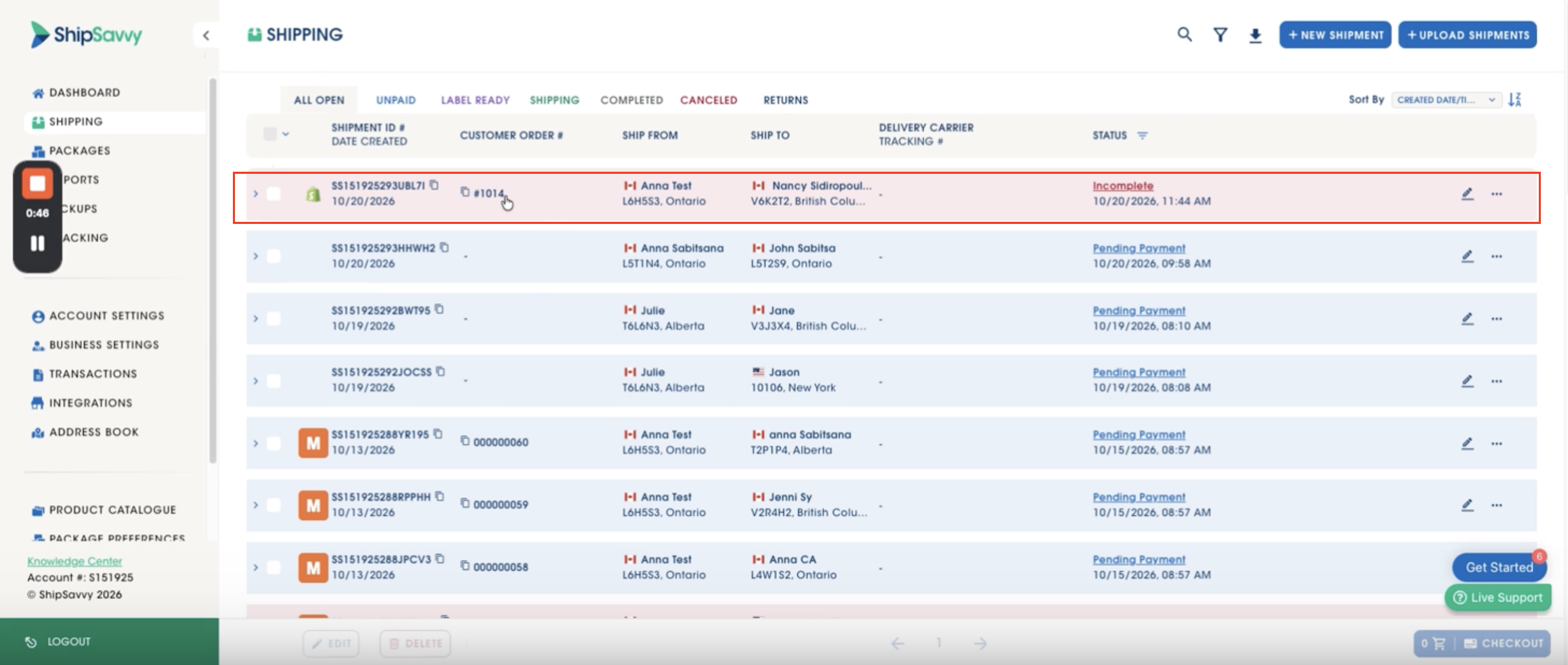
Nothing showing up yet? Give it a minute and refresh the page. Syncing can take a moment.
Step 4: Add your package details
- Click the edit (pencil) icon on the order.
- Check that the customer's name, address, phone number and email look right. Your Shopify order number is filled in for you under Customer Order #.
- Under Packages, add your package and enter its size and weight.
- Choose any extras you want, such as a recipient signature or shipment insurance.
Step 5: Pick a shipping service and buy your label
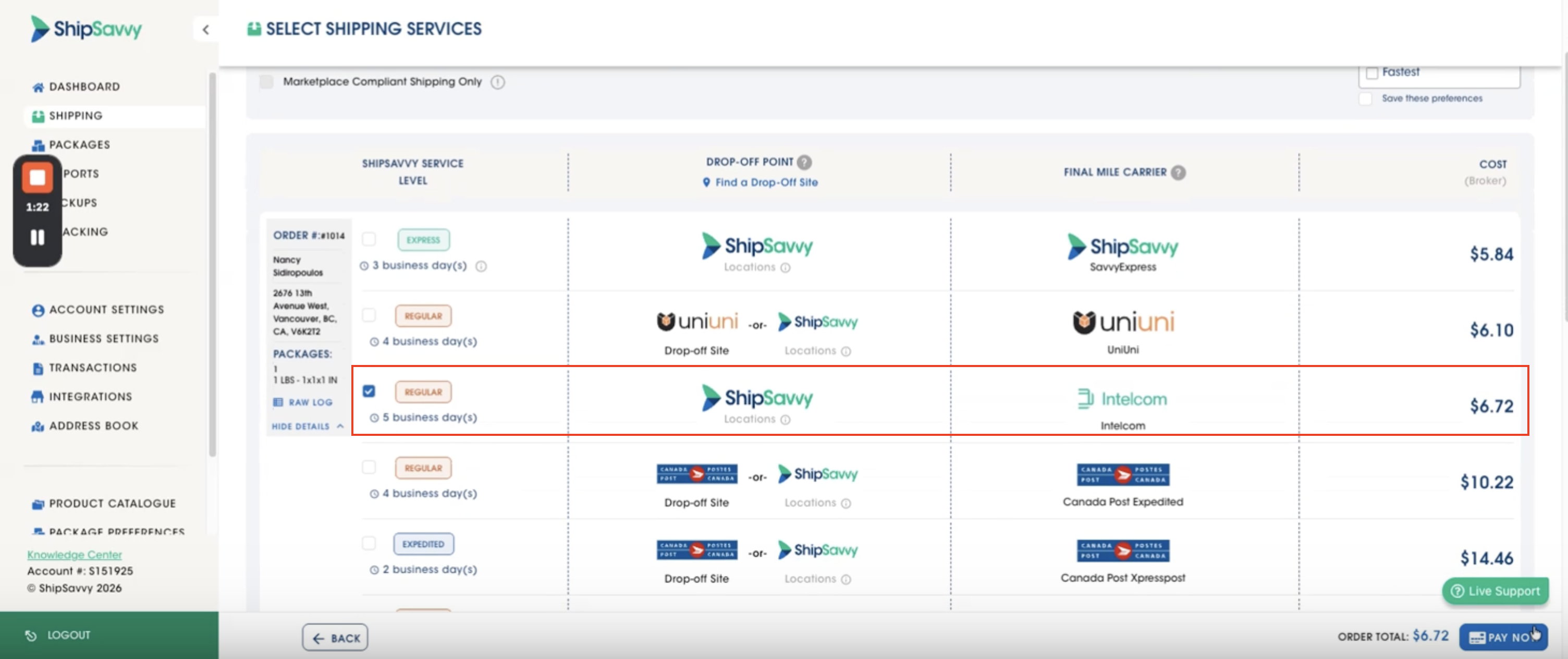
Select the delivery option that works best for you, then check out and pay. Once your label is purchased, you're all set to print it, attach it to your box, and send it on its way.
Step 6: Let the tracking number travel back for you
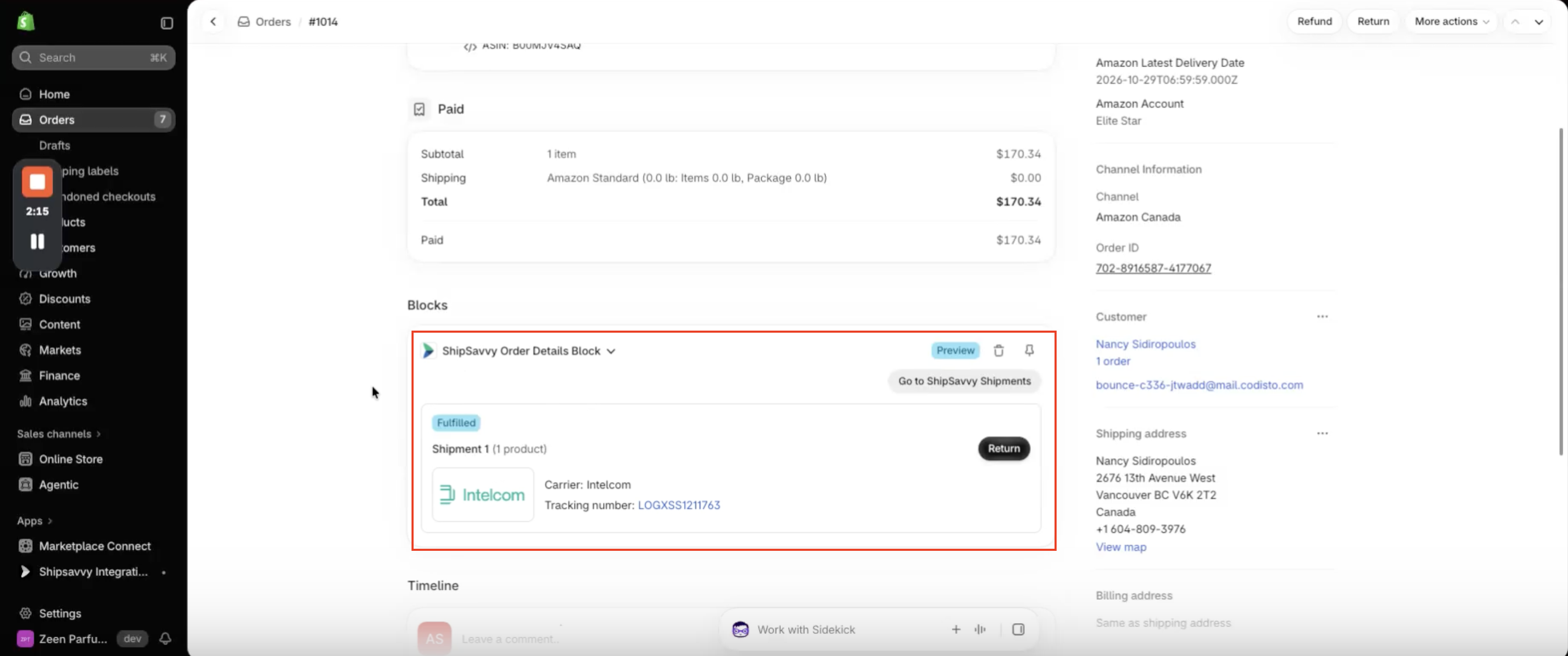
Here's the part that saves the most time. As soon as you buy your label, ShipSavvy sends the tracking number back to Shopify automatically. Refresh your order in Shopify and you'll see it.
That means you never have to copy tracking details from one place to another. Fewer steps, fewer typos, and one less thing to remember on a busy day.
Your Amazon order updates too
The sync doesn't stop at Shopify. When your label is purchased, Amazon is updated as well. Open the order in your Amazon seller account and you'll see it marked Shipped, along with the ship date, the carrier (for example, Intelcom), and the tracking ID. Amazon uses that information to keep your buyer informed about their delivery, so you don't need to log in to Amazon and enter anything yourself.
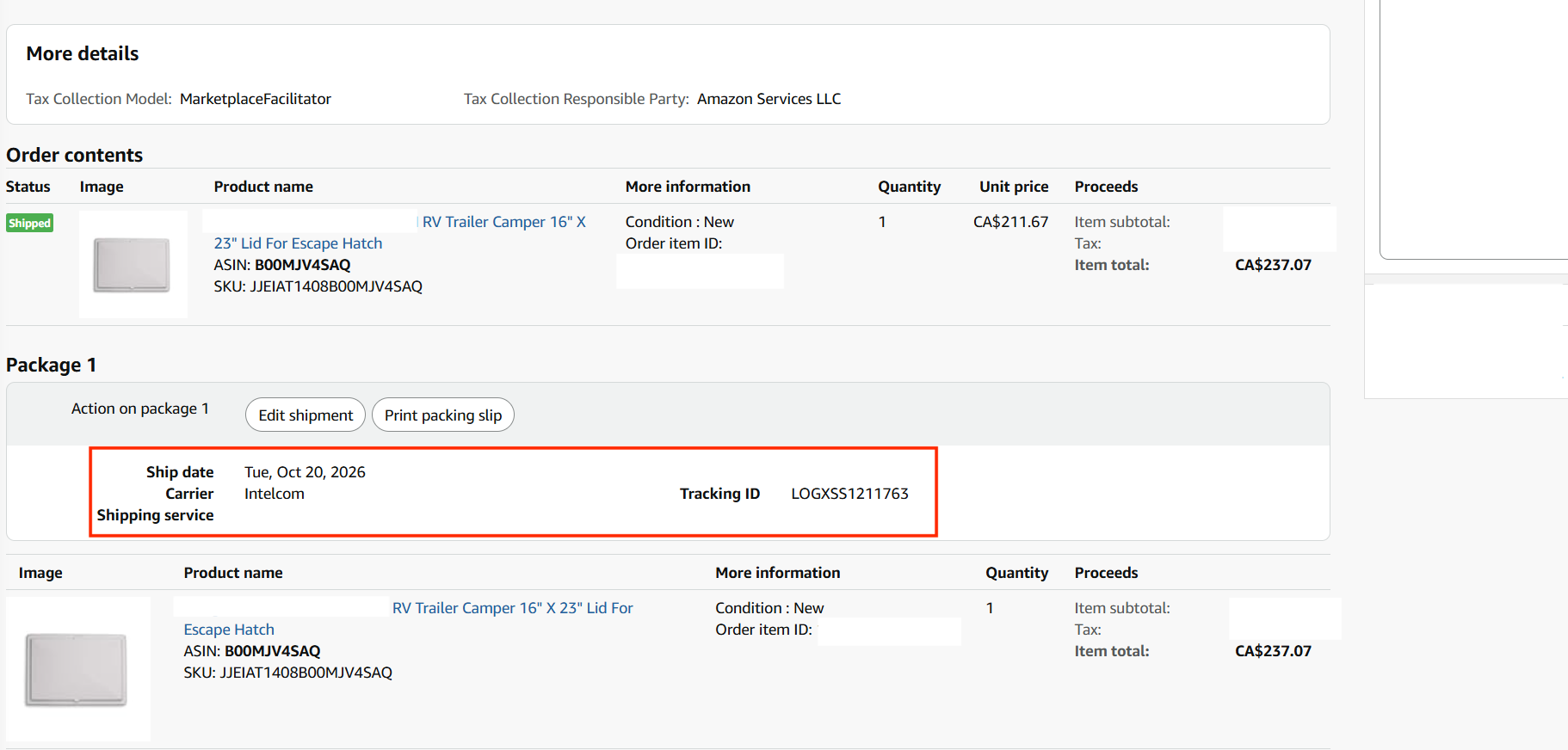
It can take a few minutes for the update to appear, so if you check right away and don't see it yet, give it a moment and refresh.
A few tips for a smooth experience
- Import first, then ship. An Amazon order only shows up in ShipSavvy after it has been imported into Shopify, so make importing part of your daily routine.
- Keep an eye on the ship-by date. Amazon shows a ship-by date on each order in Shopify. Buy your label before then to help keep your seller metrics in good shape.
- Double-check the address. Take a quick look at the delivery address and phone number in ShipSavvy before you pay. It takes a few seconds and can save a delayed package.
- Use your order number to search. Your Shopify order number appears in ShipSavvy's Customer Order # field, which makes it easy to match a shipment to the right order.
Quick answers
Do I need to enter my Amazon orders by hand?
No. Import them in Shopify's Marketplace Connect, and ShipSavvy picks them up from there.
An Amazon order isn't showing in ShipSavvy. What should I do?
First, make sure it says "Imported" in Marketplace Connect and appears in your Shopify Orders list. Then refresh ShipSavvy's Shipping page. If it still isn't there, our team is happy to help through Live Support.
Do I need to update Amazon with the tracking number myself?
No. It's sent back automatically when you purchase your label.
How do I know Amazon received my tracking number?
Open the order in your Amazon seller account. It will show as Shipped, with the carrier, ship date and tracking ID filled in.
Can I ship more than one Amazon order at a time?
Yes. Import as many orders as you like in Marketplace Connect, and each one will appear as its own shipment in ShipSavvy.
Who do I contact if something looks off?
Reach our team any time through Live Support in your ShipSavvy account.
Was this article helpful?
That’s Great!
Thank you for your feedback
Sorry! We couldn't be helpful
Thank you for your feedback
Feedback sent
We appreciate your effort and will try to fix the article
