How to Connect Magento with ShipSavvy
Your Magento orders come in automatically, and tracking goes back on its own.
Selling on Magento? You can connect your store to ShipSavvy so your orders come in automatically — no exporting, no copy-pasting — and your tracking numbers go back to Magento on their own once you create a label.
This guide walks you through the whole setup, one step at a time. It has two short parts: first you'll create a secure connection inside your Magento admin panel, then you'll plug it into ShipSavvy.
What you'll need
- Admin access to your Magento store (you'll log in to the Magento admin panel)
- Your ShipSavvy account
- Your store's web address, for example https://yourstore.com
Part 1: Create the connection in Magento
In this part, Magento will generate four values — a Consumer Key, a Consumer Secret, an Access Token, and an Access Token Secret. Think of them as a private username-and-password set that lets ShipSavvy talk to your store.
- Log in to your Magento admin panel. In the left-hand menu, click System, then choose Integrations (it's listed under Extensions).
- Click Add New Integration.
- In the Name box, type any name you'll recognize, such as ShipSavvy.
- Leave Callback URL and Identity link URL empty. You can leave Email empty too (or enter a valid email address).
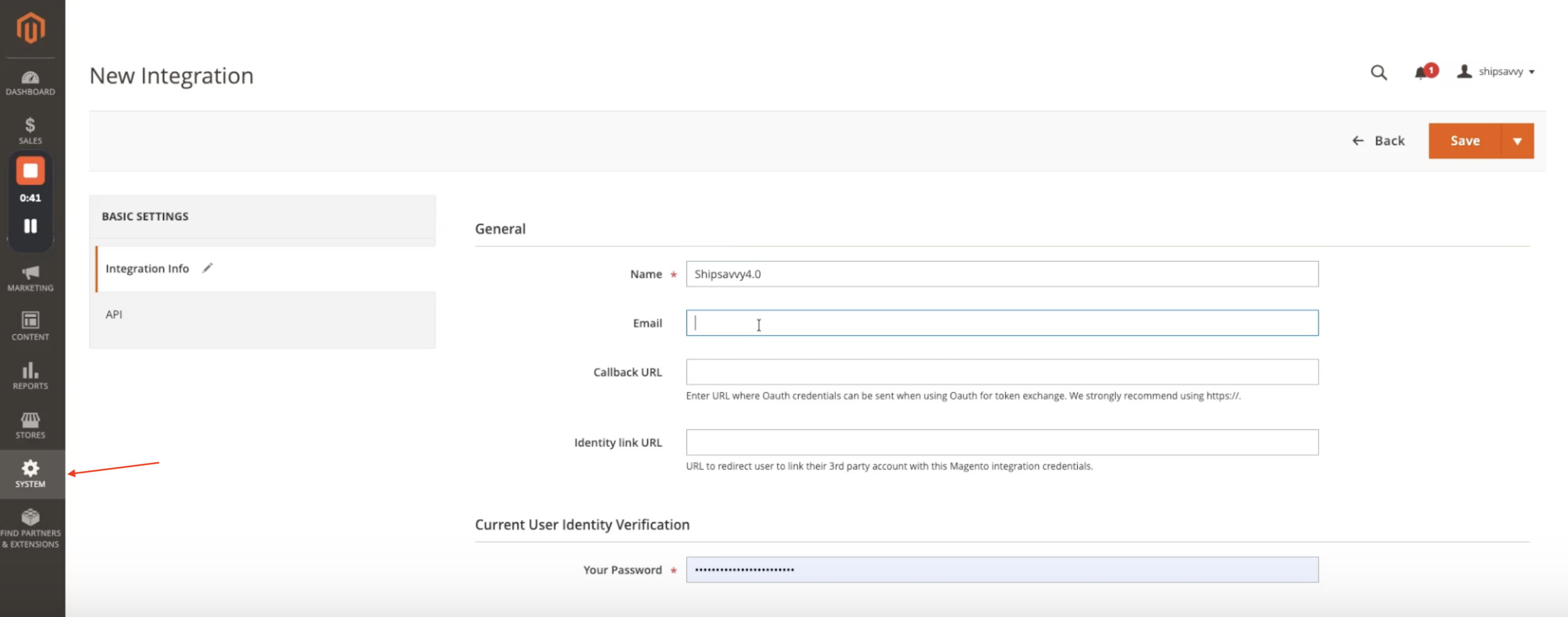 Tip: Some browsers auto-fill the Email box with your username, and Magento won't accept that. If you see a “valid email address” message, just clear the box.
 - Under Current User Identity Verification, type the password you use to log in to your Magento admin account in the Your Password box. Magento asks for it to confirm it's really you.
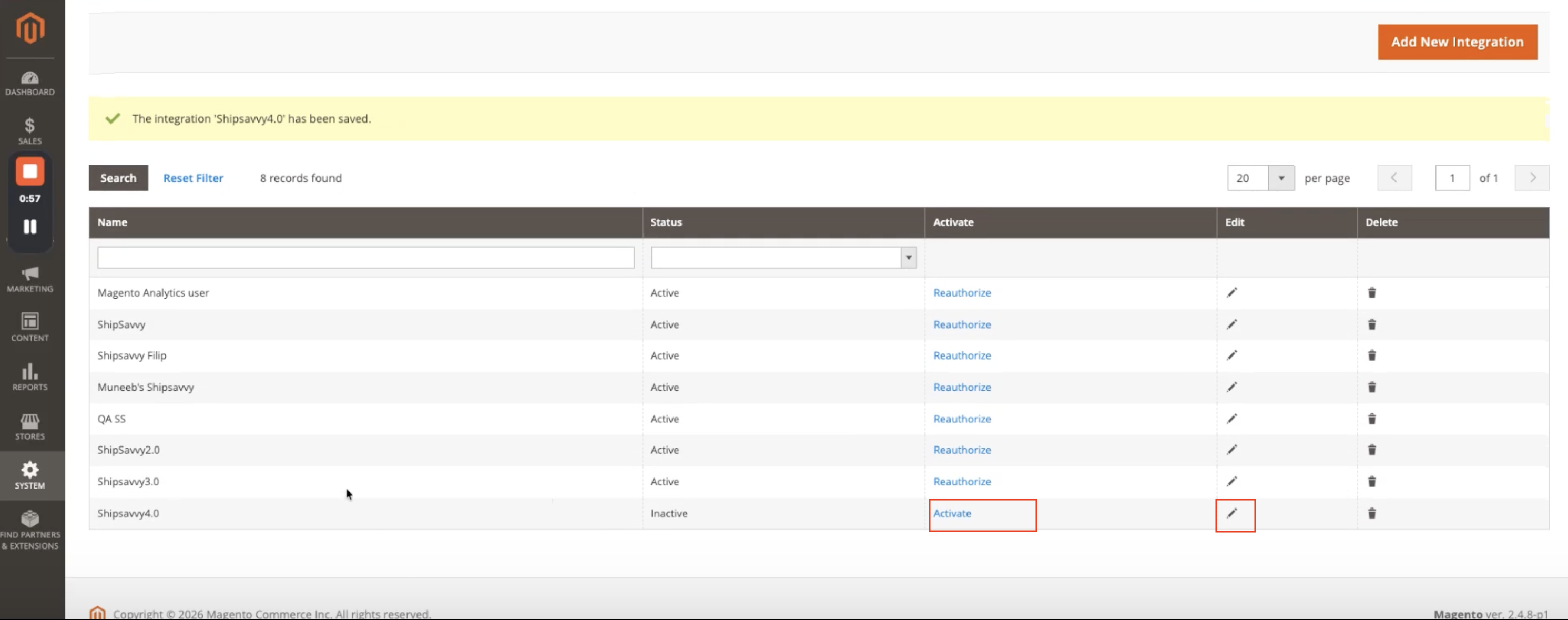
- Click Save. Your new integration appears in the list with the status Inactive.
- In the Activate column, click Activate, then click Allow on the screen that follows.
- Magento now shows your four values: Consumer Key, Consumer Secret, Access Token, and Access Token Secret. Click Done. The status changes to Active.
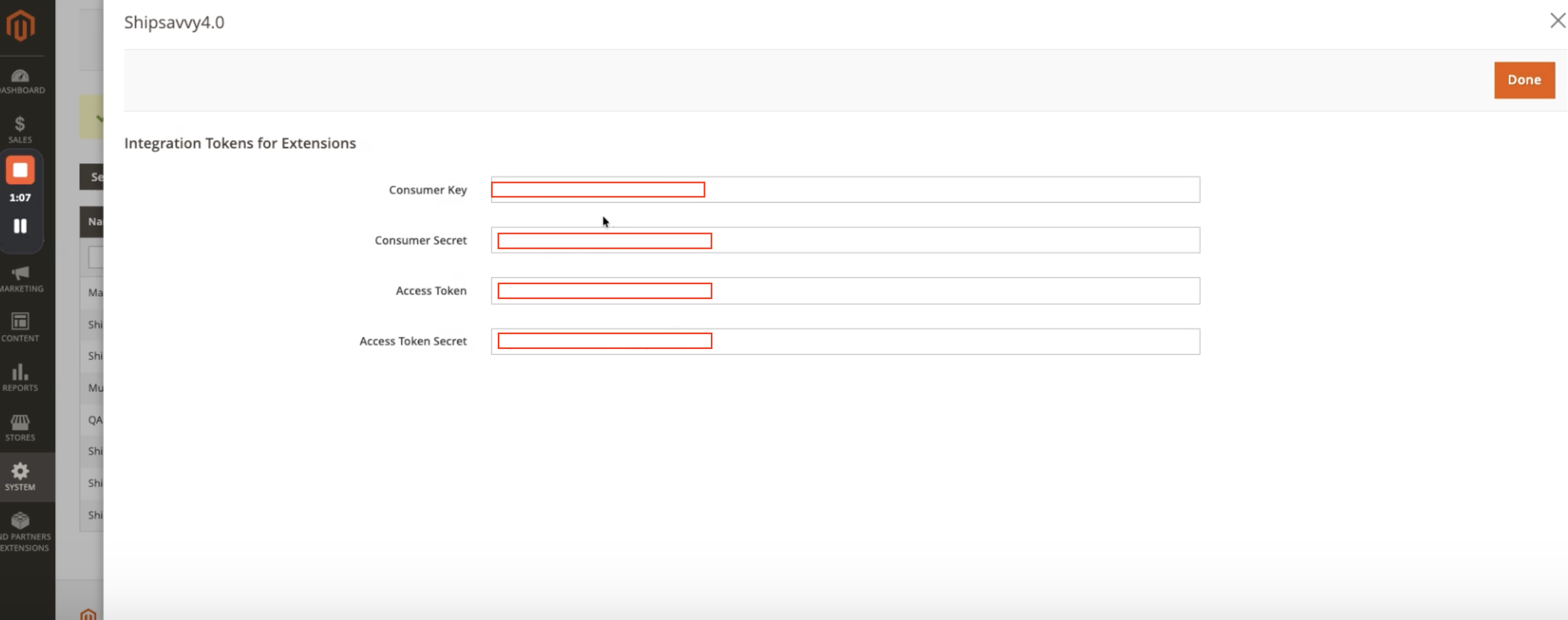 Need them again later? Click the pencil (Edit) icon next to your integration and scroll down to Integration Details — all four values are listed there.
 - Now give ShipSavvy the access it needs. Click the pencil (Edit) icon next to your integration, open the API tab on the left, and change Resource Access from Custom to All. Then click Save. (ShipSavvy needs access to Sales and Catalog.) Heads up: Magento may ask you to re-enter your admin password in the Your Password box before it lets you save.
- Keep this Magento page open — you're about to copy the four values from it.
Part 2: Connect your store in ShipSavvy
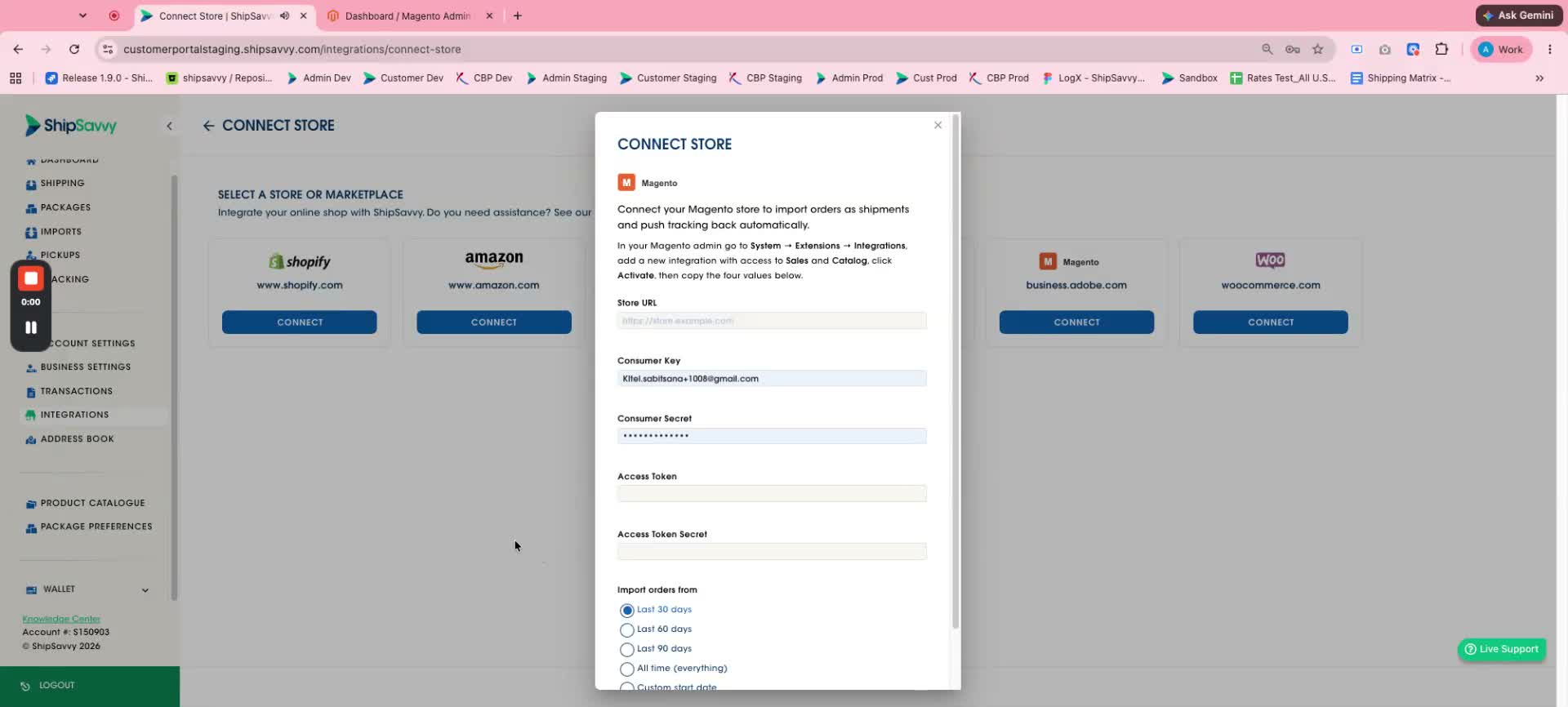
- In ShipSavvy, click Integrations in the left-hand menu, then choose Connect Store. Find Magento and click Connect.
- In the Store URL box, type your store's web address (for example, https://yourstore.com).
- Copy each of the four values from Magento and paste it into the matching box in ShipSavvy: Consumer Key, Consumer Secret, Access Token, and Access Token Secret.
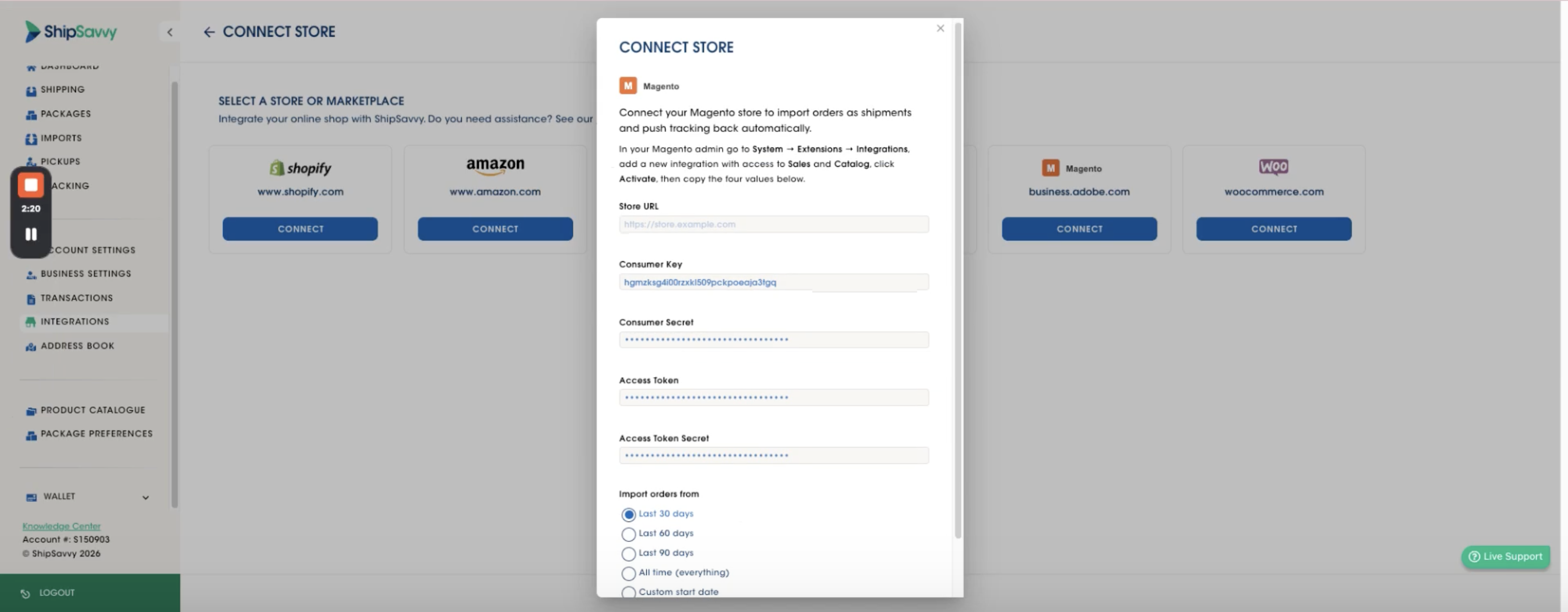 Tip: Copy and paste rather than typing — these values are long, and a single stray character or extra space can stop the connection from going through.
 - Under Import orders from, choose how far back you'd like ShipSavvy to bring in your existing Magento orders:
- Last 30 days (selected to start)
- Last 60 days
- Last 90 days
- All time (everything)
- Custom start date
- New orders keep coming in automatically after this — this choice only decides how much past order history comes along.
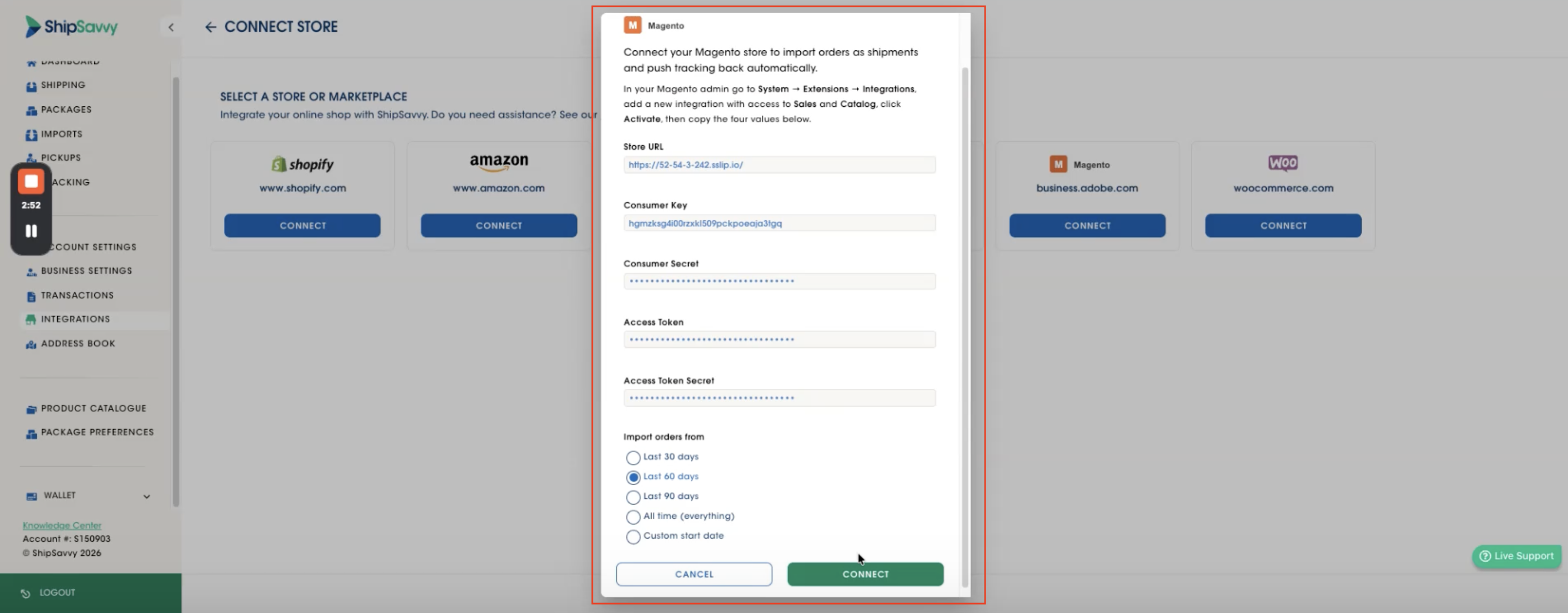
- Click Connect.
That's it — you're connected! ShipSavvy starts importing your orders right away. You'll see a progress count on the screen (for example, Importing orders… 0 / 59) while your orders come over in the background.
Check that your orders arrived
Click Shipping in the left-hand menu. Your Magento orders appear in the list, marked with the orange M icon, so they're easy to spot next to orders from other places.
From here on, ShipSavvy checks your Magento store for new orders every 15 minutes and brings them in for you — there's nothing to export or upload.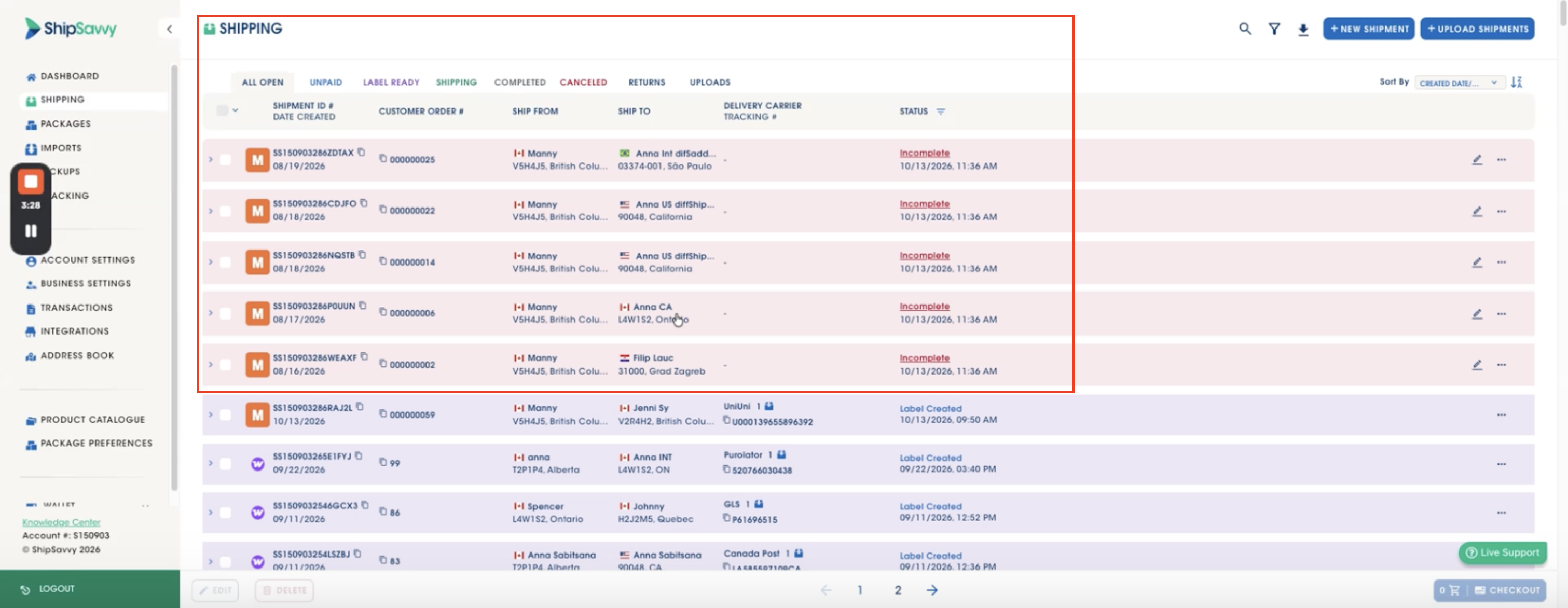
When you create a label, tracking goes back to Magento
When Write Tracking Back to Magento is switched on, ShipSavvy does the follow-up for you: as soon as you create a label, it marks the order as shipped in Magento and attaches the tracking number. Magento then emails your customer, so they know their package is on the way — without you updating anything by hand.
Fine-tune your integration (optional)
After you connect, ShipSavvy takes you to your Magento integration settings. You can come back to them any time from the Integrations page. Everything here is optional, so feel free to skip this part and come back later. If you change anything, click Save Changes at the bottom of the page.
| Setting | What it does |
|---|---|
| Integration Status (Active / Paused) | Pause or resume the connection without removing your store. |
| Default Ship From Address (CA only) | Choose the Canadian address your Magento orders ship from by default. |
| Default Package and Weight | Magento doesn't send package sizes, so pick a package preset here to give your imported orders default dimensions and weight. |
| Mark as Shipped on Marketplace | Automatically updates the order status on your store when a label is created. |
| Sync Product Catalogue on Order Import | Automatically adds product details from your imported orders to your ShipSavvy Product Catalogue. |
| Order States to Import | Choose which Magento order states ShipSavvy brings in: New, Pending payment, Processing, Complete, and On hold. New and Processing are checked when you first connect. (A freshly placed order in Magento is in the New state.) |
| Write Tracking Back to Magento | When you create a label, ShipSavvy ships the order in Magento, attaches the tracking number, and your customer gets the shipping email. |
| Product Catalogue Sync (Sync Products button) | Brings your Magento products into your ShipSavvy Product Catalogue so you can fill in HTS codes and country of origin ahead of time. It runs nightly for products you've changed, only fills in blank fields, and never overwrites what you've already entered. Click Sync Products to run it right now. |
| Webhook (optional) | ShipSavvy checks for new orders every 15 minutes. If your store can push order events, you can point them to ShipSavvy to bring that wait down to seconds. Click Show Webhook Details to get started. Most stores can skip this. |
| Activity Log | See a record of what the integration has been doing, including recent syncs and connection events. Recent Activity on the same page shows the latest few. |
| Disconnect | Removes the connection between your Magento store and ShipSavvy. |
If something doesn't look right
I can't connect my store
Double-check these four things, then try again:
- Your Store URL is typed correctly and starts with https://.
- All four values were pasted into the right boxes, with no extra spaces at the start or end.
- Your integration shows Active (not Inactive) in Magento under System → Integrations.
- Resource Access on the integration's API tab is set to All.
My orders aren't showing up in ShipSavvy
- Make sure Integration Status is set to Active, not Paused.
- Check Order States to Import. An order only comes in if its Magento state is checked — for example, an order still in Pending payment won't import unless that box is ticked.
- Give it up to 15 minutes — that's how often ShipSavvy checks for new orders.
- Open the Activity Log to see if there's a message about what happened.
I lost my Consumer Key / Access Token
No problem — in Magento, go to System → Integrations, click the pencil (Edit) icon next to your integration, and scroll to Integration Details. All four values are listed there.
Still stuck? We're happy to help. Use the Live Support button in your ShipSavvy account and our team will get you connected.
Was this article helpful?
That’s Great!
Thank you for your feedback
Sorry! We couldn't be helpful
Thank you for your feedback
Feedback sent
We appreciate your effort and will try to fix the article