We’ve made it quicker to clean up and prepare shipments in bulk. You can now Bulk Edit directly on the Shipping page for Incomplete and Pending Payment shipments, so you can update multiple shipments in just a few clicks.
Changes apply instantly across your selection, and if an Incomplete shipment becomes ready after the update, it will automatically move to Pending Payment.
Note: Shipments on hold are excluded from Bulk Edit.
Step-by-step: Bulk Edit shipments
Select the shipments you want to update
Go to the Shipping page (shipment listing).
Make sure you’re viewing shipments in Incomplete or Pending Payment status.
Use the checkboxes to select the shipments you want to edit.
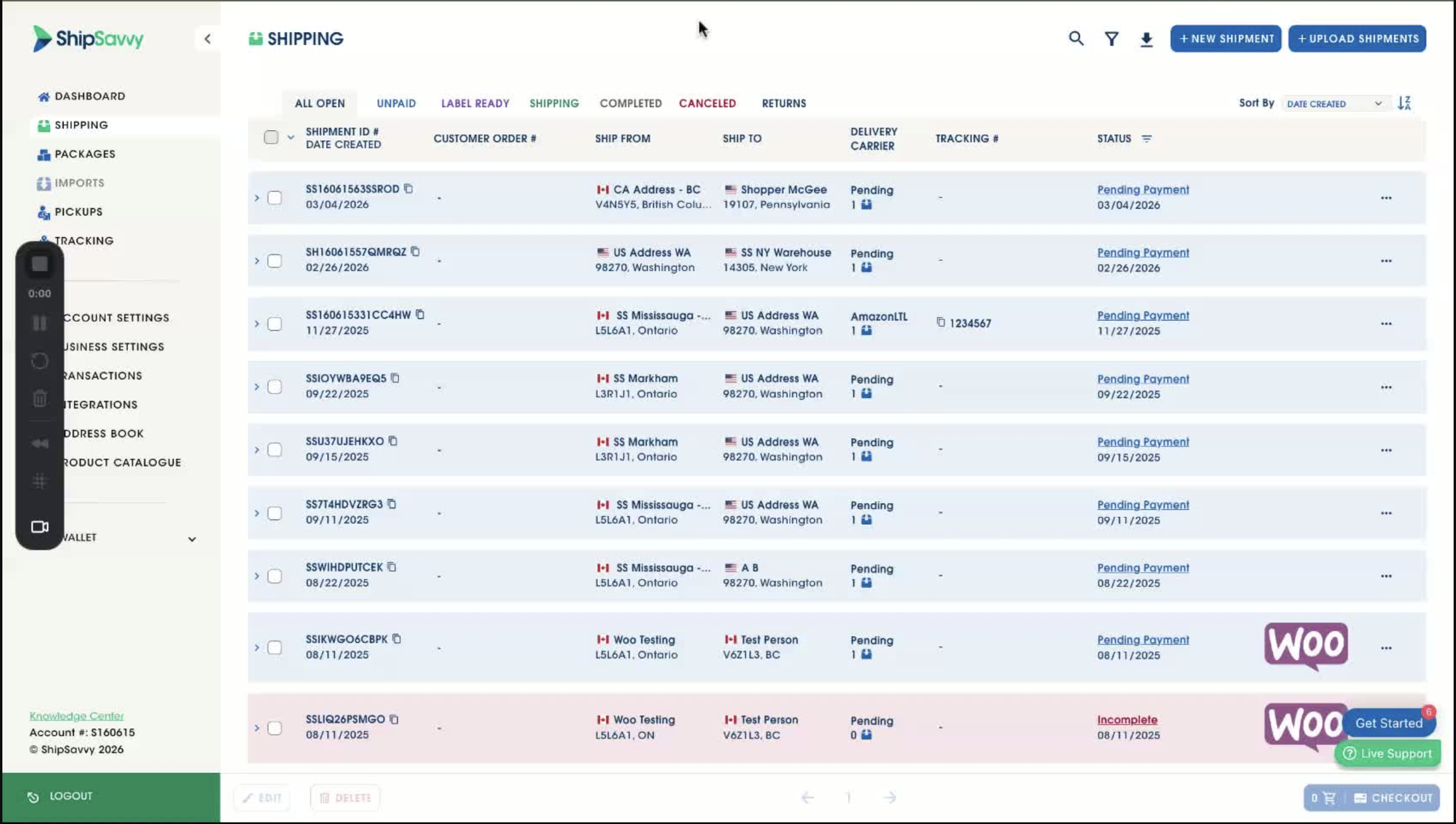
Quick tip: You can select shipments across different locations, Bulk Edit will apply your chosen updates to the entire selection.
Open Bulk Edit
With shipments selected, click Edit below on the Shipping page.
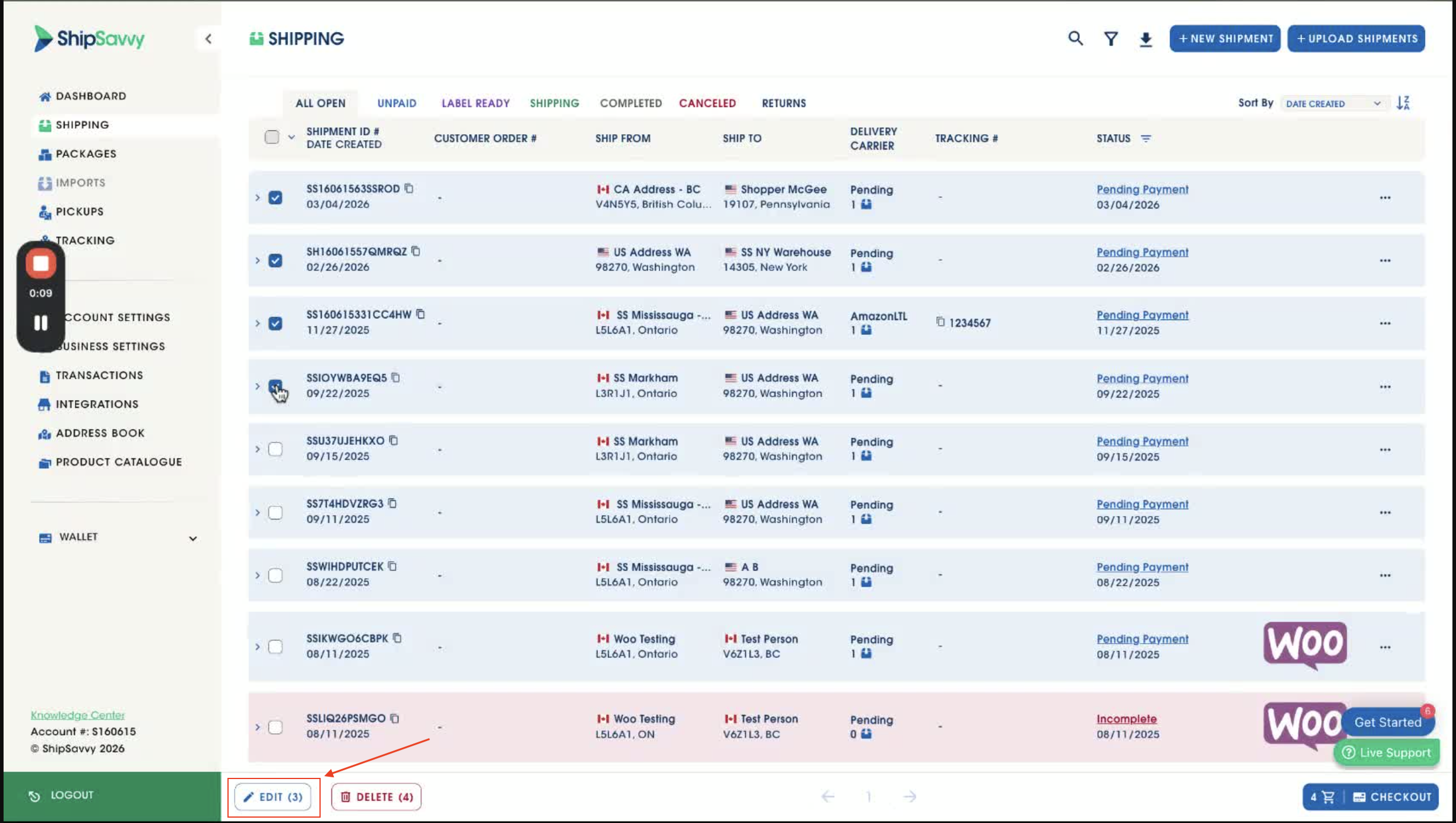
Note: If you don’t see Edit, double-check that your selection does not include any on-hold shipments.
Update shipment details (what you can edit)
Choose what you want to update for the selected shipments:
Ship From (from your Address Book)
Set a single starting address that will apply to all selected shipments.Package Preset (applies to all selected shipments)
Quickly apply a predefined package preset to your selection.Signature Requested (Yes/No)
Turn signature on or off for all selected shipments.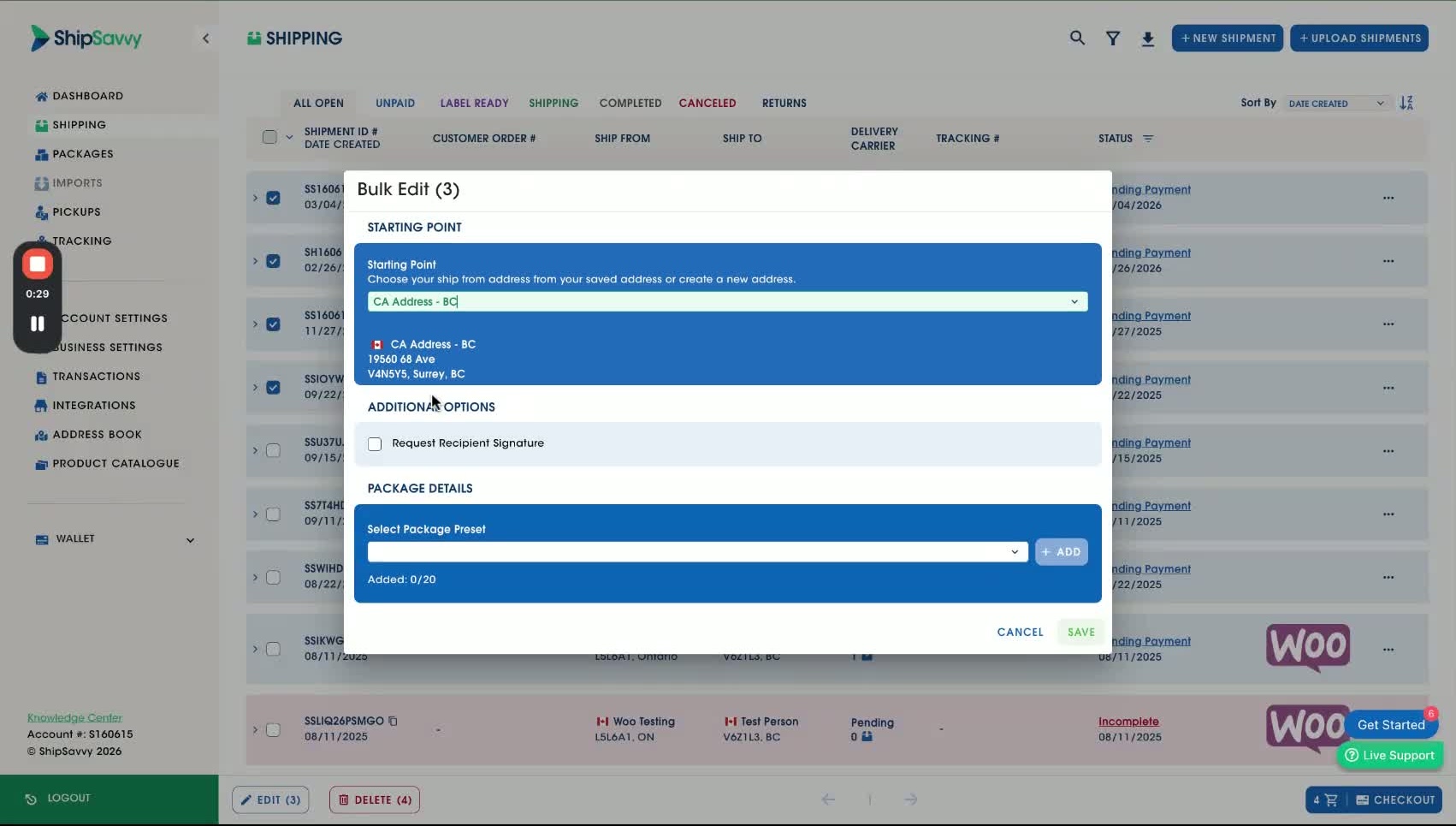
Tip: If you’re cleaning up multiple shipments, many users start with Ship From first, then apply a Package Preset to speed up package details.
Apply changes
Once you’ve chosen your updates, click Save to update all selected shipments.
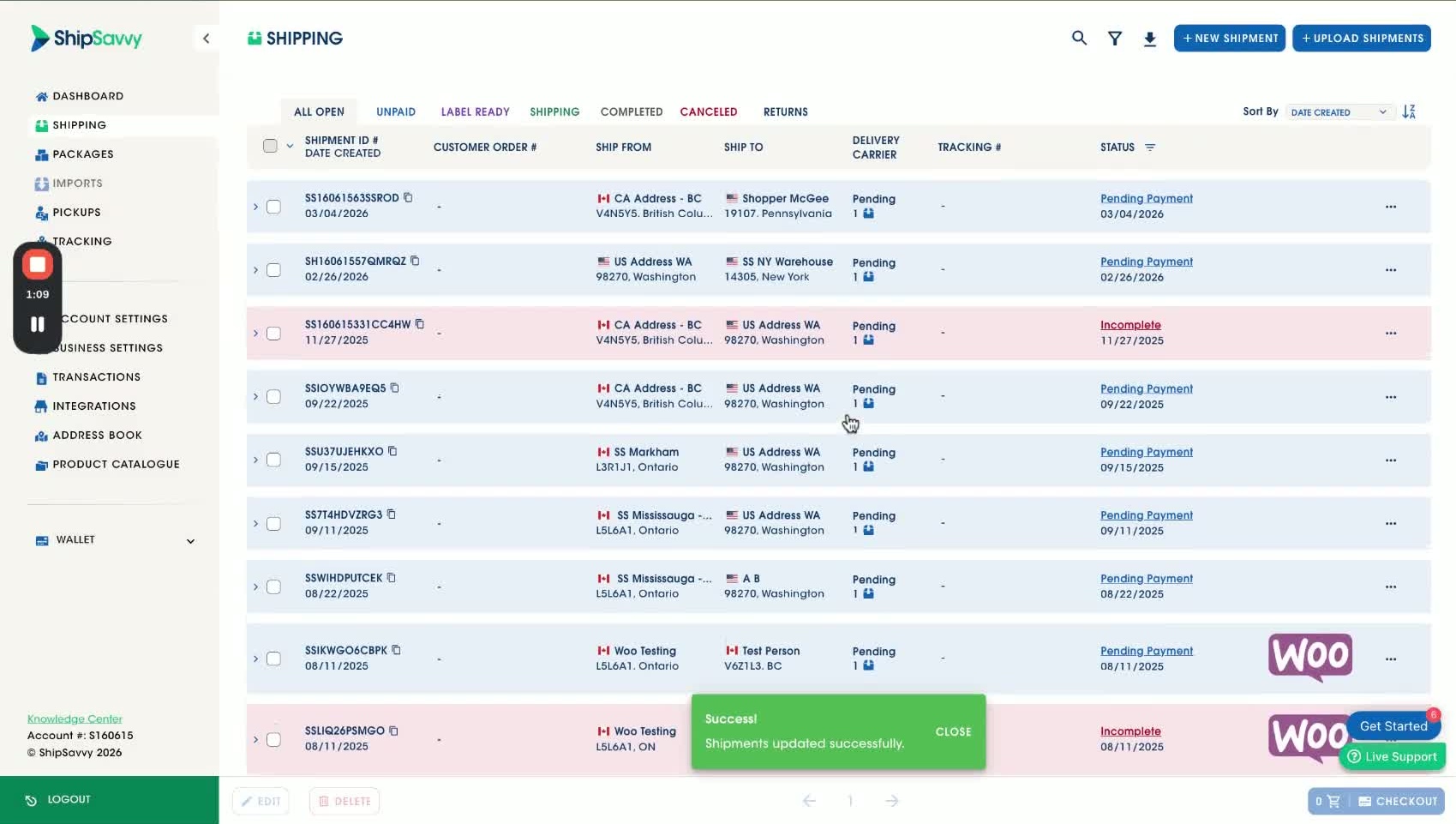
You’ll see a confirmation message: “Shipments updated successfully.”
Verify the updates
Refresh the Shipping page to confirm the updated details (e.g., Ship From address).
Make sure all selected shipments reflect the changes you applied.
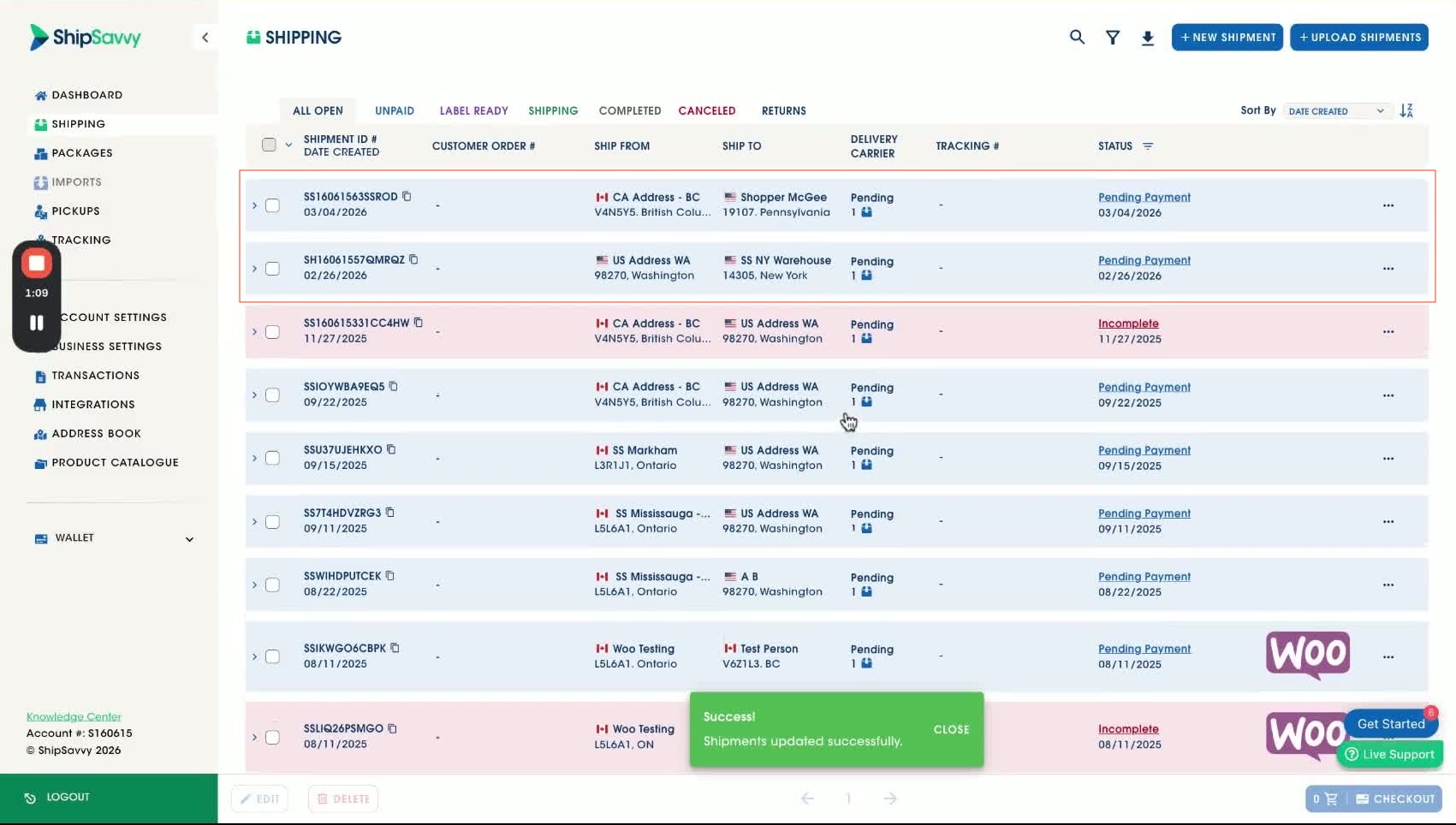
Note: If a shipment was Incomplete and becomes ready after your update, it may automatically move to Pending Payment, this is expected behavior.
Quick troubleshooting
I don’t see the Bulk Edit option.
Make sure you’ve selected at least one shipment in Incomplete or Pending Payment.
Remove any on-hold shipments from your selection (on-hold shipments are excluded from Bulk Edit).
Some shipments didn’t update.
Confirm none of the selected shipments were on hold.
Refresh the Shipping page and re-check the shipment details.
My shipment moved from Incomplete to Pending Payment after editing.
That’s expected. If your bulk update made the shipment “ready,” it will automatically move to Pending Payment.
Conclusion
Bulk Edit helps you update multiple shipments quickly—especially when you need to standardize the Ship From, apply a Package Preset, or toggle Signature Requested across a group of shipments. Try it anytime you need to clean up shipments in bulk before checkout.
Was this article helpful?
That’s Great!
Thank you for your feedback
Sorry! We couldn't be helpful
Thank you for your feedback
Feedback sent
We appreciate your effort and will try to fix the article