Shipping PGA/FDA-Regulated Products with ShipSavvy
Created by Mark Morales, Modified on Tue, 5 May at 10:28 AM by Mark Morales
When you ship FDA- or PGA-regulated products, customs requires extra information for clearance, ShipSavvy lets you store this data once in your Product Catalog so you can create compliant shipments from Canada to the U.S. or import into Canada with less manual work; once your products are configured, ShipSavvy enables U.S. and Canadian flags and only shows compliant products when you create shipments in the portal, so every PGA/FDA shipment includes the required information.
1. Set up your product in the Product Catalog
Best for: Any product you plan to ship from Canada to the U.S. or import into Canada.
What you need:
- SKU
- Product description
- Declared value (per unit)
How it works:
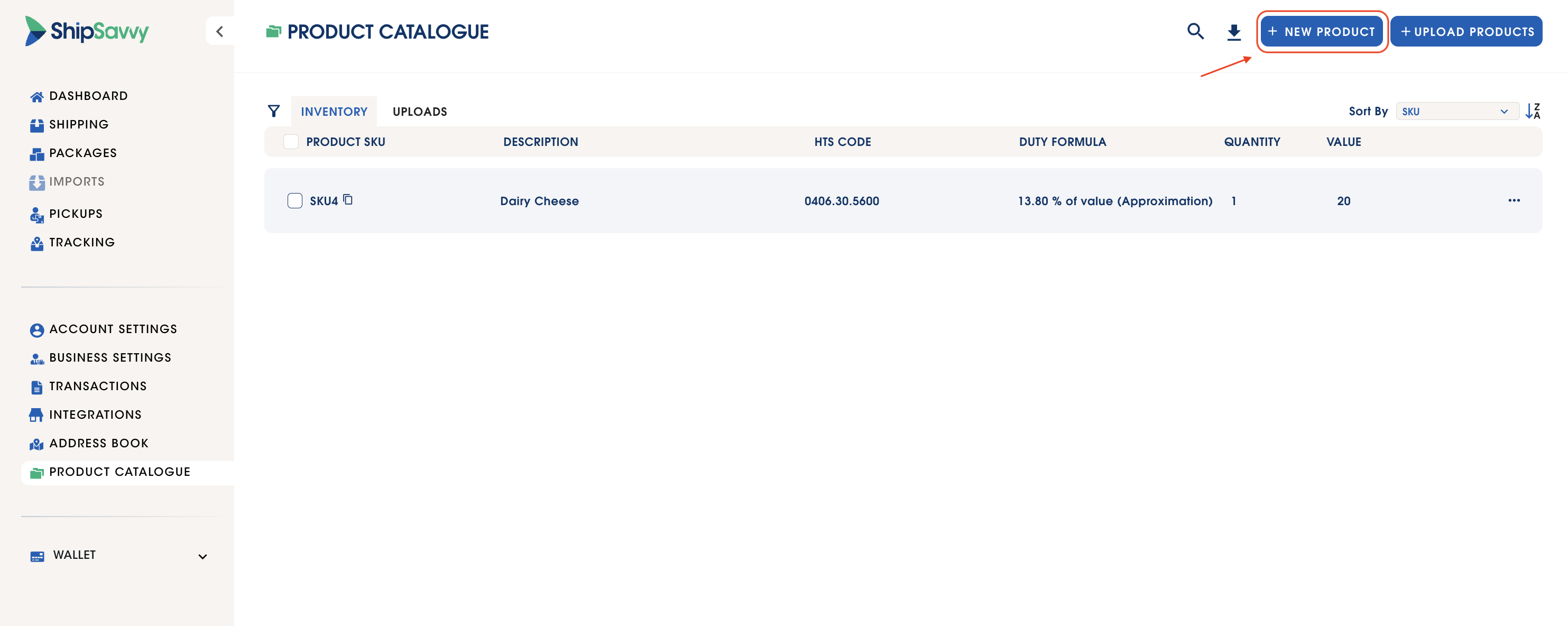
- Go to Product Catalog and click New Product (or edit an existing one).
- Enter SKU, Description, and Value.
- Click Create Preset.
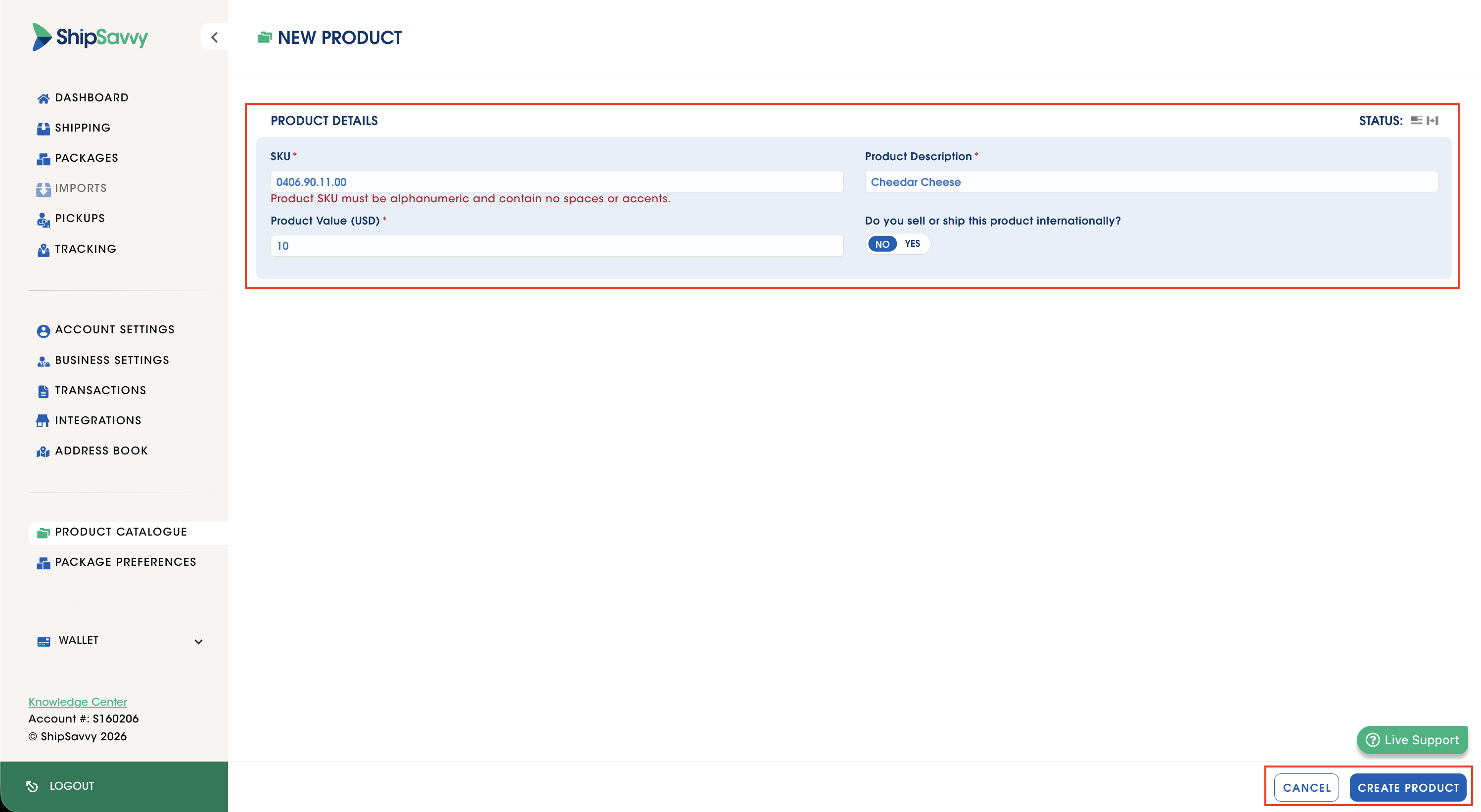
At this point:
- The product is domestic / non-U.S. international only.
- No flags are enabled in the Import/Export Status column.
2. Enable the product for PGA/FDA shipments
Best for: Products that will travel to the U.S. or be imported into Canada.
What you need:
- To know whether the product will:
- Be imported into Canada, and/or
- Be shipped to the U.S.
- Country of manufacture
- Product category (for imports into Canada)
- HTS code (for shipments to the U.S.)
How it works:
- Open the product in Product Catalog.
- Answer Yes to:
“Do you want to sell or ship this product internationally?” - Choose the option(s) that apply:
- Import into Canada
- Ship to the U.S.
Then complete the specific fields required.
2.1 Import into Canada (turn on the Canada flag)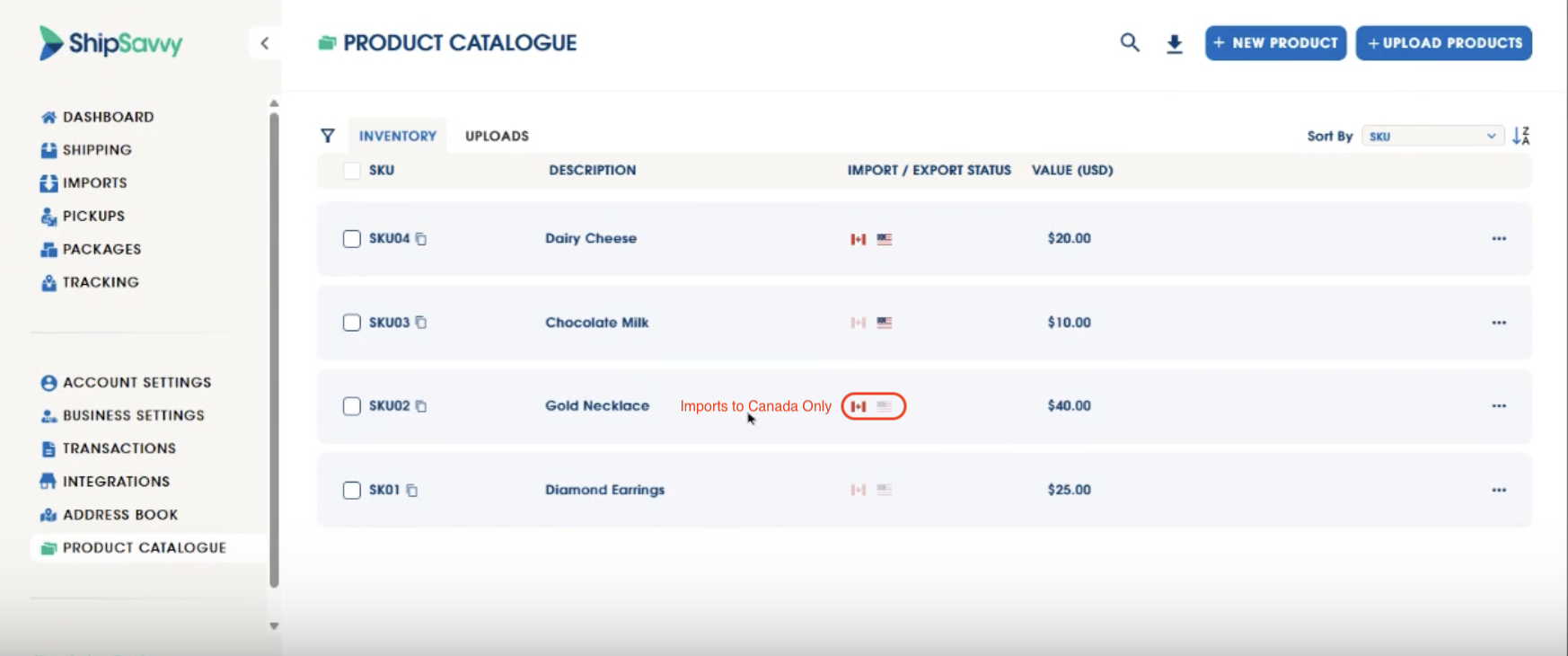
What you need:
- Country of manufacture
- Product category
How it works:
- Select Import into Canada.
- Fill in:
- Country of manufacture
- Product category
- Click Save.
Result:
- The Canada flag turns on in the Import/Export Status column.
- The product is now eligible for imports into Canada.
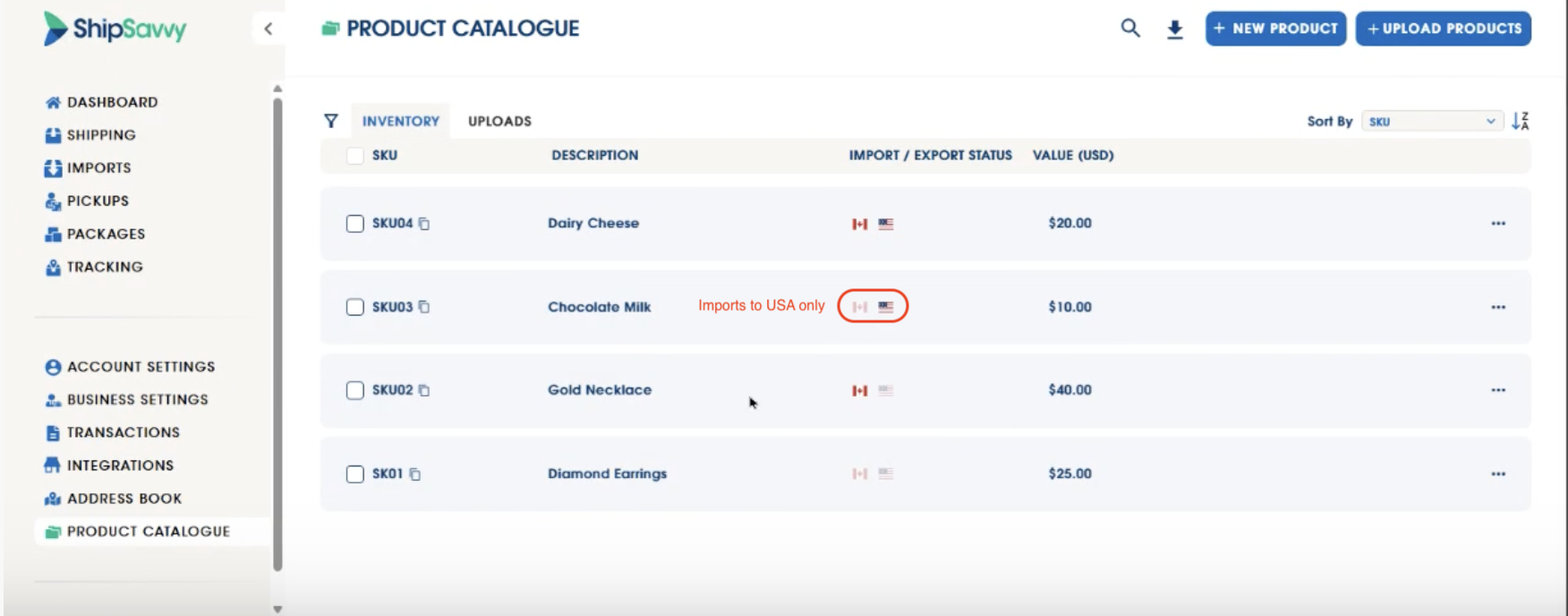
2.2 Ship to the U.S. (flag for U.S. is turned on)
What you need:
- Country of manufacture
- HTS code (or enough detail to use the HTS helper)
How it works:
- Select Ship to the U.S.
- Fill in:
- Country of manufacture
- HTS code
- You can use the in-portal helper: enter the description and country of manufacture in shipping, then click the button to get a recommended HTS code.
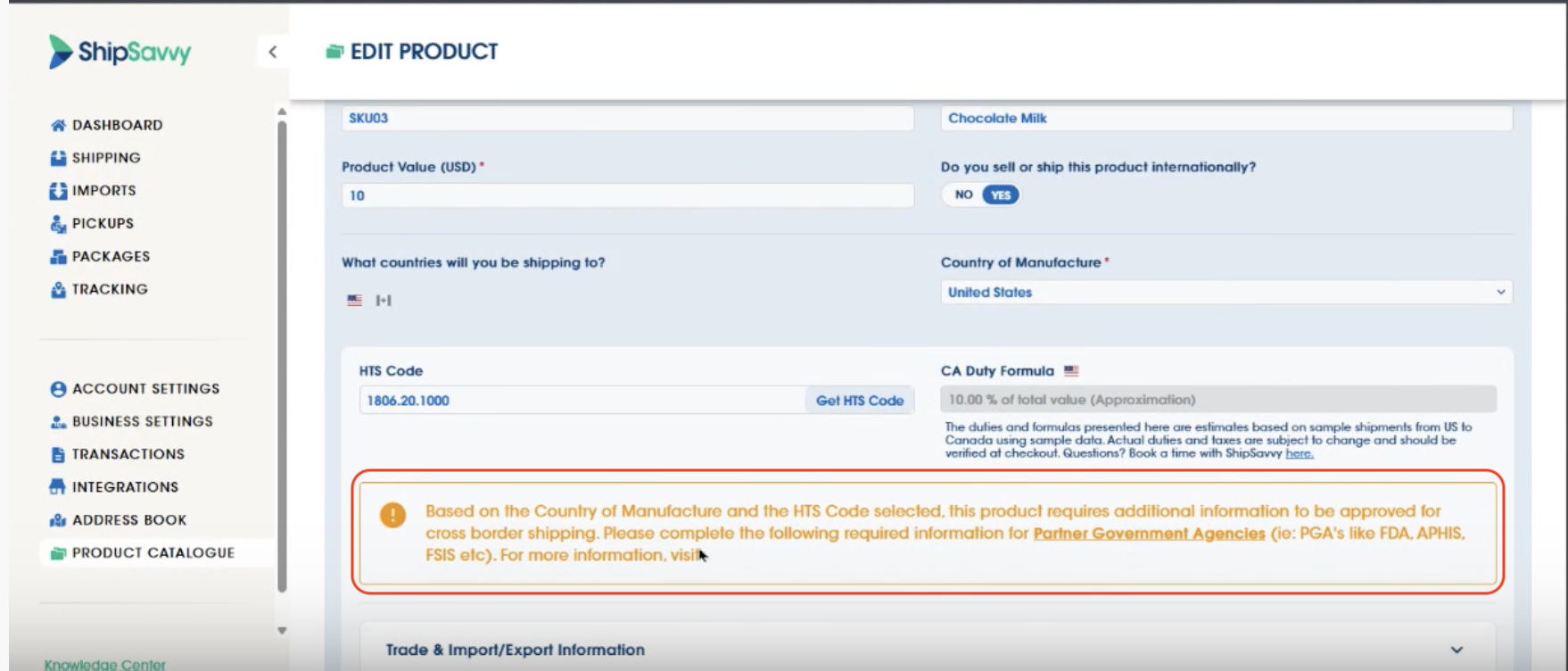
If the system detects the product is on the PGA/FDA list:
- You’ll see a message that additional information is required.
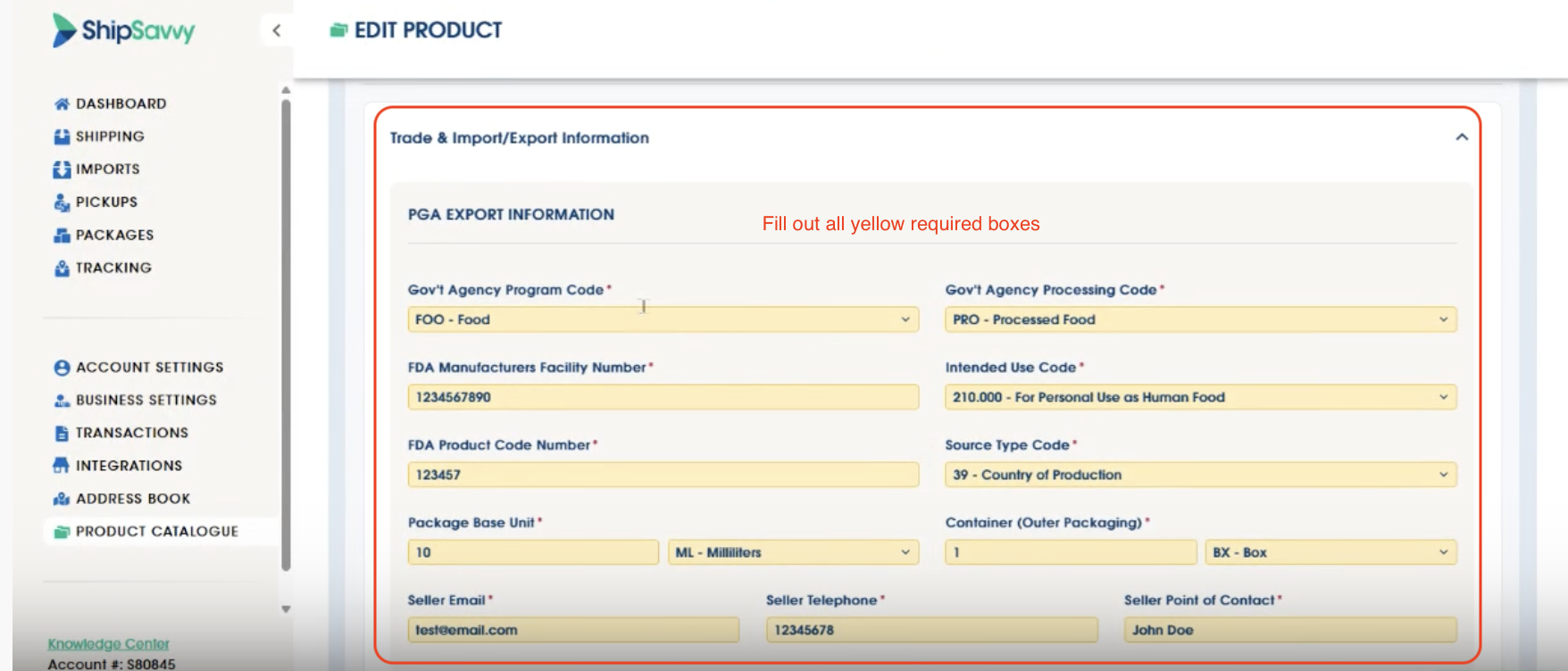
- Extra sections will appear (for example: PGA export information, Manufacturer information, FSVP/FDA information).
- Required fields are highlighted in bright yellow (see below).
Complete the requirements:
- Fill in all yellow-highlighted fields (these are mandatory).
- White fields are optional but recommended to reduce future updates.
- Click Save.
Result:
- The U.S. flag turns on in the Import/Export Status column.
- The product is now eligible for shipments to the U.S., including PGA/FDA-regulated ones.
2.3 Enable both Canada and U.S. flags
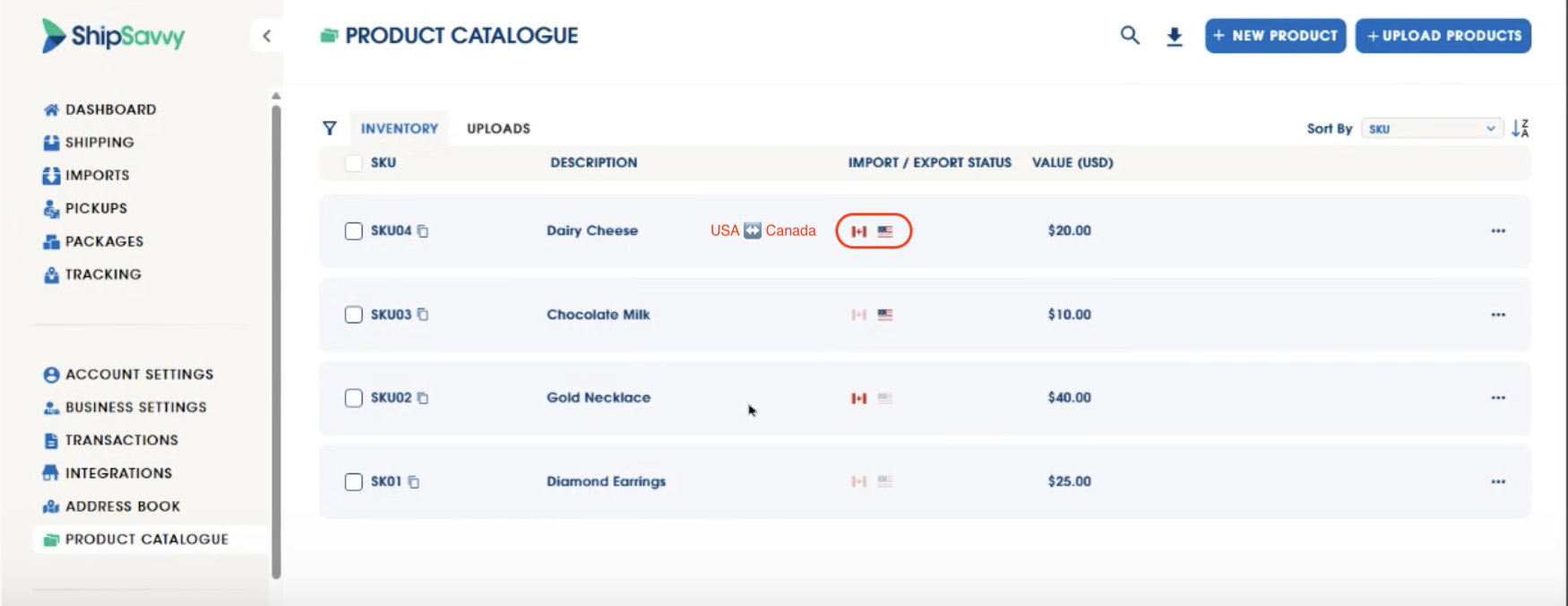
If the same product will be used for imports into Canada and shipments to the U.S.:
- Turn on Import into Canada and Ship to the U.S..
- Complete all fields listed in 2.1 and 2.2, including any yellow-highlighted PGA/FDA fields.
- Click Save.
Result:
- Both flags are enabled.
- The product can be used for:
- Domestic shipments
- Non-U.S. international shipments
- Shipments to the U.S.
- Imports into Canada
3. Use PGA/FDA-ready products when creating shipments
Best for: Any shipment that includes PGA/FDA-regulated products.
How it works:
- Domestic Canada shipments (Canada → Canada)
- You can ship without product details, or
- Add products from the catalog; domestic-eligible products will be available.
- Shipments to the U.S.
- When you choose a U.S. destination, the product selector only shows items with the U.S. flag enabled and all required PGA/FDA data completed.
- Imports into Canada
- When you create an import to Canada and add products from the catalog, you’ll only see products with the Canada flag enabled.
If a flag disappears later:
- ShipSavvy may require additional information due to updated rules.
- Edit the product in Product Catalog and complete any new yellow-highlighted fields to re-enable the flag.
Don’t miss a single update from ShipSavvy.
Stay ahead on cross-border rules, carrier changes, and new tools, all inside your dashboard.
Create your next shipment in the portal ↗
Was this article helpful?
That’s Great!
Thank you for your feedback
Sorry! We couldn't be helpful
Thank you for your feedback
Feedback sent
We appreciate your effort and will try to fix the article