The new filtering feature helps you focus on orders from a specific marketplace or integration store. Use it on the Shipping page to quickly display only the orders you want to process—especially helpful when you manage multiple stores or locations.
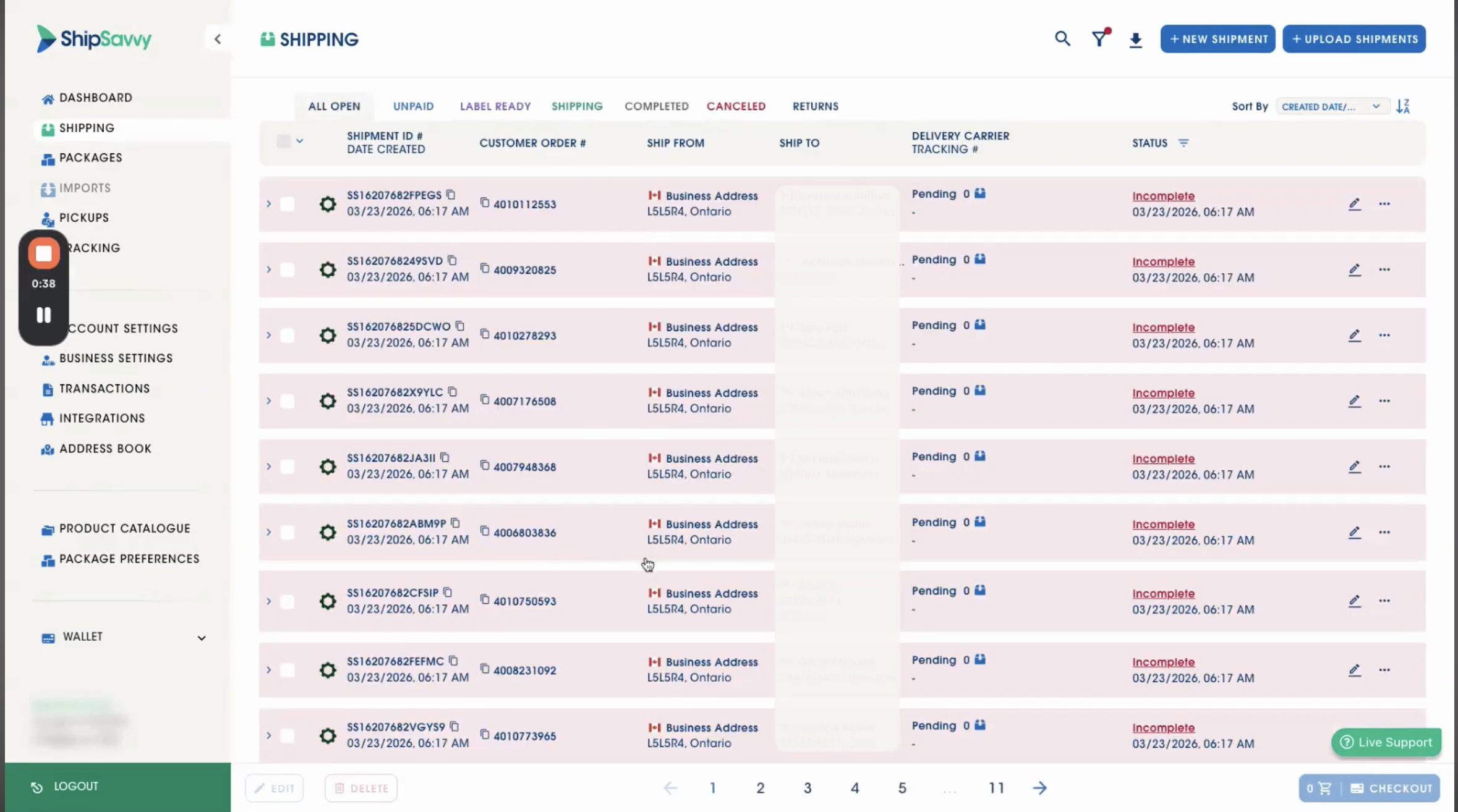
Step-by-step: Use the Marketplace Orders filter
Open the Shipping page
- From the left-hand menu, click Shipping to view your orders list.
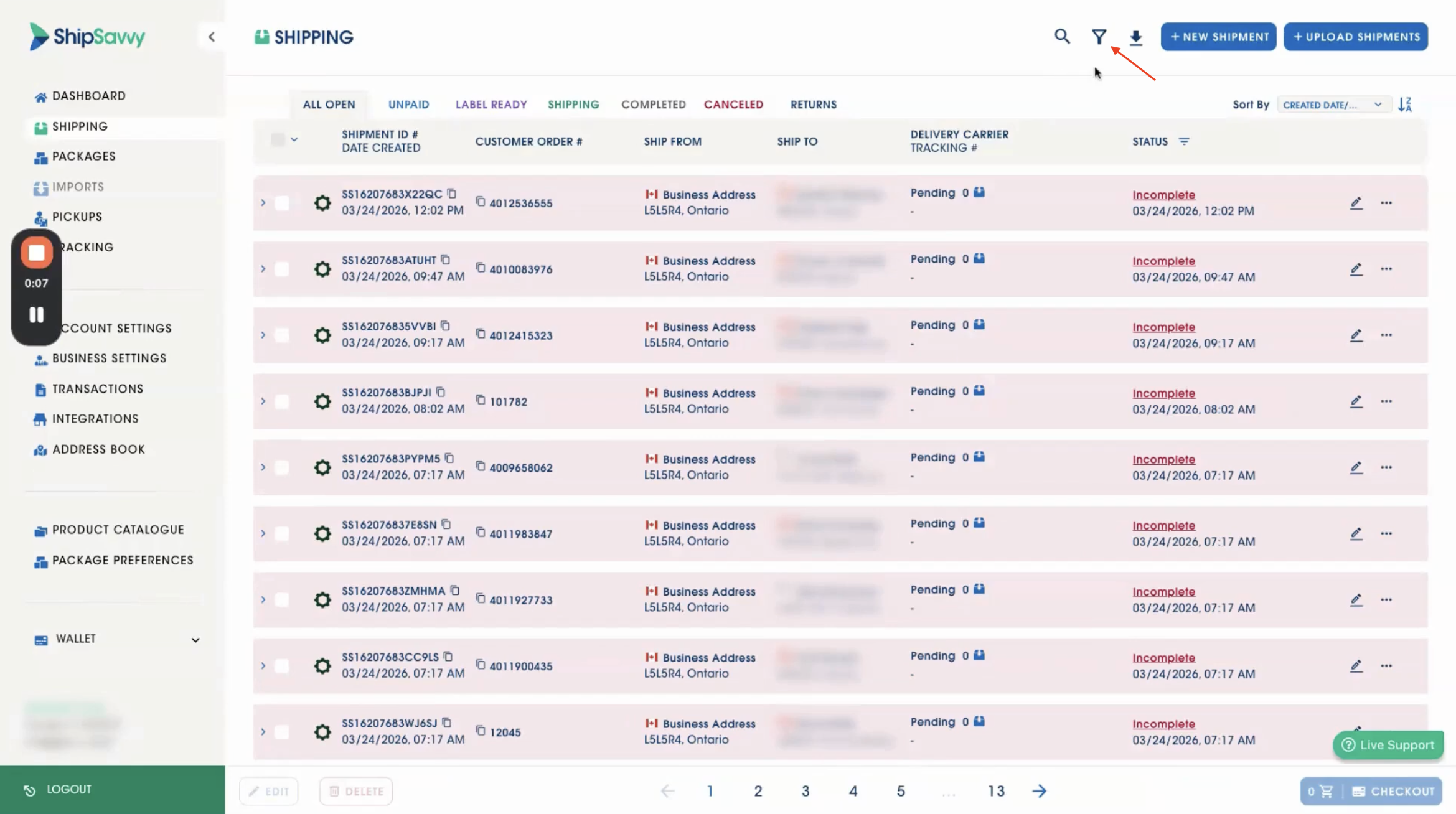
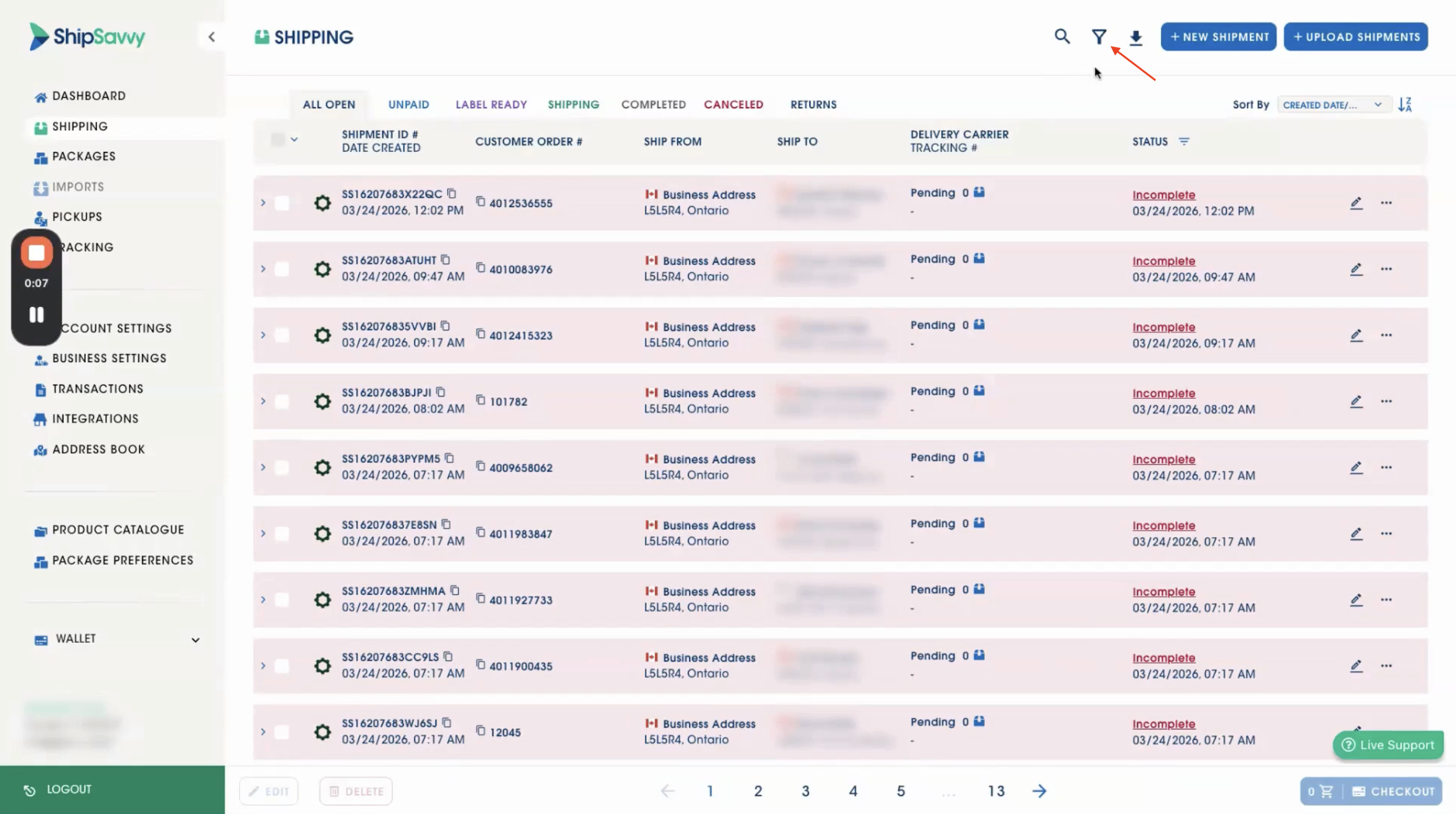
Find the filter at the top of the orders list
- At the top of the orders list, locate the Filter option.
Select the Integration Store
- Click the Integration Store drop-down menu.
- Choose the store you want to filter by.
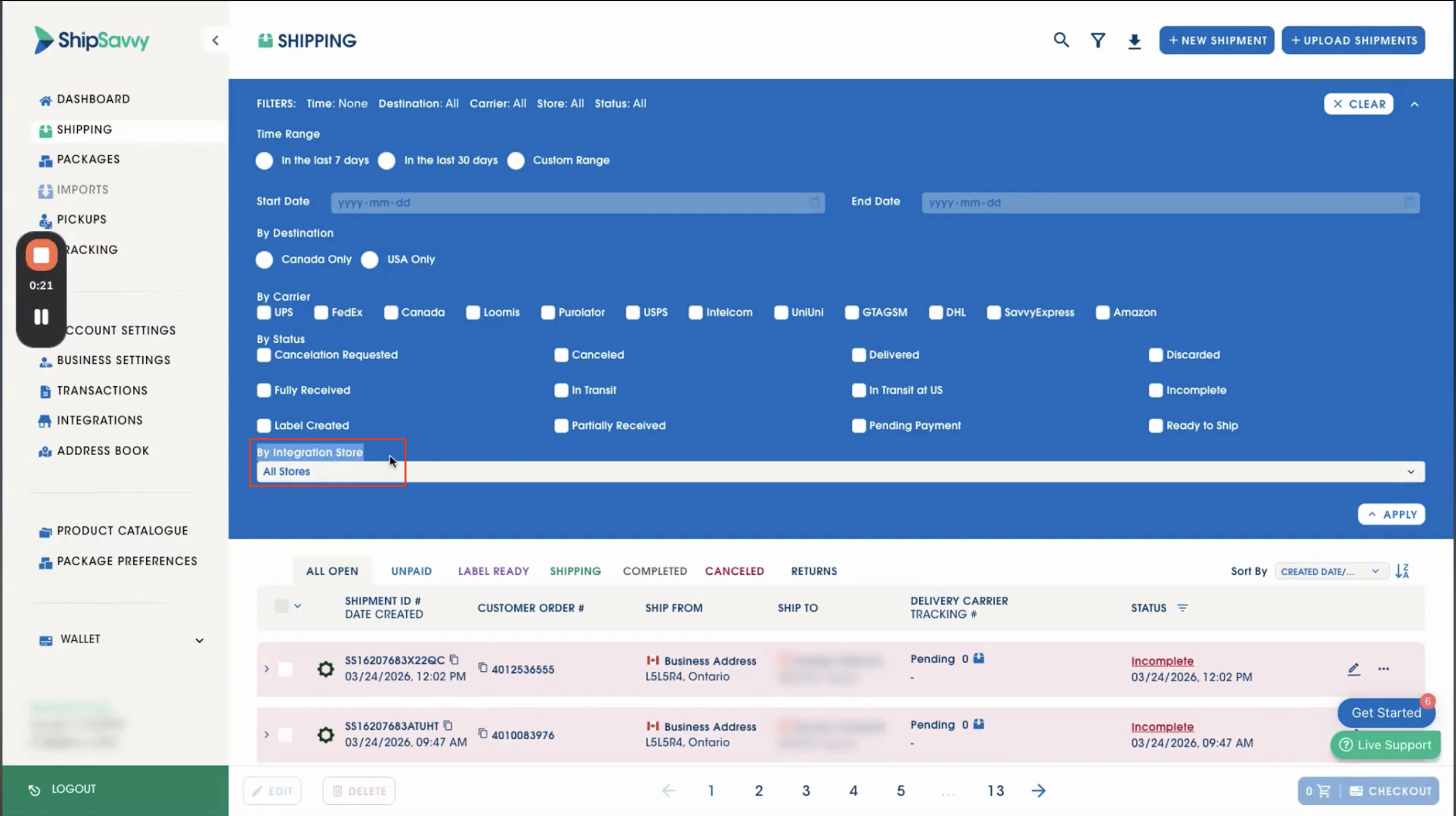
Quick tip: This is great when you want to work store-by-store (e.g., one location in the morning, another later in the day).
Apply the filter
- Click Apply.
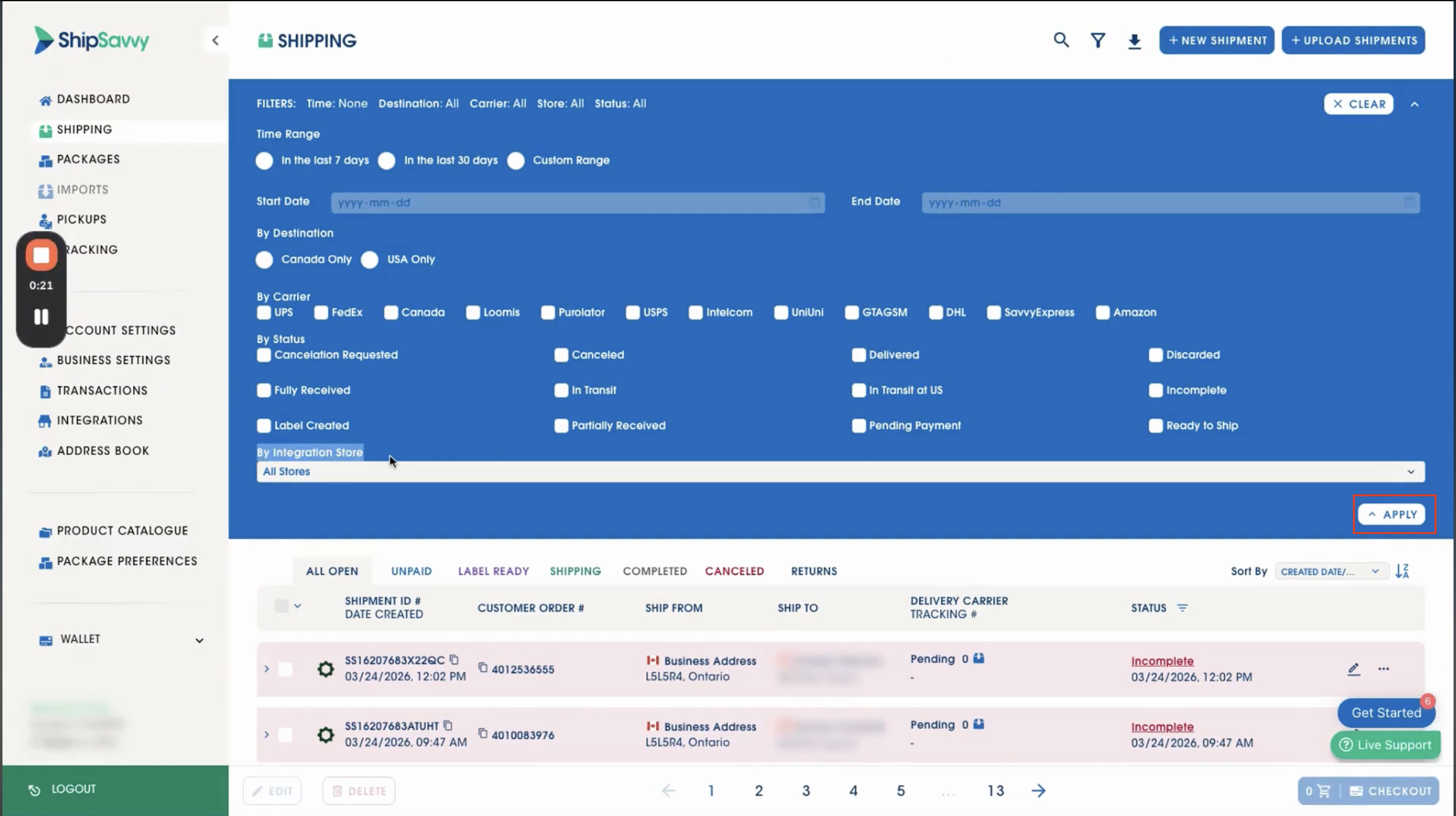
Once applied, you’ll only see orders from the selected store.
Change the filter as needed
- Return to the filter at any time to:
- Switch to a different store, or
- Clear the filter and return to viewing all orders.
Quick troubleshooting
I don’t see the filter option.
- Refresh the page and make sure you’re on the Shipping orders list.
- If you still don’t see it, confirm you’re in the correct account/workspace.
My store isn’t showing in the drop-down.
- Confirm the store is connected and actively syncing.
- If it was recently added, wait a few minutes and refresh.
No orders show after I apply a filter.
- That store may not have orders in the current view/status.
- Try clearing the filter to confirm orders appear again.
Was this article helpful?
That’s Great!
Thank you for your feedback
Sorry! We couldn't be helpful
Thank you for your feedback
Feedback sent
We appreciate your effort and will try to fix the article