We’ve added support for Metal HTS Code percentages so customers can declare the metal composition of certain products (when required) to help calculate duties more accurately.
This applies to metal tariff categories like Steel, Copper, and Aluminum, and is part of our broader FDA / PGA product requirements flow.
Step-by-step: How Metal HTS Codes work
When you’ll see the Metal Composition fields
Add or edit a product in your Product Catalog.
Enter the product’s HTS Code.
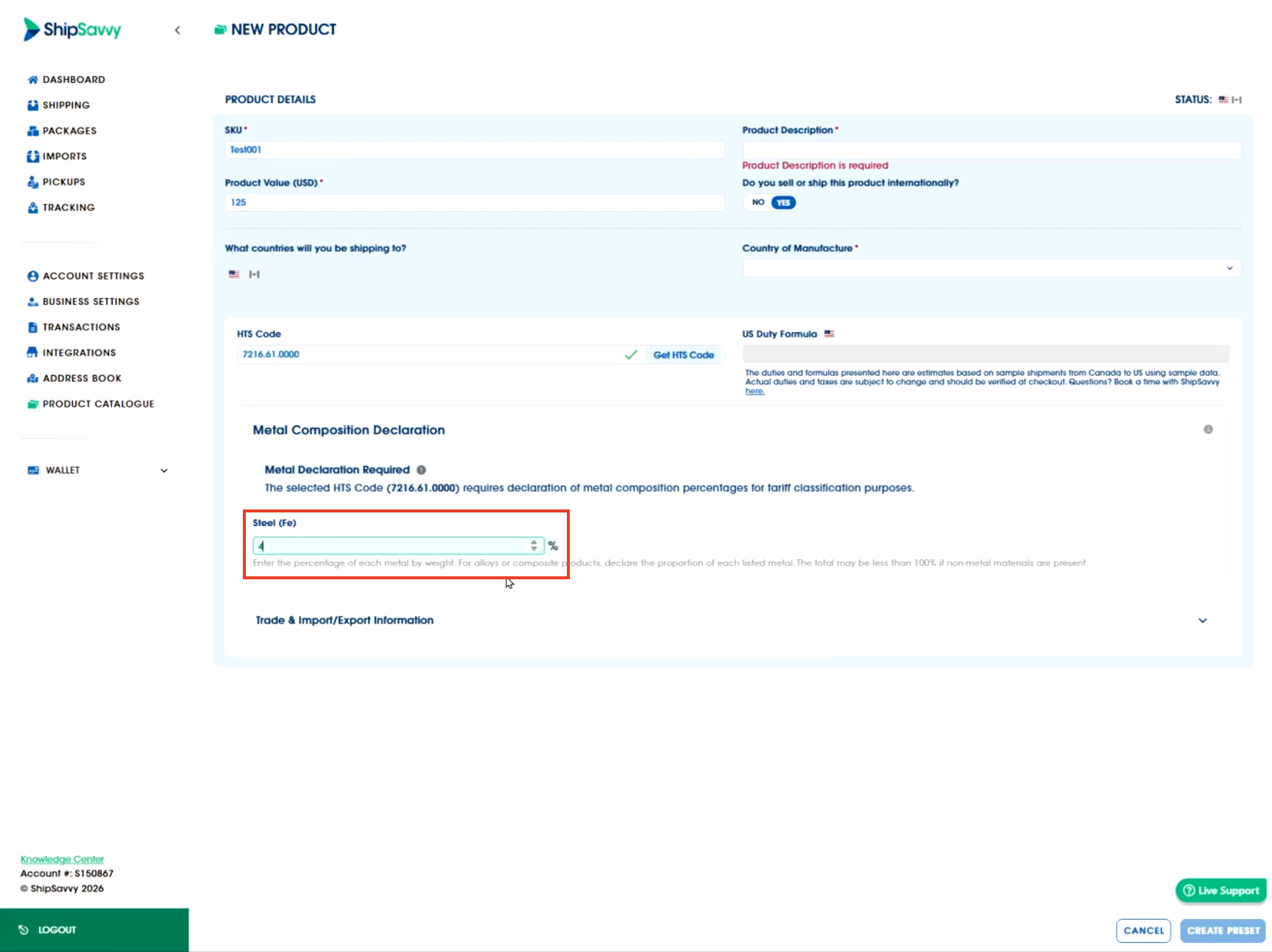
If the HTS code triggers the requirement, you’ll see one or more metal fields:
Steel
Copper
Aluminum
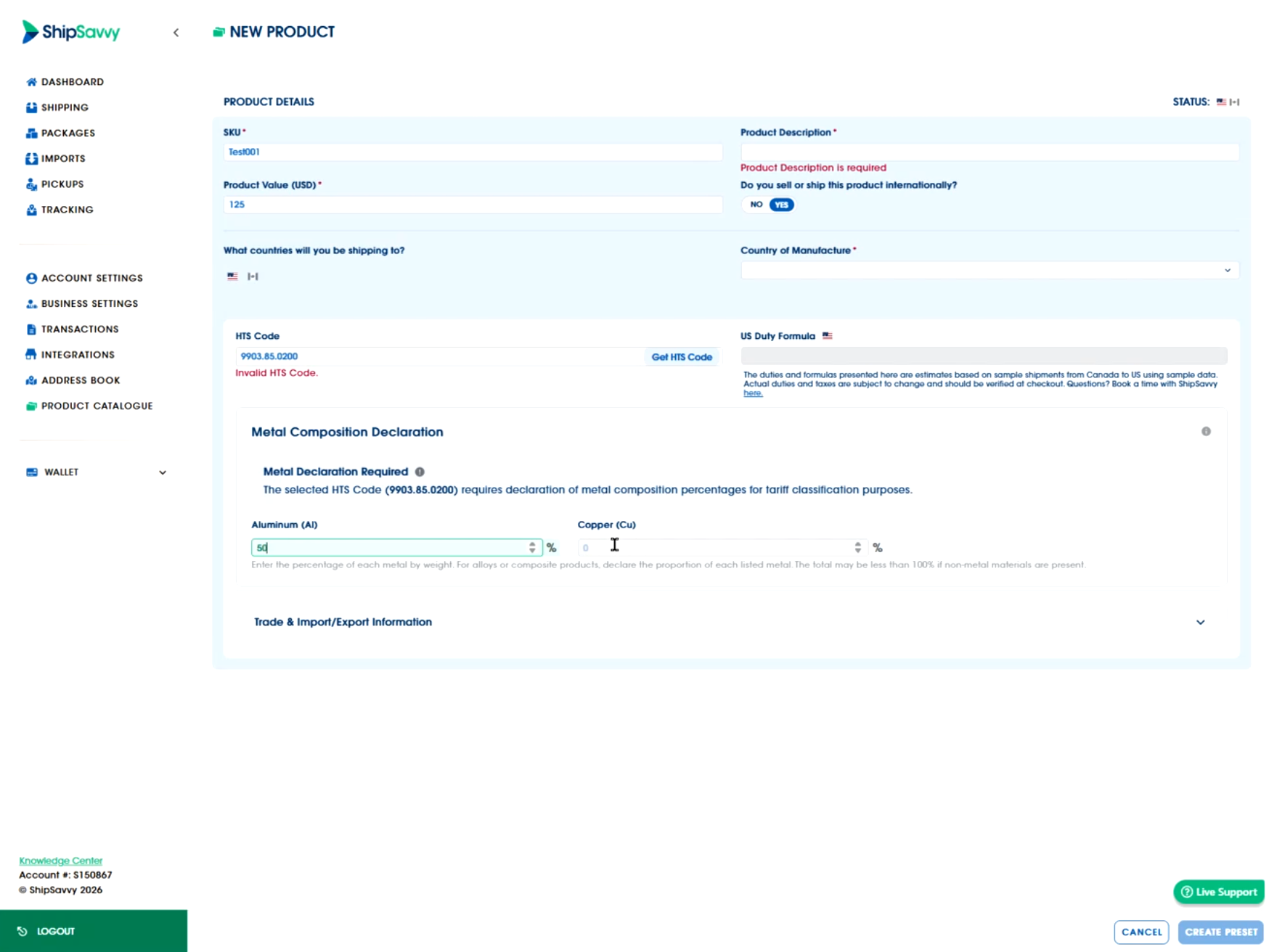
Quick tip: You may see one field (single-metal requirement) or multiple fields (multi-metal requirement) depending on the HTS code. 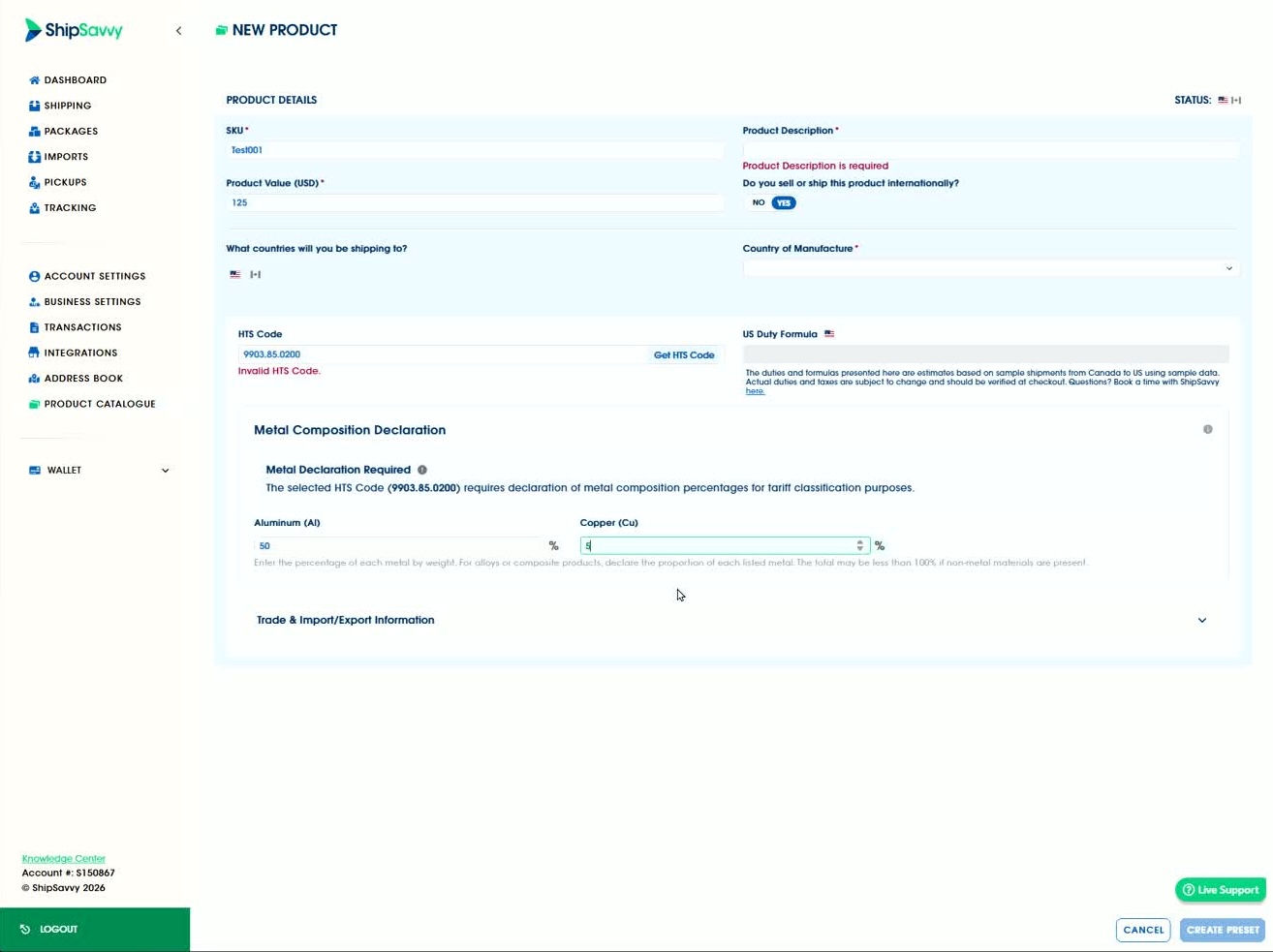
Declare the metal composition (required to save)
Fill in the metal composition percentage(s) shown on the product.
Click Create Preset to store the product in the catalog.
Note: If the platform requests metal composition for that HTS code, the product can’t be saved until the declaration is completed.
Composition rules (important)
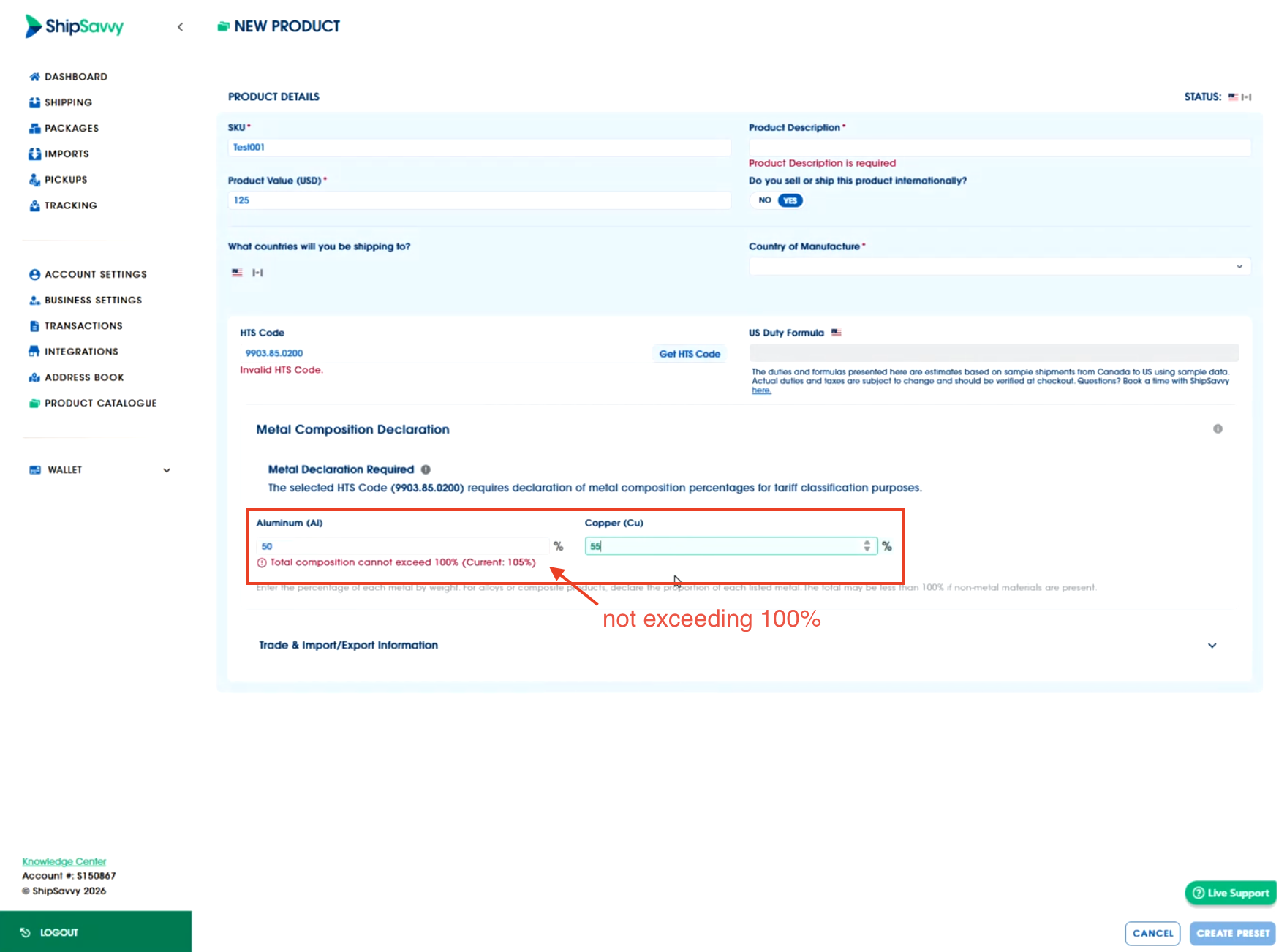
The total of all metal fields must be less than or equal to 100%.
Example: Steel = 60% and Copper = 40% ✅
Example: Steel = 60% and Copper = 50% ❌ (110%)
Multi-metal example
If multiple metal fields appear (ex: Aluminum + Copper), enter each percentage.
Confirm the total still equals 100% or less, then Create Preset.
Using the product in shipment creation
Once the product is saved in the catalog, you can select it during shipment creation.
Products that are already saved (with required metal declarations) can be used normally.
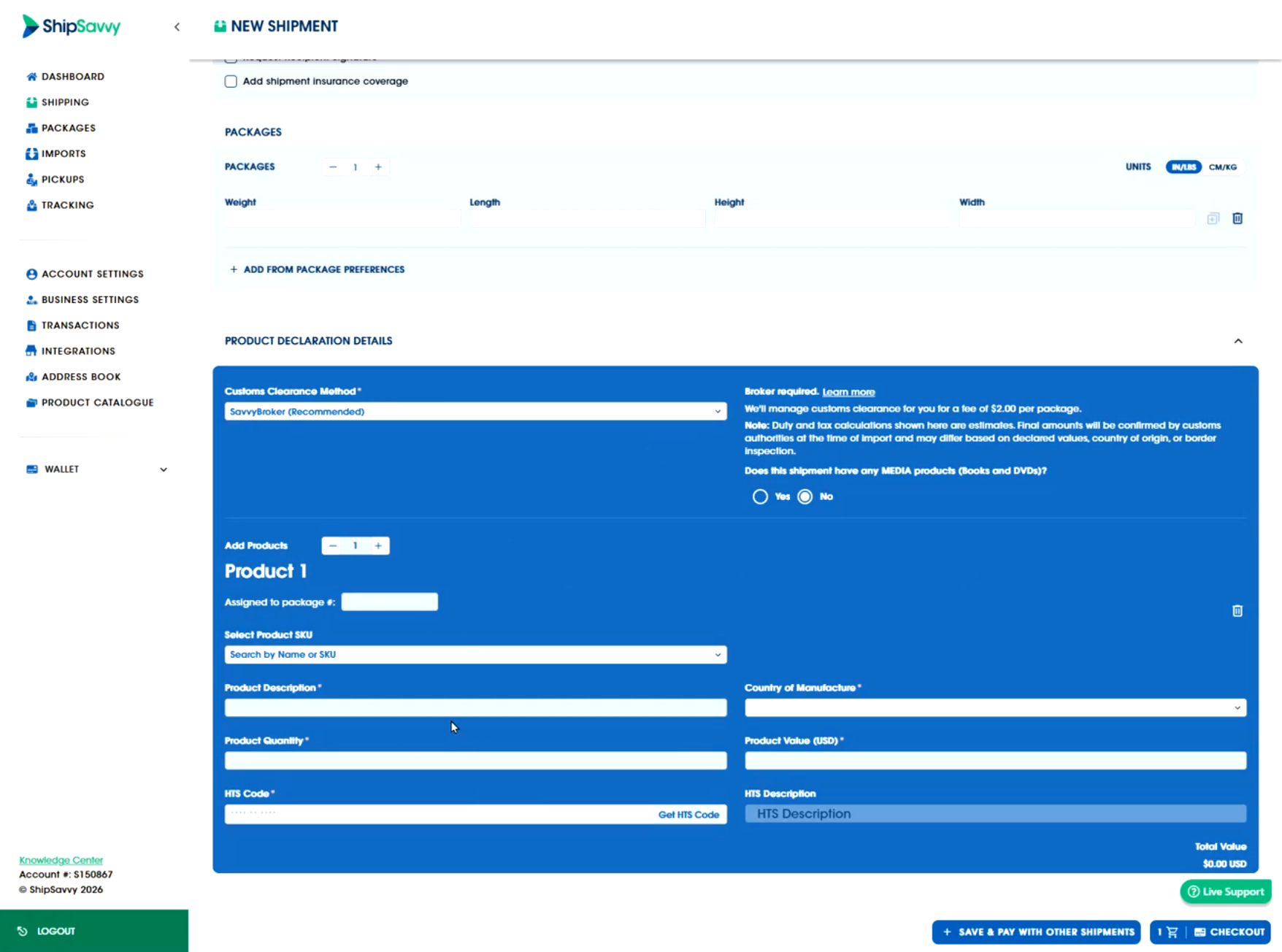
What happens when adding a new product during shipment creation
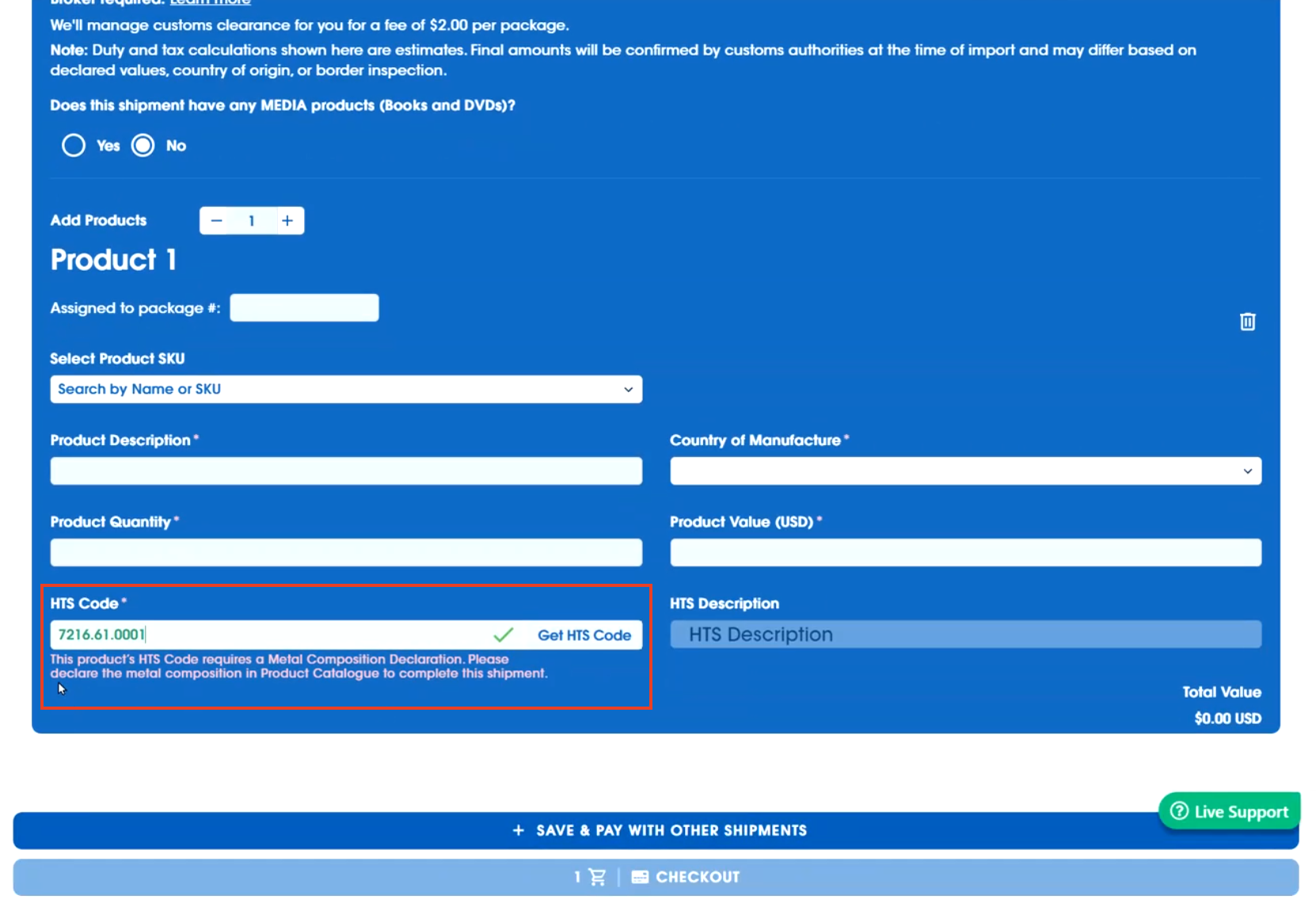
If a customer tries to add a new product manually (not yet registered in the catalog) and the HTS coderequires metal composition, they’ll see an error prompting them to complete the metal declaration first.
Quick troubleshooting
I don’t see any metal fields.
Double-check the HTS code you entered. Only certain HTS codes trigger metal composition fields.
I can’t save the product.
Make sure all required metal fields are filled in.
Confirm the total metal composition is ≤ 100%.
I’m getting an error when adding a product during shipment creation.
Add the product to the Product Catalog first, complete the metal declaration (if prompted), then select the saved product in your shipment.
Was this article helpful?
That’s Great!
Thank you for your feedback
Sorry! We couldn't be helpful
Thank you for your feedback
Feedback sent
We appreciate your effort and will try to fix the article