ShipSavvy Help Center
How to Create a DEL Shipment (Bring Your Own Last-Mile Label)
Already have your own delivery label? Send your package across the border with ShipSavvy and keep using the carrier you know.
In this guide
- Overview
- Before you start
- Step 1: Start a new shipment
- Step 2: Choose where the package is coming from
- Step 3: Tell us you have your own label
- Step 4: Enter your label details
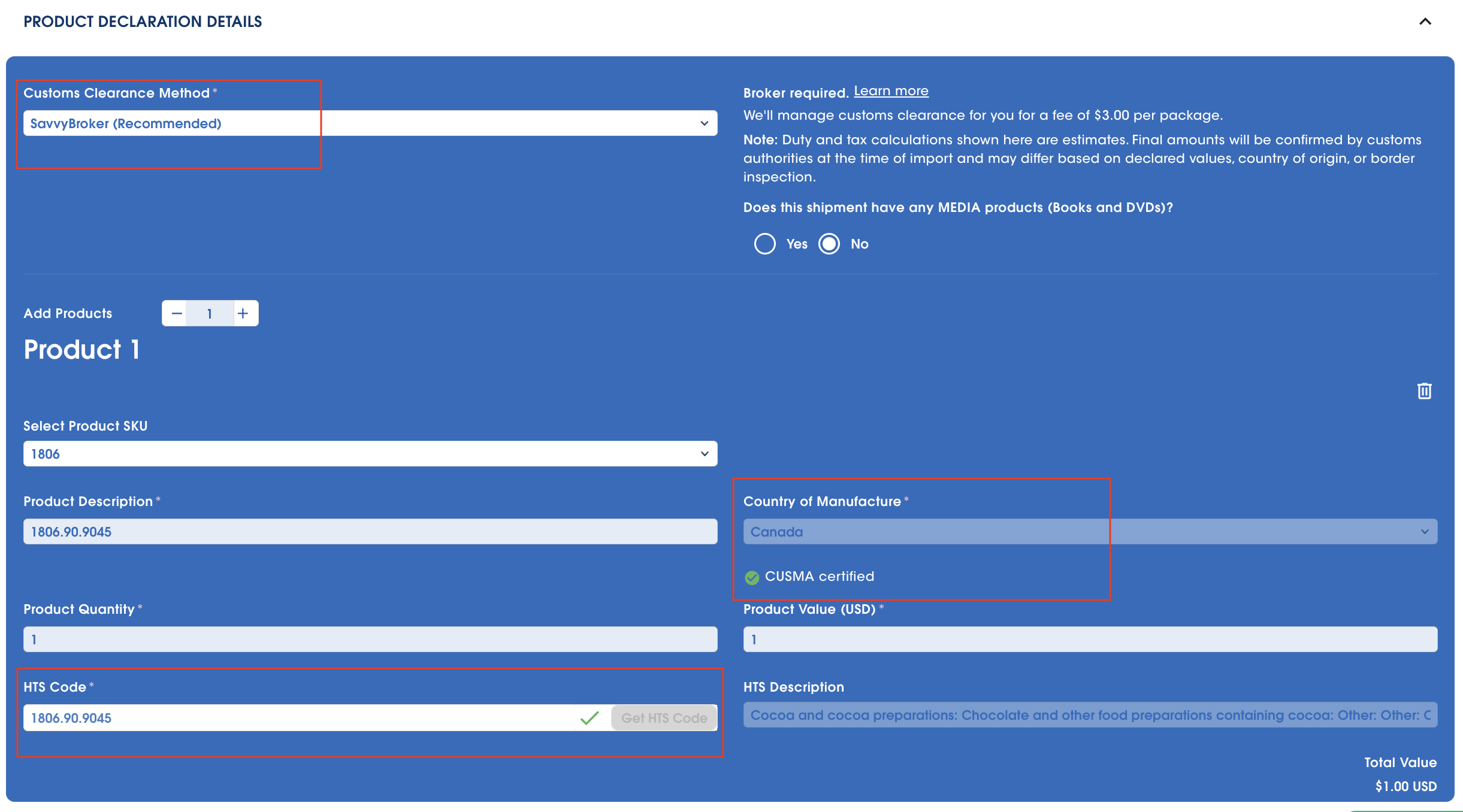
- Step 5: Choose your customs clearance
- Step 6: Add your product information
- Step 7: Claim a reduced tariff (if it applies)
- Step 8: Review and check out
- Good to know (single shipments)
- Create DEL shipments in bulk
- Quick tips
- Troubleshooting and help
Overview
A DEL shipment is for customers who already have their own last-mile label. The last mile is the final trip from the border to your customer's door, and the label is the shipping label for that trip (for example, from UPS, USPS or FedEx).
With a DEL shipment, you bring the label and ShipSavvy does the rest of the heavy lifting. We move your package across the border, then hand it off to your last-mile carrier to deliver.
You can create one shipment at a time, or many at once with a bulk upload.
Before you start
Have these handy so setup goes smoothly:
- Your last-mile label details: the carrier name, tracking number and package weight.
- Your product information. Customs uses this to understand what is in the box. If you don't know a product's 10-digit HTS code (a standard number that identifies what a product is), don't worry. ShipSavvy can suggest one for you.
- Your choice of customs clearance: ShipSavvy's broker (we handle it) or your own broker.
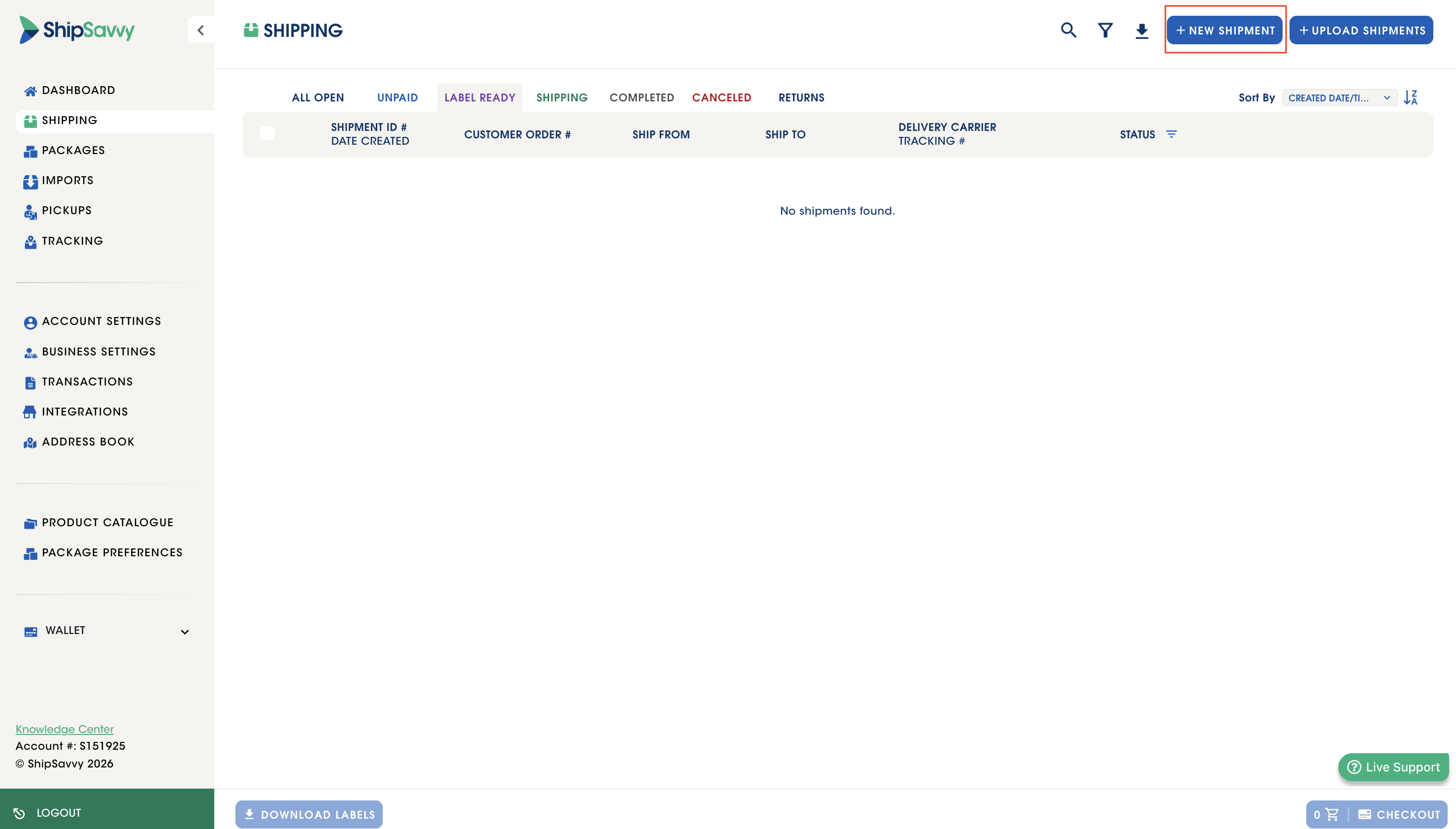
Start a new shipment
- Go to the Shipping page.
- Click Create a new shipment.
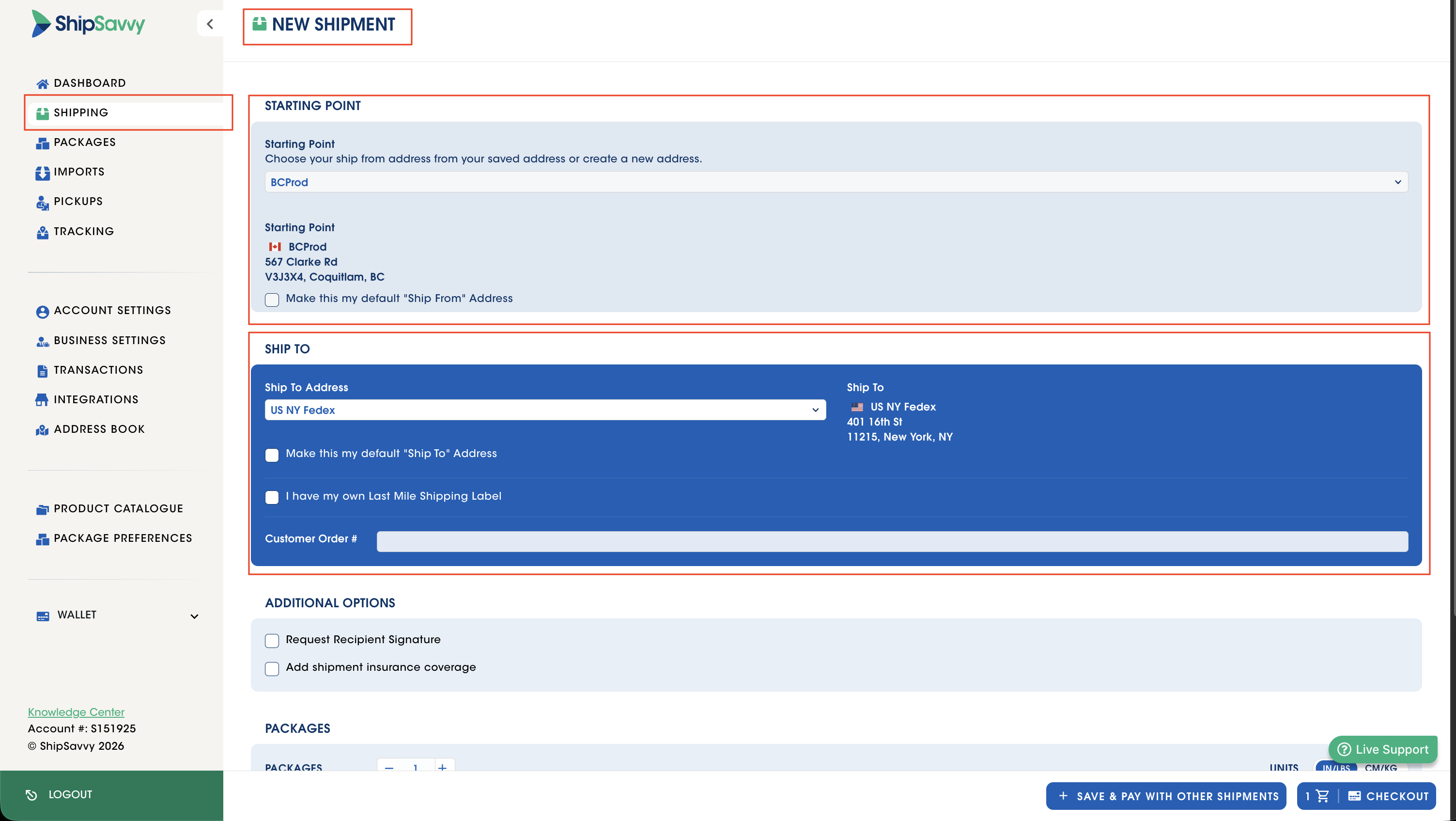
Choose where the package is coming from
Open the Ship-From location dropdown and pick one of these:
- One of your company locations
- A UPS Store drop-off location
- The customer's local address, if you'd like us to pick it up for the first leg of the trip
Tell us you have your own label
- Check the box I have my own last-mile label.
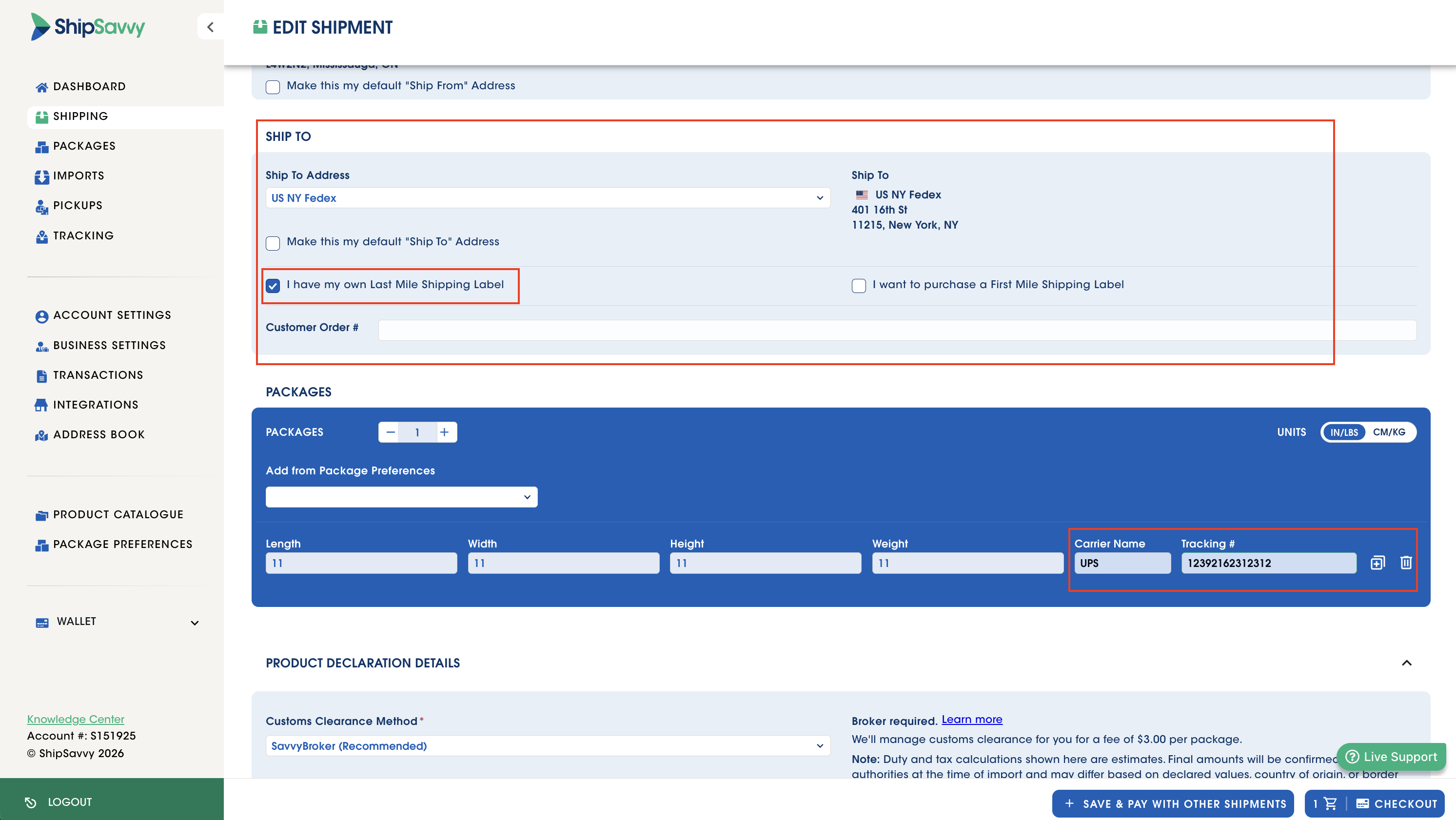
Enter your label details
Fill in these required fields:
- Carrier name (for example, UPS, USPS or FedEx)
- Tracking number
- Weight
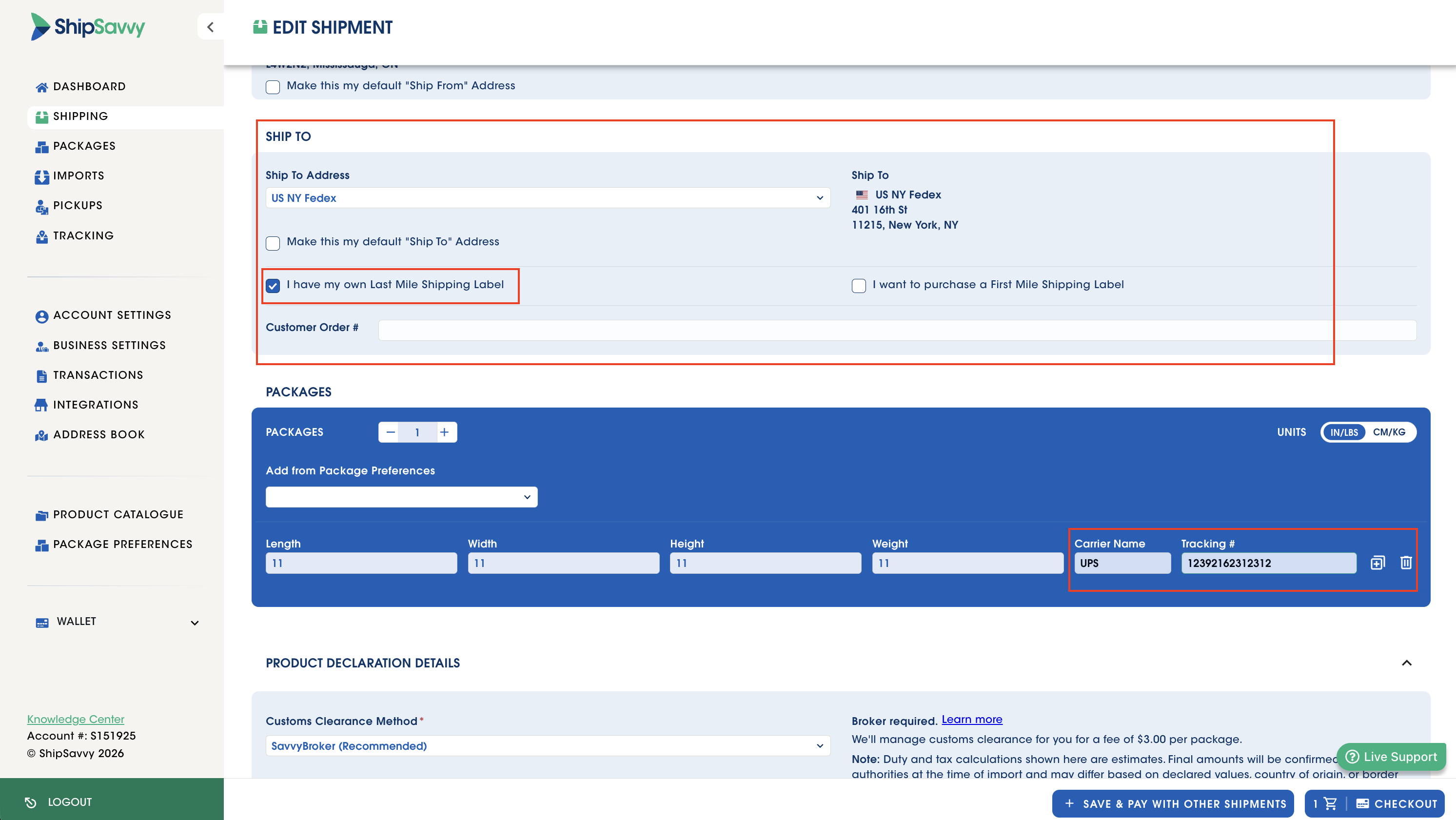
Choose your customs clearance
Customs clearance is the paperwork step that lets your package legally cross the border. Pick who handles it from the Customs clearance dropdown:
- Savvy broker: ShipSavvy takes care of it for you.
- Customer's broker: your own broker handles it.
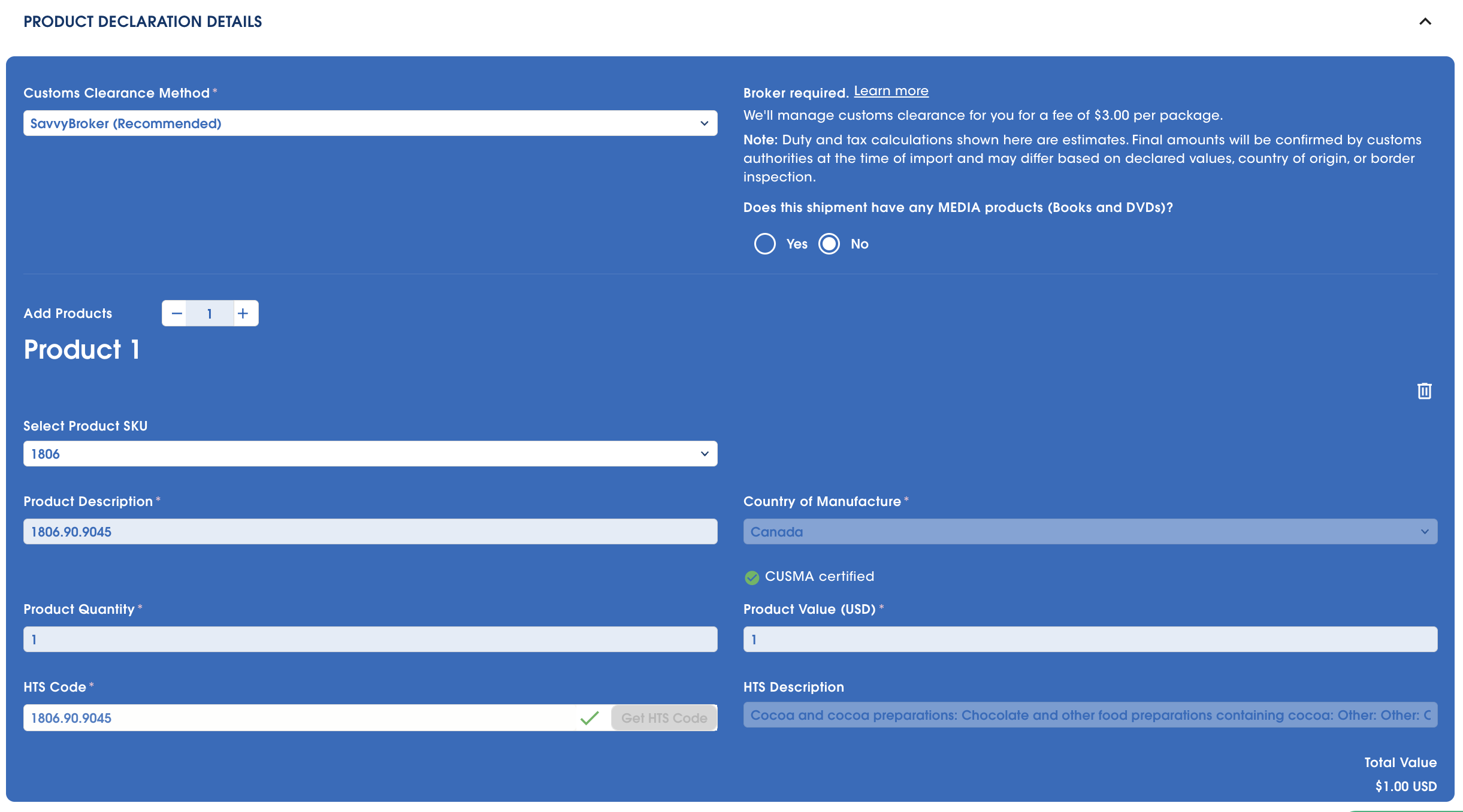
Add your product information
- Choose a product from your product catalog (the easiest option), or type in a description yourself.
- Enter the 10-digit HTS code for each product. Not sure what it is? Click Get HTS code and we'll suggest one. Just review it and confirm it looks right.
Claim a reduced tariff (if it applies)
If your product was made in the United States or Canada, you'll see a Country of origin checkbox. Checking it claims a lower tariff under the USMCA/NAFTA trade agreement.
Only check it if you have the certificate on hand. You don't need to upload it now, but our broker may ask to see it during clearance.
Review and check out
- Review your shipment, then click Save or Checkout.
- At checkout, you'll see an estimate of duties and taxes and a breakdown of the brokerage fee, so there are no surprises.
- Confirm and submit.
Good to know (single shipments)
- With DEL, you provide the last-mile label. ShipSavvy handles the border crossing and passes your package to the carrier.
- Only weight is needed. Dimensions aren't required.
- A 10-digit HTS code is required for customs, unless you use a catalog product or the Get HTS code button.
- Accurate tracking numbers let us detect and scan your package when it arrives.
Create DEL shipments in bulk
Shipping a lot of packages? A bulk upload lets you create them all at once with a spreadsheet template.
Start a bulk import
- Go to the Shipping page.
- Click +UPLOAD SHIPMENTS.
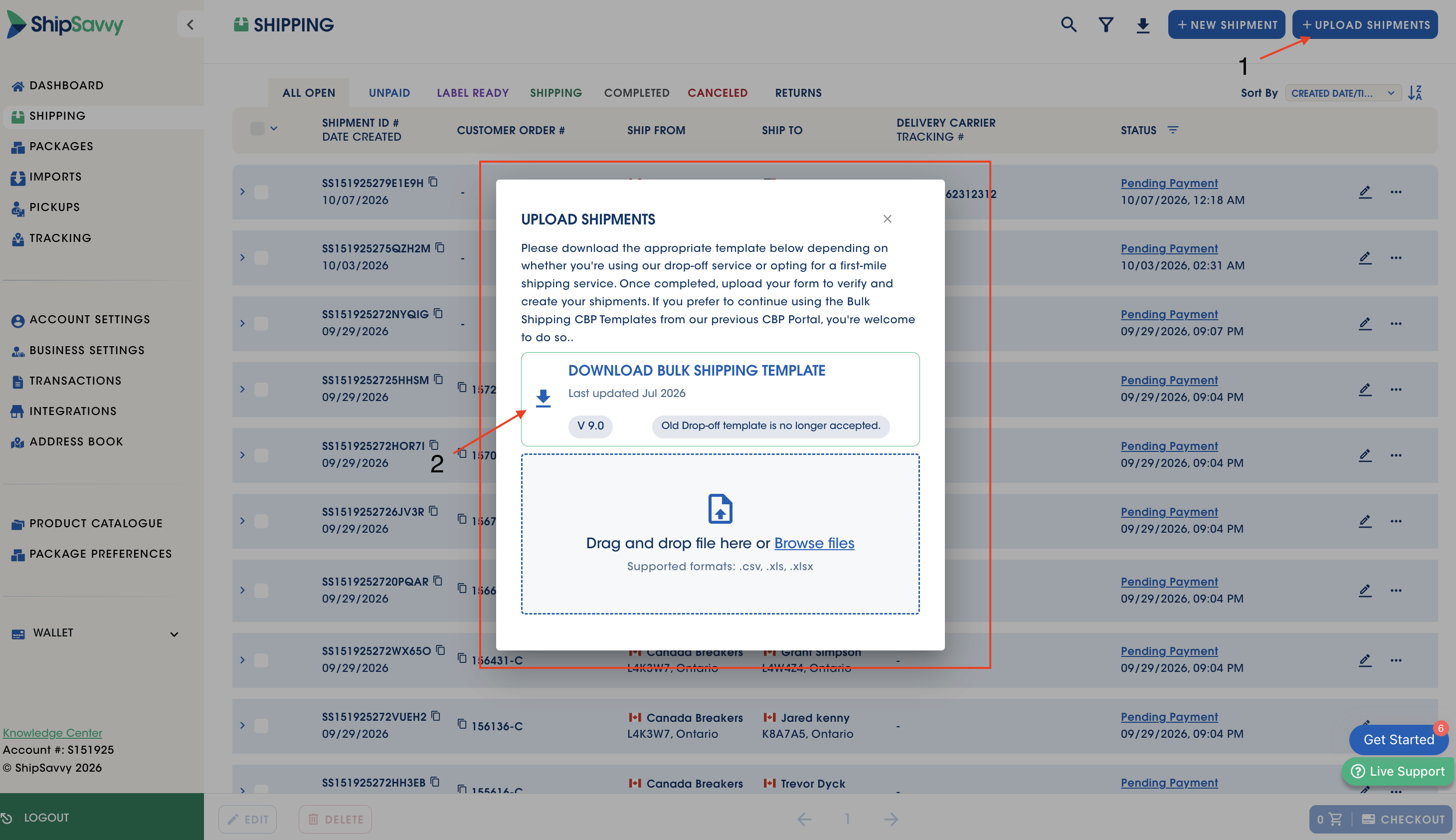
Fill in the template
Add one row per shipment with the following:
- Ship-from location
- I have my own last-mile label details
- Carrier name
- Tracking number (please double-check it)
- Weight
- Customs clearance method (Savvy broker or customer's broker)
- Product description and 10-digit HTS code
Add your label files (First-mile template only)
If you're using the First-mile template, upload the last-mile label file for each row, as the template asks. We'll apply them when we process your shipments.
Upload your completed template
- Upload your finished template in the bulk upload area.
- Click Upload.
Review the results
We'll check your file and flag anything that needs attention, such as a missing tracking number, an invalid HYS code or an empty required field. Fix anything on the list and upload the file again.
Submit your import
Once everything looks good, submit it. ShipSavvy creates each DEL shipment for you.
Quick tips
- Verify your tracking numbers before saving. Accurate numbers mean automatic scans and status updates.
- Use product catalog items so descriptions and HTS codes fill in for you.
- Not sure about an HTS code? Use Get HTS code, then review the suggestion before you save.
- Bulk import is the fastest way to handle many shipments. Just pick the right template (Drop-off or First-mile).
- Want to pay duties up front (DDP) and have ShipSavvy buy the last-mile label for you? Leave I have my own last-mile label unchecked. That's a different shipping flow.
Troubleshooting and help
My bulk upload shows errors. Check the list for missing or invalid tracking numbers, HTS codes or required fields. Fix them in your template and upload it again.
I can't find the DDP option. It isn't available for DEL shipments. See the last quick tip above for the flow that includes it.
I'm not sure which template to use. Use Drop-off if you'll bring packages to one of our locations, and First-mile if you'll ship them to us from your own address.
Was this article helpful?
That’s Great!
Thank you for your feedback
Sorry! We couldn't be helpful
Thank you for your feedback
Feedback sent
We appreciate your effort and will try to fix the article